
Remember me




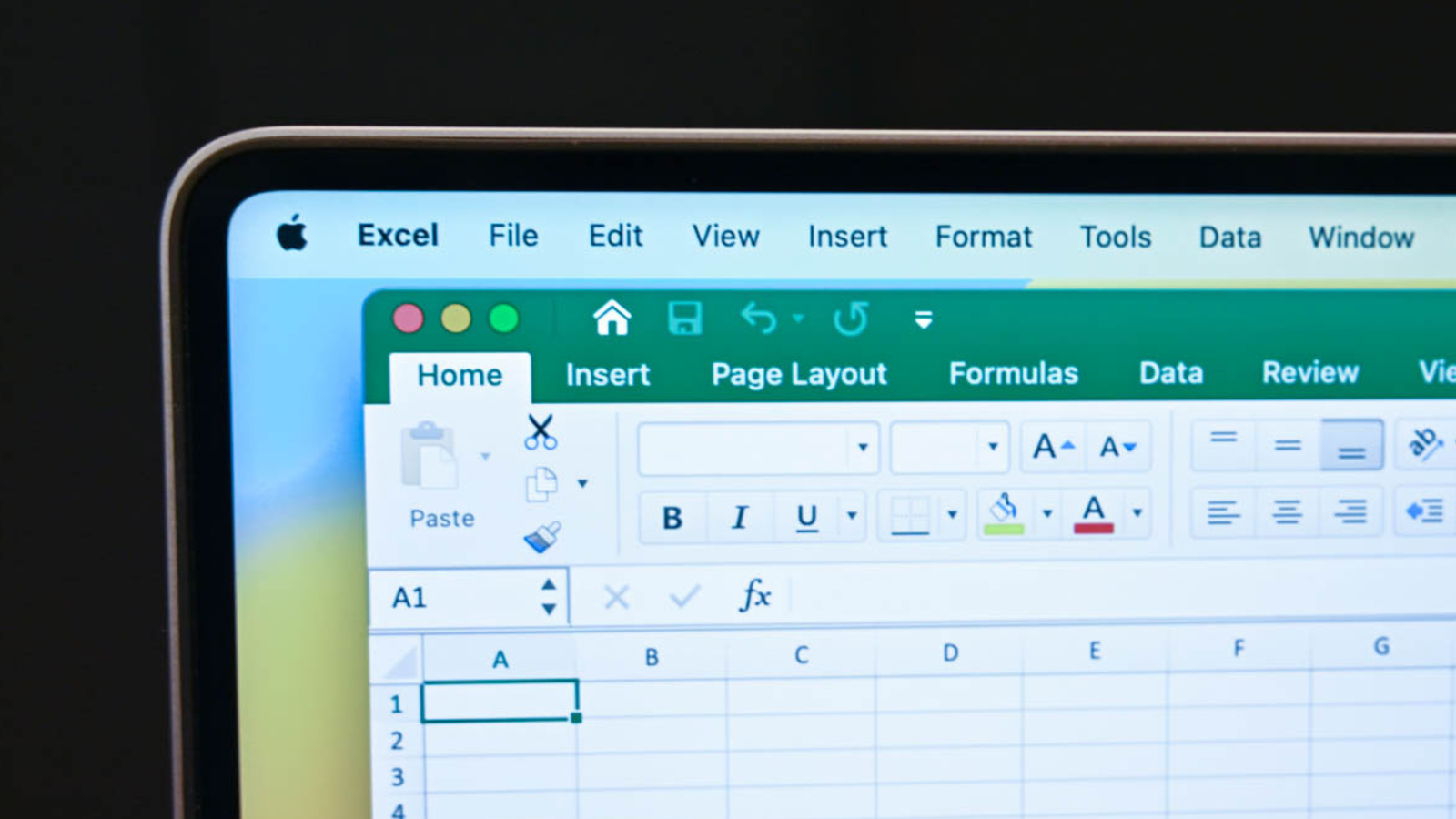





If you've spent some time in Excel, you've probably noticed a little paintbrush icon sitting near the top-left corner of your screen. It's possible you've even clicked it by accident without noticing anything happen. That used to be my approach, too.
This unassuming button is one of the most overlooked tools in Excel, which is a shame because it's also one of the biggest time-savers for anyone who spends hours formatting spreadsheets. If you regularly revamp large datasets, it's well worth learning what this button does.
 Related
How Format Painter works
Copy the look of any cell without copying what's inside it
Related
How Format Painter works
Copy the look of any cell without copying what's inside it
 Screenshot by Ada
The paintbrush button near the top-left corner of the Home tab is called Format Painter, and it lives in the Clipboard group. Think of it as a copy-and-paste button, but exclusively for formatting. It copies the look of a cell, or even a shape, image, or AutoShape, and applies that formatting somewhere else without affecting the data or value in the destination cell.
Format Painter copies font color, font size, font style, cell shading, border styles, and almost anything else that affects appearance. Just as importantly, it leaves the contents alone. Values, formulas, and text stay exactly where they are. You're not duplicating information, just copying the way it looks.
There are two ways to use it. First, if you want to copy the formatting from one cell to another as a one-time job, select your source cell, click the Format Painter once, and then click the cell you want to match. Once the formatting is applied, the tool switches itself off automatically.
Alternatively, if you want to apply the same formatting to multiple non-adjacent cells, you must double-click Format Painter instead. After selecting your source cell, double-click the button to apply the formatting to as many cells as you want, even if they're scattered across different parts of the worksheet, without having to reselect the tool each time. When you're finished, press the Escape key or click the Format Painter button again to turn it off.
Using Format Painter like a pro Keyboard shortcuts, smarter workflows, and a few gotchas to watch for
Once you've got the basics down, a few refinements can make Format Painter even faster to use. It helps to know when to reach for it and when a simpler tool will do the job.
People often confuse Format Painter with the F4 key, but they solve different problems. F4 just repeats your last action, which is great for something like coloring five separate cells yellow, one at a time. Format Painter, on the other hand, copies an entire formatting profile in one go, including fonts, colors, borders, and more. If you're copying a more complex style, reach for the paintbrush. If you're only repeating a single change you've just made, F4 is the quicker option.
If you prefer to keep your hands on the keyboard, there are a few Excel keyboard shortcuts worth learning. Pressing Alt + H + F + P activates Format Painter directly from the ribbon, though using the arrow keys afterward can sometimes cancel the tool before you've applied the formatting. You can also copy a cell with Ctrl + C, then press Alt + H + V + R to paste formatting only, leaving the underlying content untouched. Another option is Ctrl + Alt + V, followed by T and Enter, which opens Paste Special with formatting preselected. On some Microsoft 365 builds, Alt + Ctrl + C and Alt + Ctrl + V will even copy and paste formatting directly, with no menus required. I'm not much of a keyboard shortcut person myself, but if you are, these are the ones worth learning to get the most out of this feature.
It's also worth knowing where Format Painter can cause you headaches. Conditional formatting is one example. Excel often locks onto absolute references, such as $A$1, so copied formatting can point back to the original source cell instead of adjusting to the new data. If the double-click lock feature refuses to cooperate, your mouse settings are usually to blame; try slowing the double-click speed in your Windows settings page. Third-party clipboard managers for Windows or other operating systems can also interfere, sometimes preventing the paintbrush cursor from appearing altogether, so it's worth disabling them temporarily if you run into that issue. Finally, if you're trying to select multiple non-contiguous cells by holding Ctrl, that shortcut doesn't work with Format Painter. In that situation, the double-click lock is your only option.
A small tool that saves big timeOnce you start using Format Painter, it's hard to imagine formatting spreadsheets without it. It takes one of the most repetitive parts of working on a spreadsheet and turns it into a couple of clicks, which is why it’s one of Excel’s most useful copy-and-paste features for formatting.
Once you've mastered the single-click and double-click modes and know when to use F4 instead, you'll spend far less time rebuilding the same formatting cell by cell and more time focusing on your data.