
Remember me
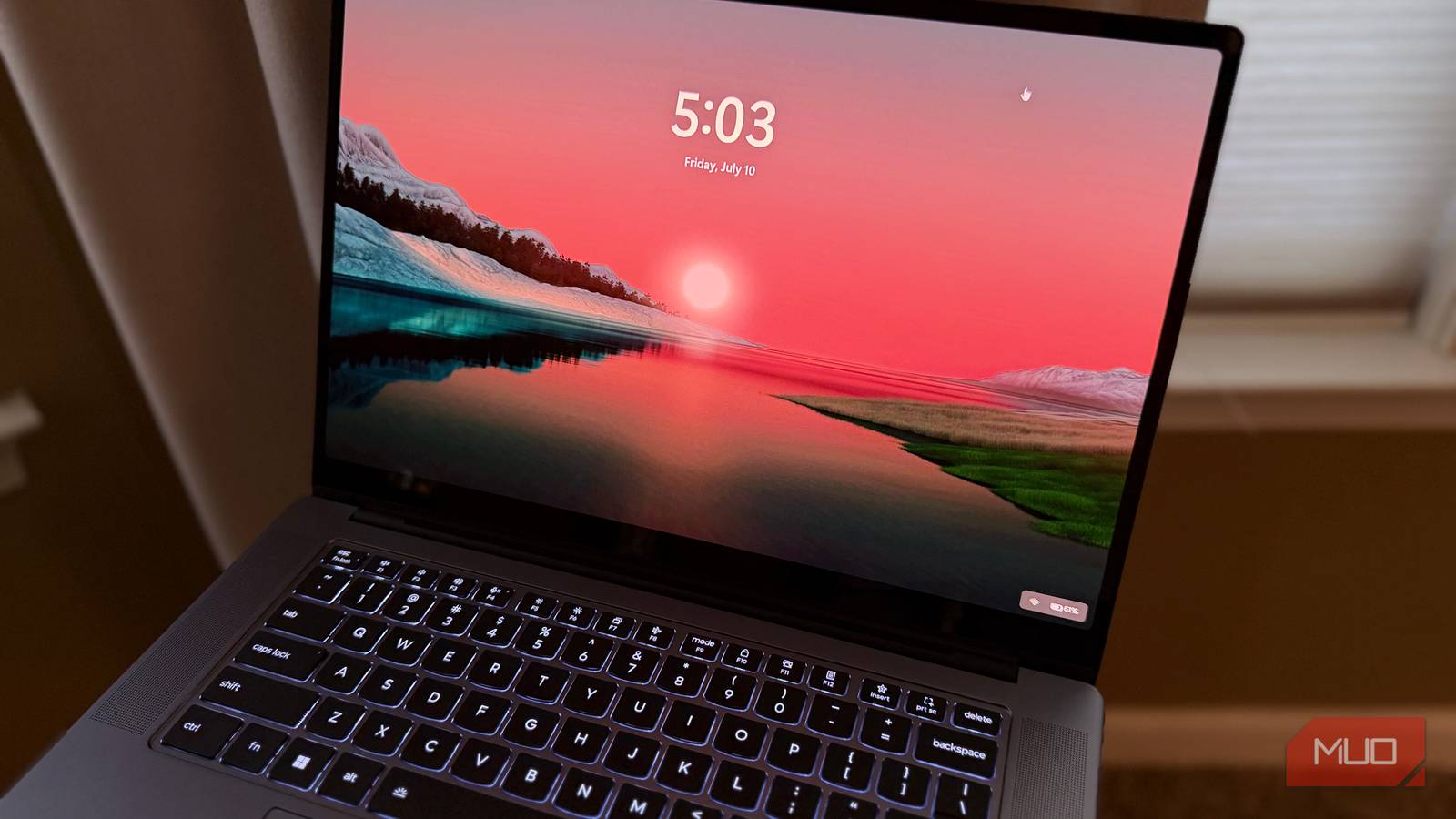
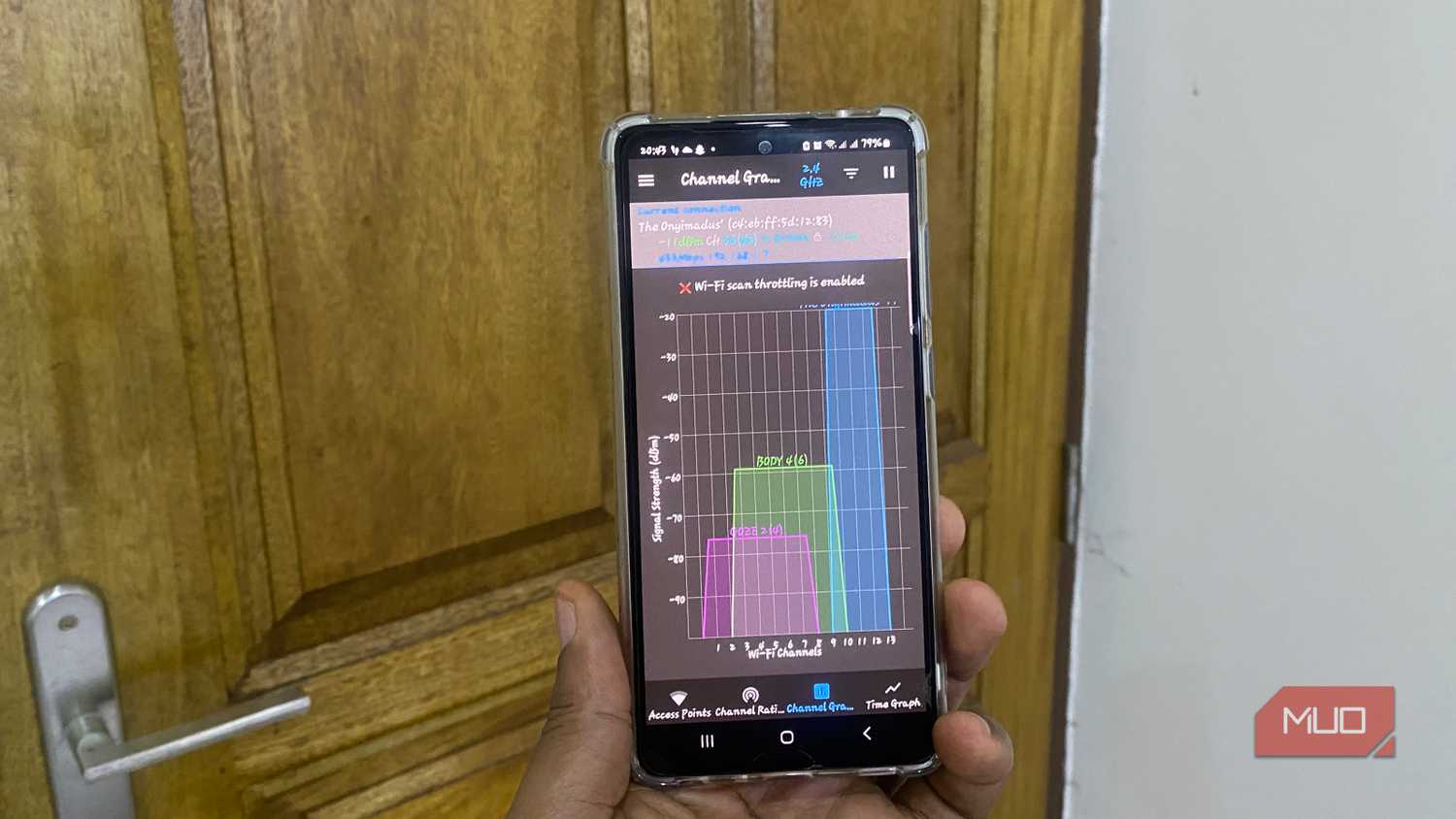
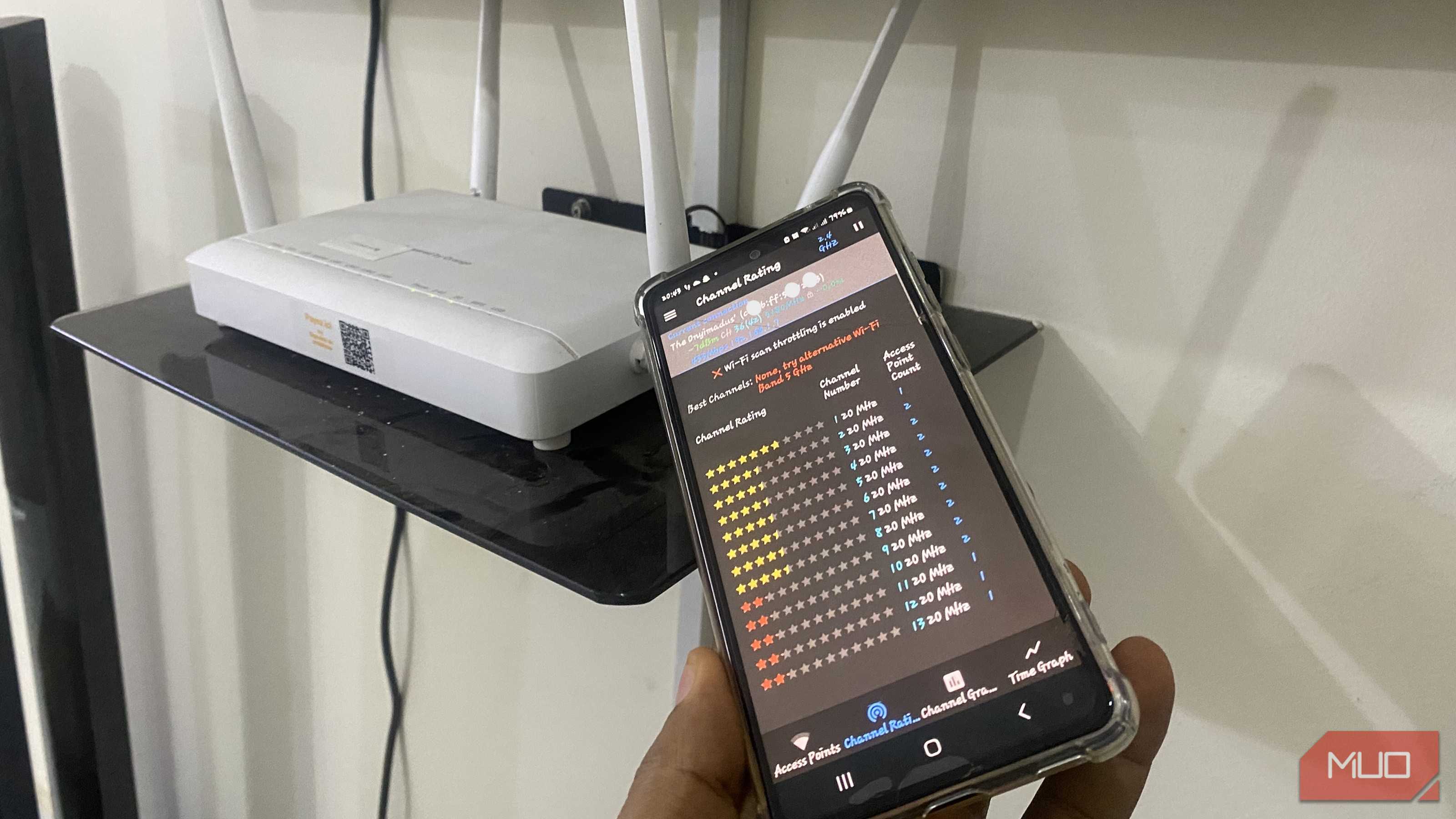
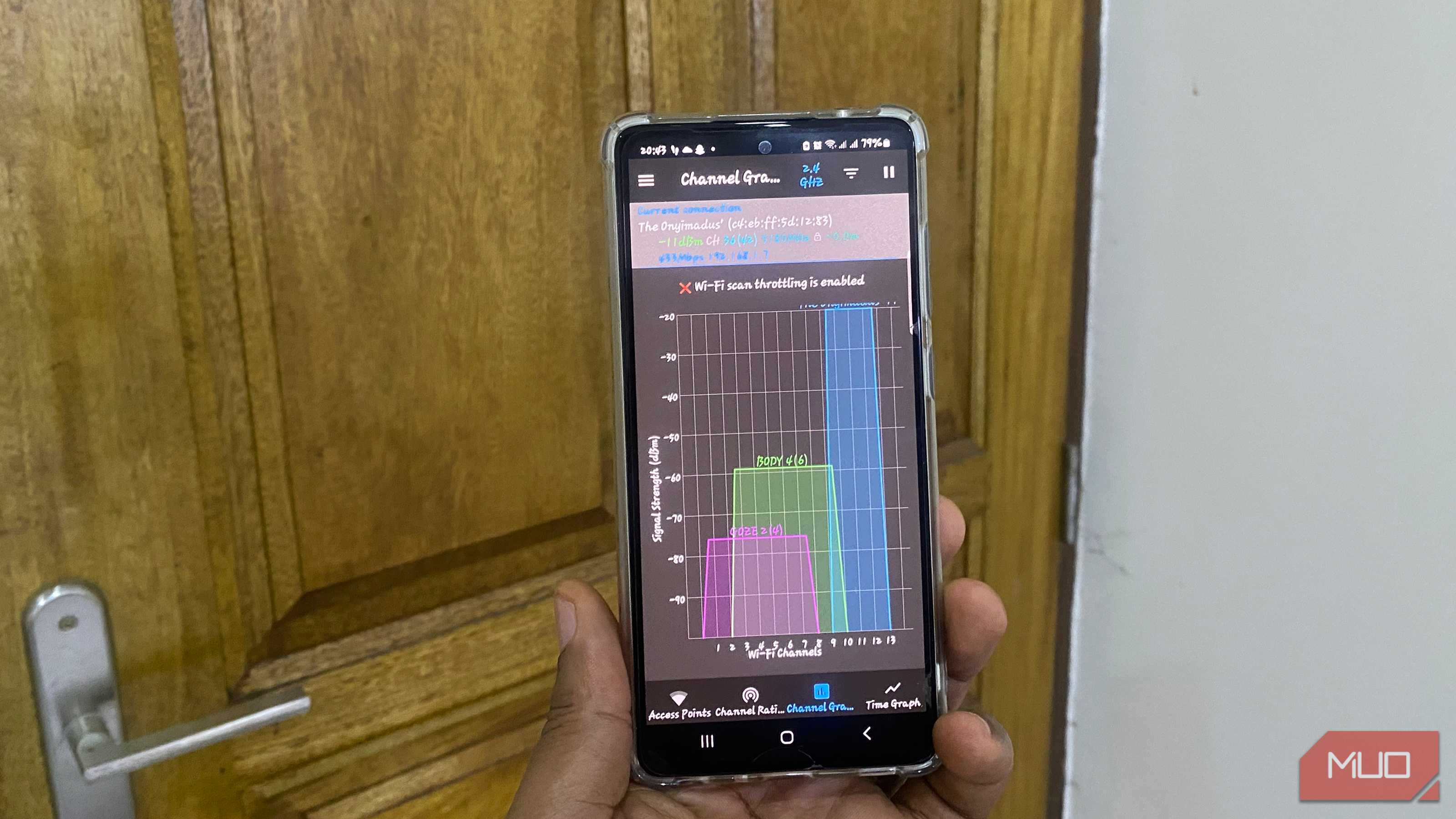
Your router isn’t the only one in the building or neighborhood. Every home around you probably has one too, and that means they’re all fighting over the same 5GHz channels. That's just how routers are set up out of the box.
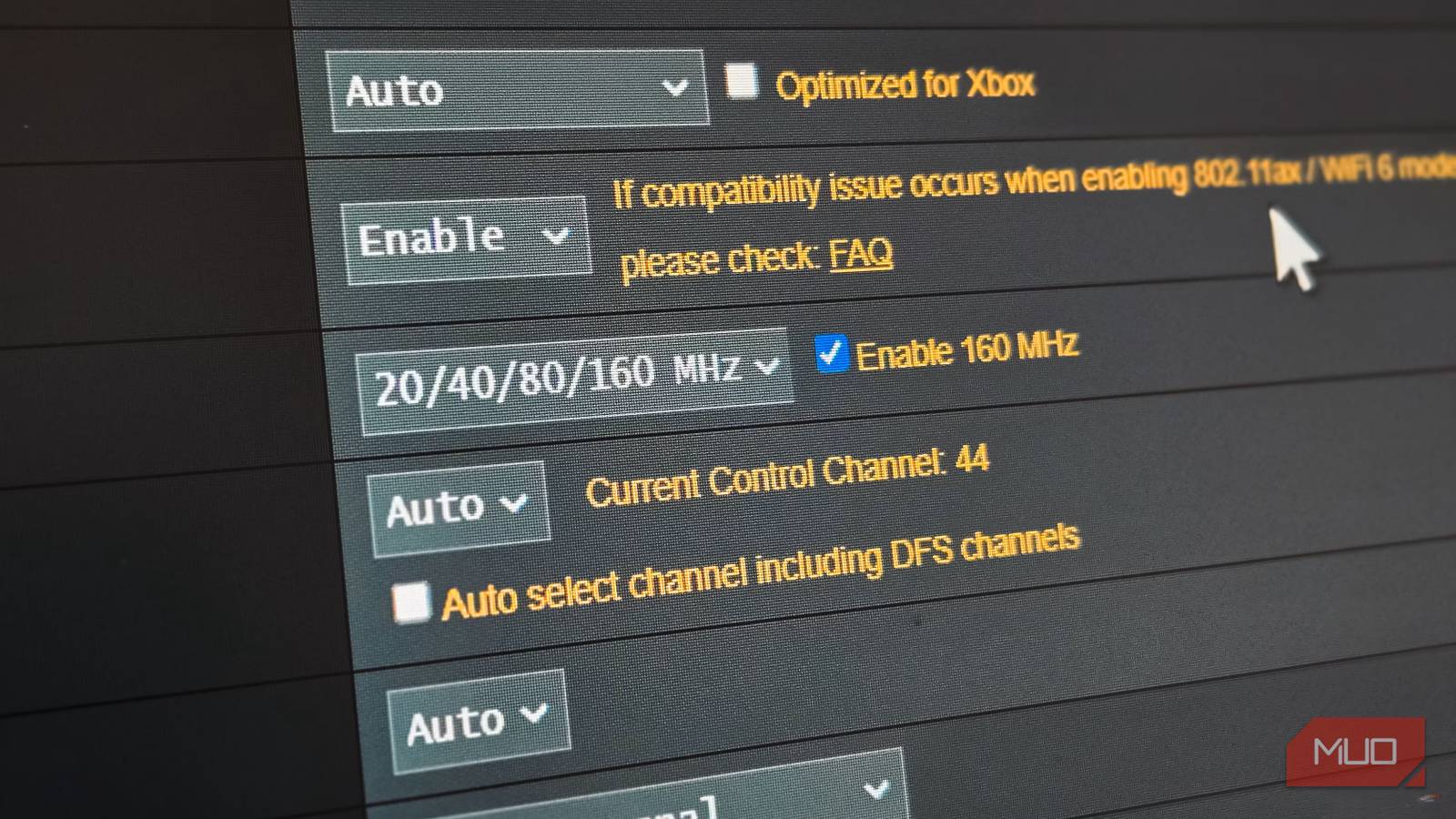
The fix, though, is simple. Enable DFS (Dynamic Frequency Selection), and your router will be able to tap into faster Wi-Fi channels that most of your neighbors aren’t using. I did exactly that, and my router started delivering more consistent speeds and the 160MHz channel width it had been promising on paper this whole time.
 Related
DFS unlocks Wi-Fi channels your router may be ignoring
More channels, less chaos
Related
DFS unlocks Wi-Fi channels your router may be ignoring
More channels, less chaos
 Tashreef Shareef / MakeUseOfCredit: Tashreef Shareef / MakeUseOf
Your router's 5GHz band has more channels than it's probably using. By default, most routers stick to a small set of "safe" channels like 36, 40, 44, and 48 on the lower end, and 149 through 161 on the upper end. And that means they're skipping over a much larger chunk of spectrum sitting right in the middle: channels 52 through 144. That's a total of 16 channels spread across what's called the UNII-2A and UNII-2C (UNII-2e) bands.
It’s not like these channels aren’t available. They are, but there’s a catch. That portion of the 5GHz spectrum is shared with radar systems: weather, military, and aviation. So to use those channels, your router has to play by a specific set of rules called Dynamic Frequency Selection (DFS).
Most importantly, DFS gives you access to channels most of your neighbors aren’t touching. On channels ranging from 100 to 144, specifically, there’s almost always less interference because most routers never go there. So when you use those channels, your router doesn’t have to constantly fight for airtime.
DFS is also necessary if you’ve enabled 160MHz channel width. A true 160MHz block spans eight contiguous 20MHz channels, and those wider spans almost always cross into DFS territory. Yes, you can technically enable 160MHz without DFS, but if you do, your router will most likely fall back to 80MHz without you even noticing.
Enabling DFS on your router only takes a few clicks Unlocking faster channels your router promised
Enabling DFS isn’t too different from enabling more channels on your router, though the exact steps can vary depending on the router. To do it, type in 192.168.0.1 or 192.168.1.1 in the browser’s URL bar and hit Enter. Then, type in your admin username and password to get in and head to the wireless section.
Expand the 5GHz section and look for the DFS toggle or a checkbox that says Auto select channel including DFS channels. On some routers, you may have to head to the Advanced Wireless Settings to look for the menu that includes DFS channels. In any case, it’s not too difficult to find.
You won’t see this option on every router, though. That’s because adding DFS means your router manufacturer has to get extra certifications, so if you don’t see it, that’s probably why.
DFS isn’t without its drawbacks There’s a reason it’s off by default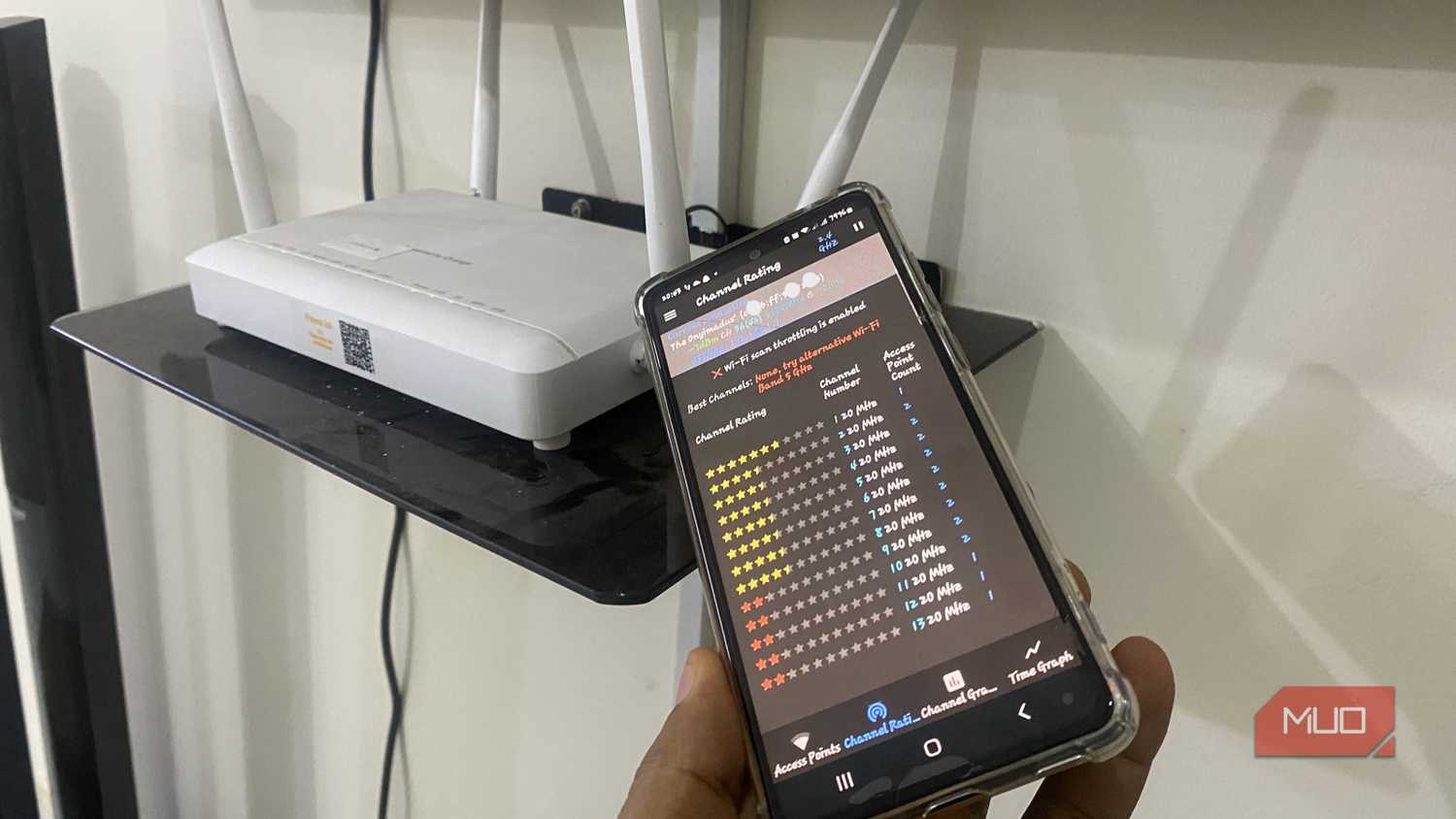 Afam Onyimadu / MUO
 Afam Onyimadu / MUO
 Yadullah Abidi / MakeUseOfCredit: Yadullah Abidi / MakeUseOf
 Robin John / MakeUseOf
 Tashreef Shareef / MakeUseOfCredit: Tashreef Shareef / MakeUseOfClose
 Afam Onyimadu / MUO
 Afam Onyimadu / MUO
 Yadullah Abidi / MakeUseOfCredit: Yadullah Abidi / MakeUseOf
 Robin John / MakeUseOf
 Tashreef Shareef / MakeUseOfCredit: Tashreef Shareef / MakeUseOf



DFS isn’t all sunshine and rainbows. There’s a reason why it comes disabled on most routers. The biggest one is mid-session drops. DFS means more channel options for your router, which sounds great. But the thing is, if your router detects any radar activity on those higher channels, it has to vacate them immediately.
This can cause your devices to lose the connection for a brief period until the router switches to a clear channel. Of course, this isn't ideal, especially when you’re in the middle of a video call or gaming. DFS also isn't a great idea for anyone living near an airport, weather station, or military base because the radar activity is far more frequent there.
The other issue is the startup delay. Any time you reboot the router with DFS enabled, it has to run something called Channel Availability Check. This is mandatory, and there’s no way to skip it. This whole check can take anywhere from one to ten minutes, and during that entire window, your devices are stuck on 2.4GHz. If you often face power cuts or prefer to reboot the router for maintenance, this can get frustrating fast.
Still, for most users in typical home environments, I'd say DFS is worth experimenting with. If you’re not near any radar sources, the mid-session drops may never happen at all. Also, the startup delay is something you can easily deal with. What you will get in return is less congested channels, more stable speeds, and actually usable 160MHz width. These things make DFS worth it for me.