
Remember me


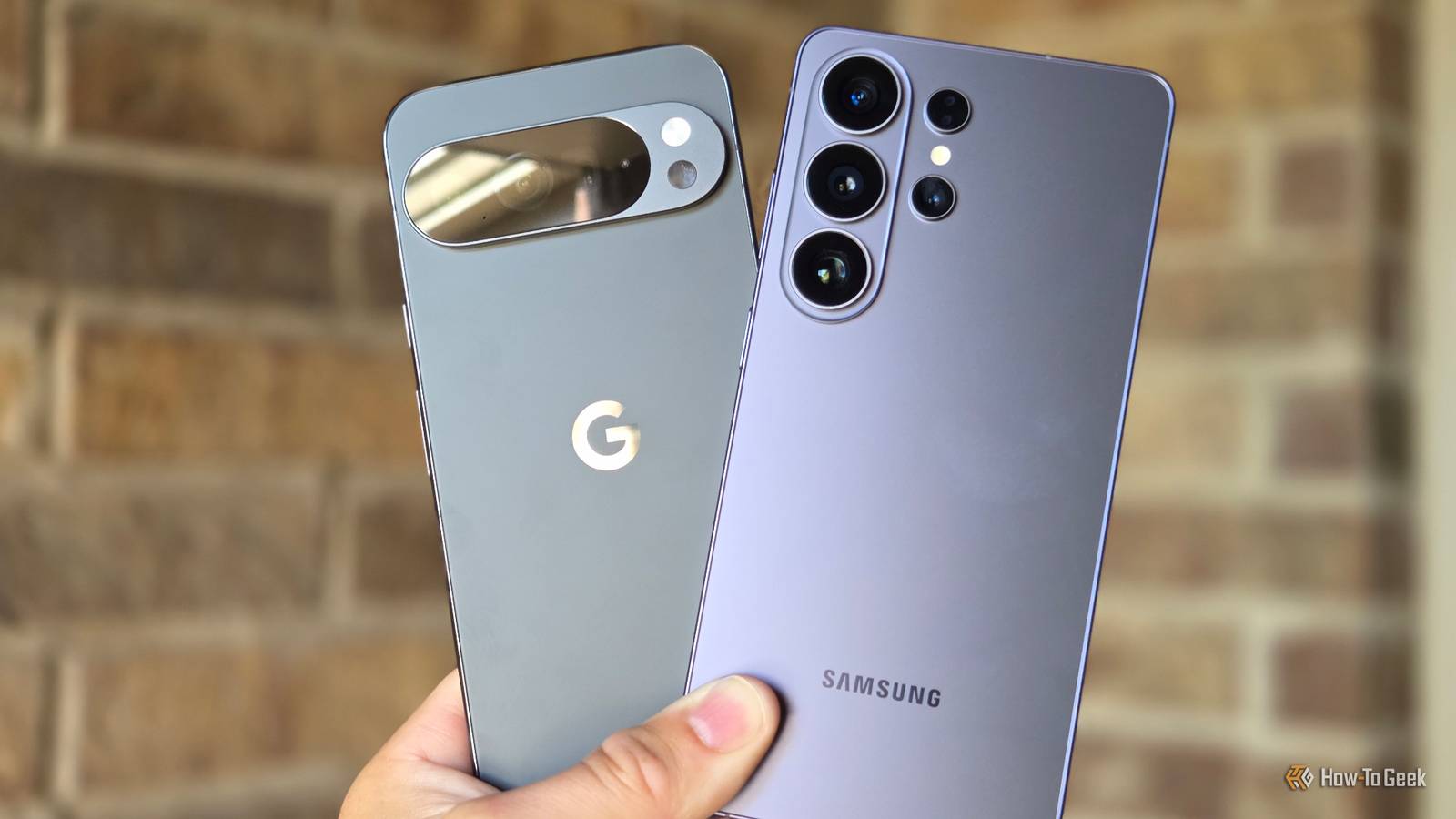



We all use our phones for navigation when we need to get from one place to another, and that includes places we probably should know how to get to on our own. As a result, I have started using contact integration in Google Maps whenever I visit family and friends. It's so much easier than typing.
Access your contacts in the Google Maps appAs you may not be aware, contact integration with Google Maps is not enabled by default. That means the app does not know your contacts' addresses and will not suggest them when you type a contact's name as a destination.
 Credit: Nathaniel Pangaro / How-To Geek | Samsung
The reason for this is privacy. By default, apps cannot access information they do not need to function without your permission.
While contact integration is a useful feature, it is not required to use the core navigation features of Google Maps. This results in the feature not being on by default, with the addition of other apps.
 Credit: Jason Montoya / How-To Geek
Fortunately, enabling it is simple and only takes a few steps. On my phone, I did everything through the Settings app.
First, open the Settings app and select Apps. On my device, this option was located under Device Care.
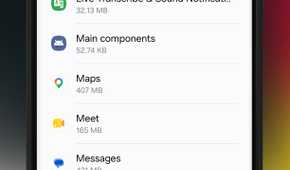
Next, find Maps, which is listed simply as "Maps" with the Google Maps icon next to it. Note that it is not listed as "Google Maps”; look for "Maps" instead.
 Credit: Nathaniel Pangaro / How-To Geek | Samsung
 Credit: Nathaniel Pangaro / How-To Geek | Samsung
 Credit: Nathaniel Pangaro / How-To Geek | Samsung
 Credit: Nathaniel Pangaro / How-To Geek | Samsung
 Credit: Nathaniel Pangaro / How-To Geek | SamsungClose
 Credit: Nathaniel Pangaro / How-To Geek | Samsung
 Credit: Nathaniel Pangaro / How-To Geek | Samsung
 Credit: Nathaniel Pangaro / How-To Geek | Samsung
 Credit: Nathaniel Pangaro / How-To Geek | Samsung
 Credit: Nathaniel Pangaro / How-To Geek | Samsung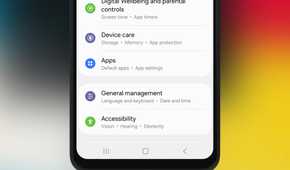
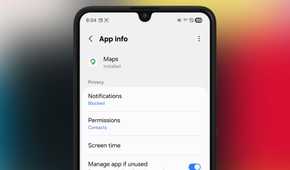
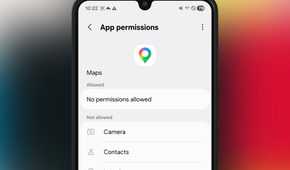

After you tap the app, look for the Permissions section, which on my device was located below Notifications. From there, select Contacts. The permissions are listed alphabetically, so Contacts should appear near the top of the list.
Selecting Contacts opens the permission settings for the app and gives you two options: Allow or Don't allow. Select Allow to let Google Maps access your contacts and integrate their saved addresses into the app.
However, there is one more setting you need to toggle in the Google Maps app.
 Credit: Nathaniel Pangaro / How-To Geek | Samsung
In the app, tap your profile picture in the upper right of the screen, scroll down to Settings, tap Location and privacy, and then scroll down to the Other account settings section. There, you will see a toggle next to Google Contacts that you need to switch on.
After doing all of this, you can type in a contact's name, and their saved address will appear right away. You no longer have to remember or type in the full address. Just search for their name, select the destination, and get on your way.
Why I love this integration Less time on the phone and more time on the roadThe main reason I grant Google Maps access to my contacts is convenience. Doing so means I don’t have to remember multiple addresses and only need to remember the person’s name connected to it.
 Credit: Nathaniel Pangaro / How-To Geek | Samsung
Remembering street addresses today is much like remembering phone numbers—most people rarely do it anymore. That information is already stored in the Contacts app, so it is always accessible, meaning you do not need to memorize it like you would in the past.
This also eliminates the risk of entering the address incorrectly. I always fear that I am entering the incorrect address from memory and will be navigated to the wrong location, but by just typing or saying the person’s name, I know I am going to the right place.
 Credit: Nathaniel Pangaro / How-To Geek
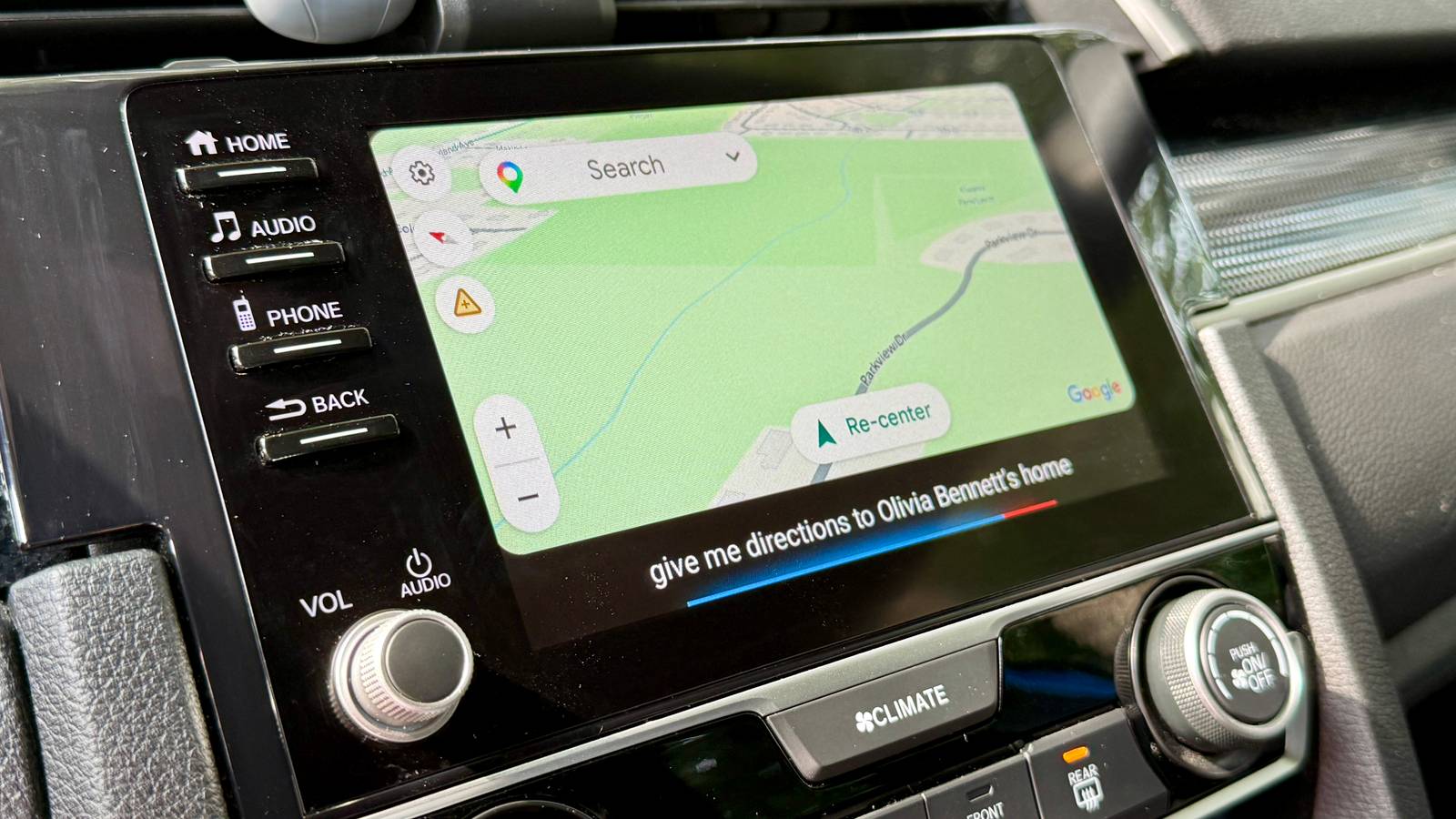
Additionally, while integrating contacts into Google Maps is handy on my phone, I find it more beneficial when using it with Android Auto.
When driving, it is important to keep your hands on the wheel and your eyes on the road. If you have to look up an address or type it in, you probably aren’t doing that.
 Credit: Nathaniel Pangaro / How-To Geek | Samsung
If you are parked, you can type the person’s name into the search field for easy access, since it will appear at the top. On the other hand, if you are driving and need directions, you can use your voice by just saying the person’s name.
However, while the voice feature is my preferred way to get directions, I found that it does not work with Gemini, as the AI assistant is positioned to be conversational and lacks integration with your contact data. To solve this, before I start to drive, I switch to Google Assistant so I can say the person’s name and get directions, since it has access to my contacts.
 Credit: Nathaniel Pangaro / How-To Geek | Samsung
But safety is not the only benefit. It also helps me stay on the road rather than on my phone to get directions, which in turn helps my ETA.
Previously, if I needed directions, I would have to pull over, look up the address, and manually enter it into Google Maps. Now, I can continue driving and just tell Google to give me directions to that specific person's address without needing to stop or touch my phone.
A better navigational experienceGoogle Maps contact integration has made driving to an unfamiliar location simpler than ever. No longer do I need to remember the exact address of the person, because now I can just say their name and be on my way.
However, it is a shame that it does not work with Gemini yet, especially with how incorporated the feature is with Google services. But it’s safe to bet that it will work one day as the company keeps stepping away from Google Assistant and more into Gemini.
If you hate typing in addresses whenever you try to get to someone’s house, then enabling Google Contacts in the app is a no-brainer. It will make your navigational experience not only better but safer too.