
Remember me
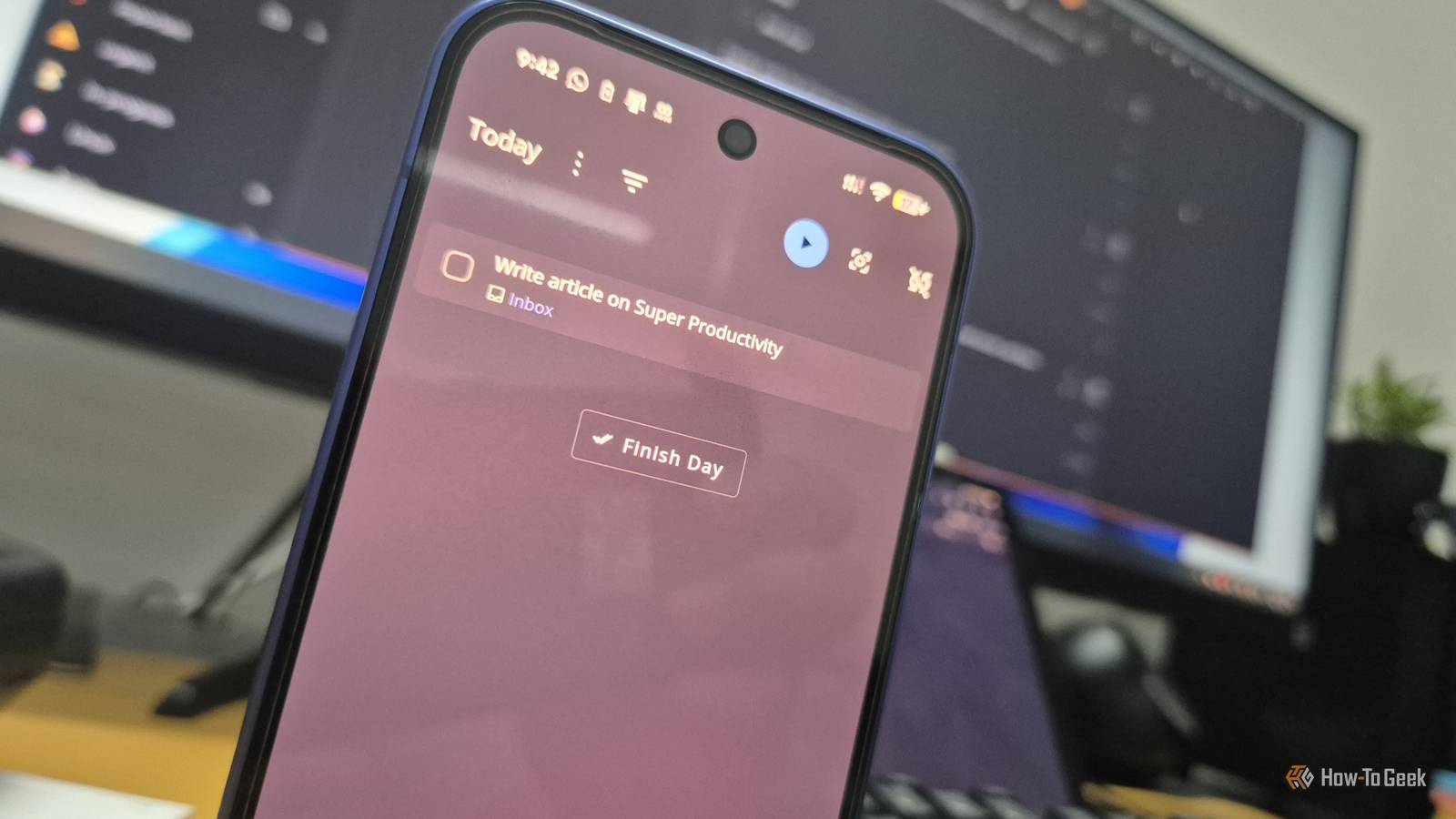


Free and open-source (FOSS) apps are often seen as less capable, hobbyist alternatives to paid professional apps—after all, they're free. However, Super Productivity completely changes that narrative by offering a feature-complete productivity app that can go toe to toe with most paid alternatives. Here's a quick look at everything you get with Super Productivity and how I use it as my main productivity app.
Super Productivity is available on Android, iOS, Windows, Linux, and macOS. It's also available as a web app in case you don't want to install it on your system.
Using Super Productivity as a task manager It’s everything a task manager should be—and then some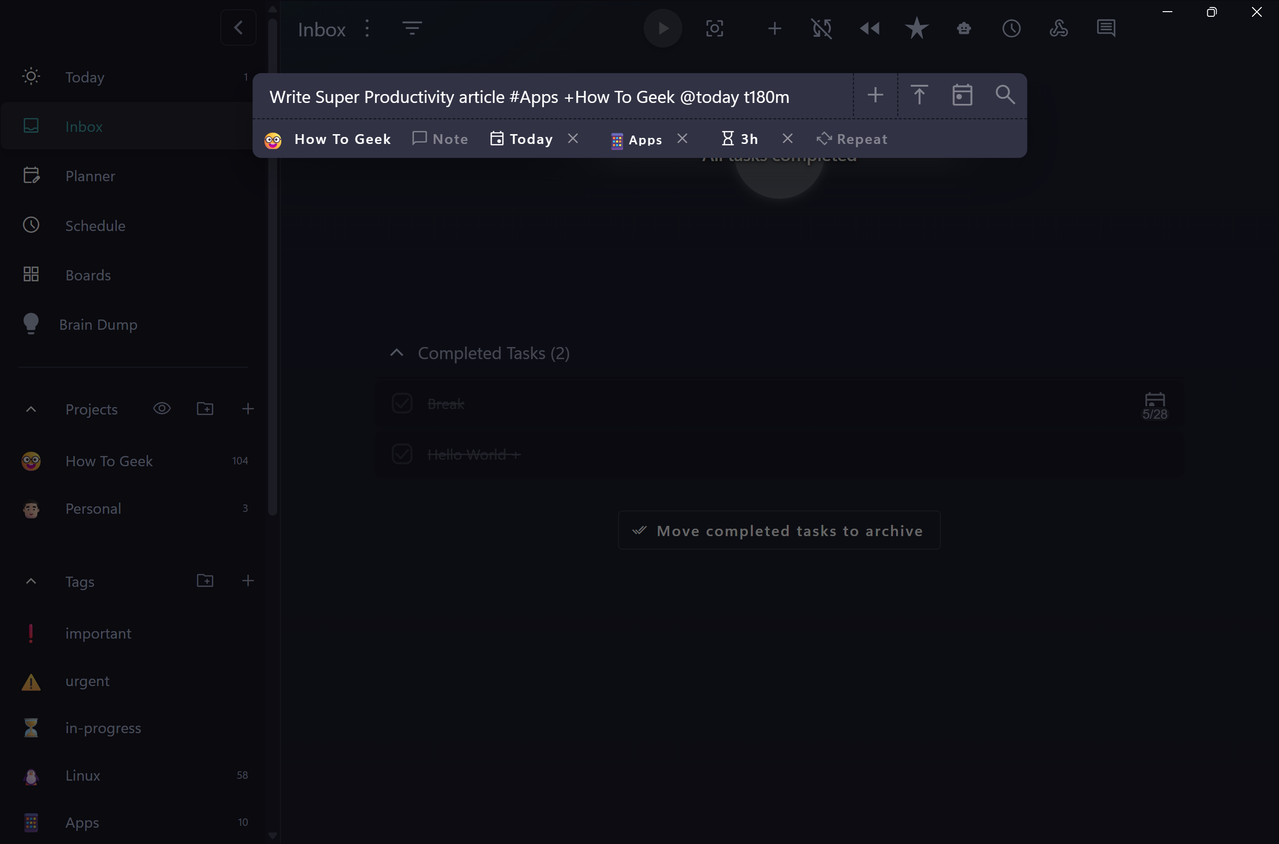
 Close
Close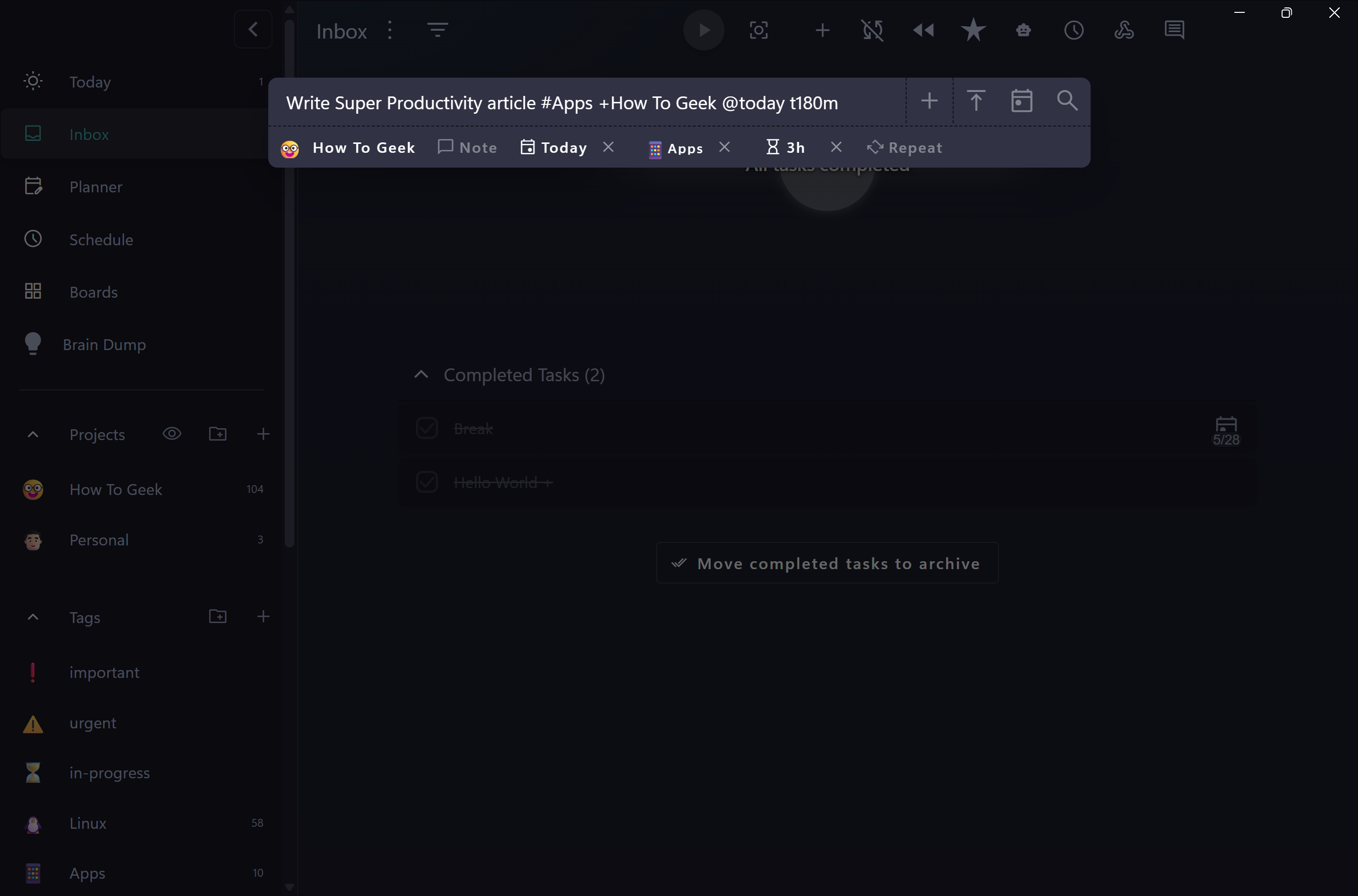
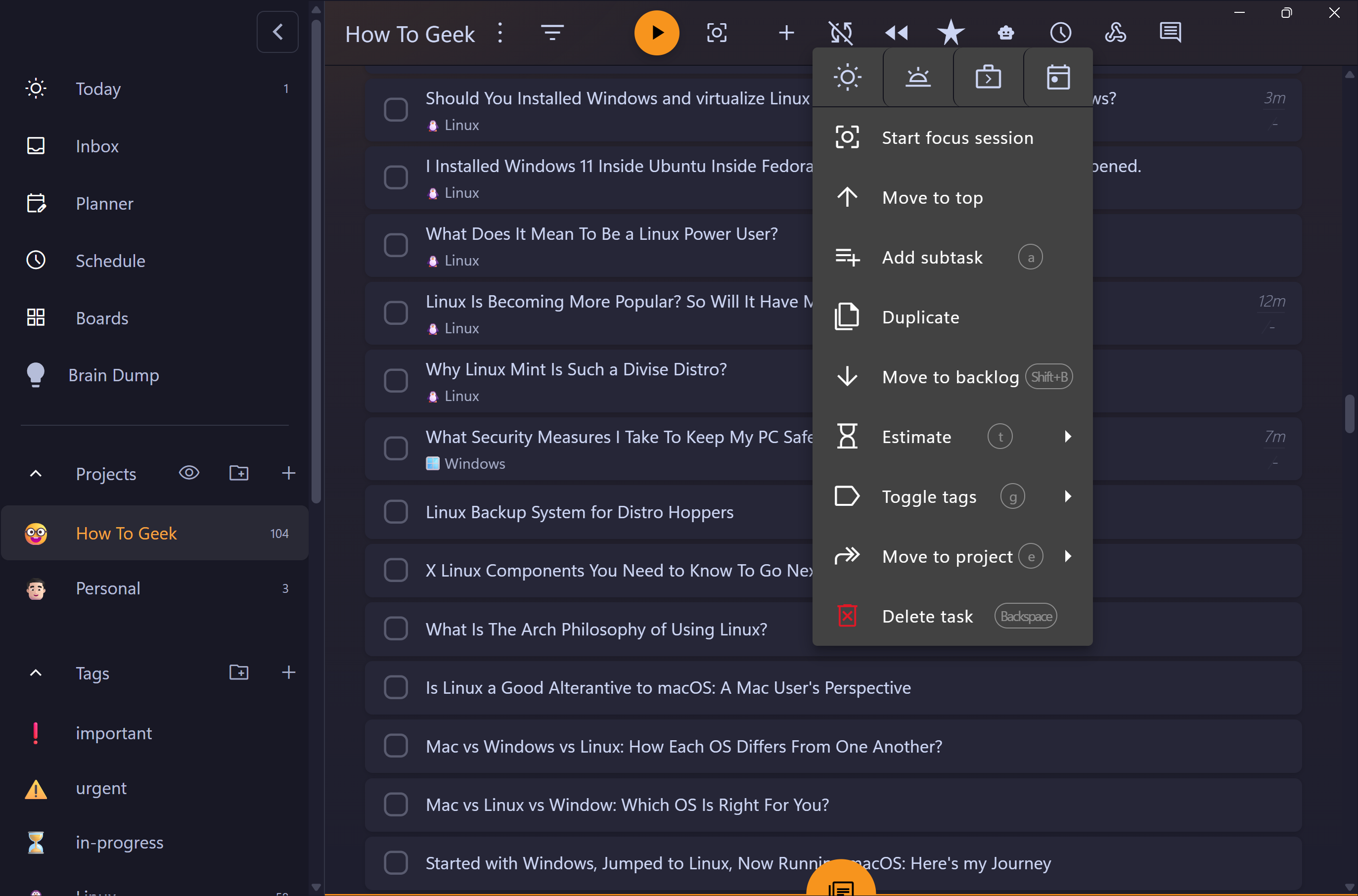
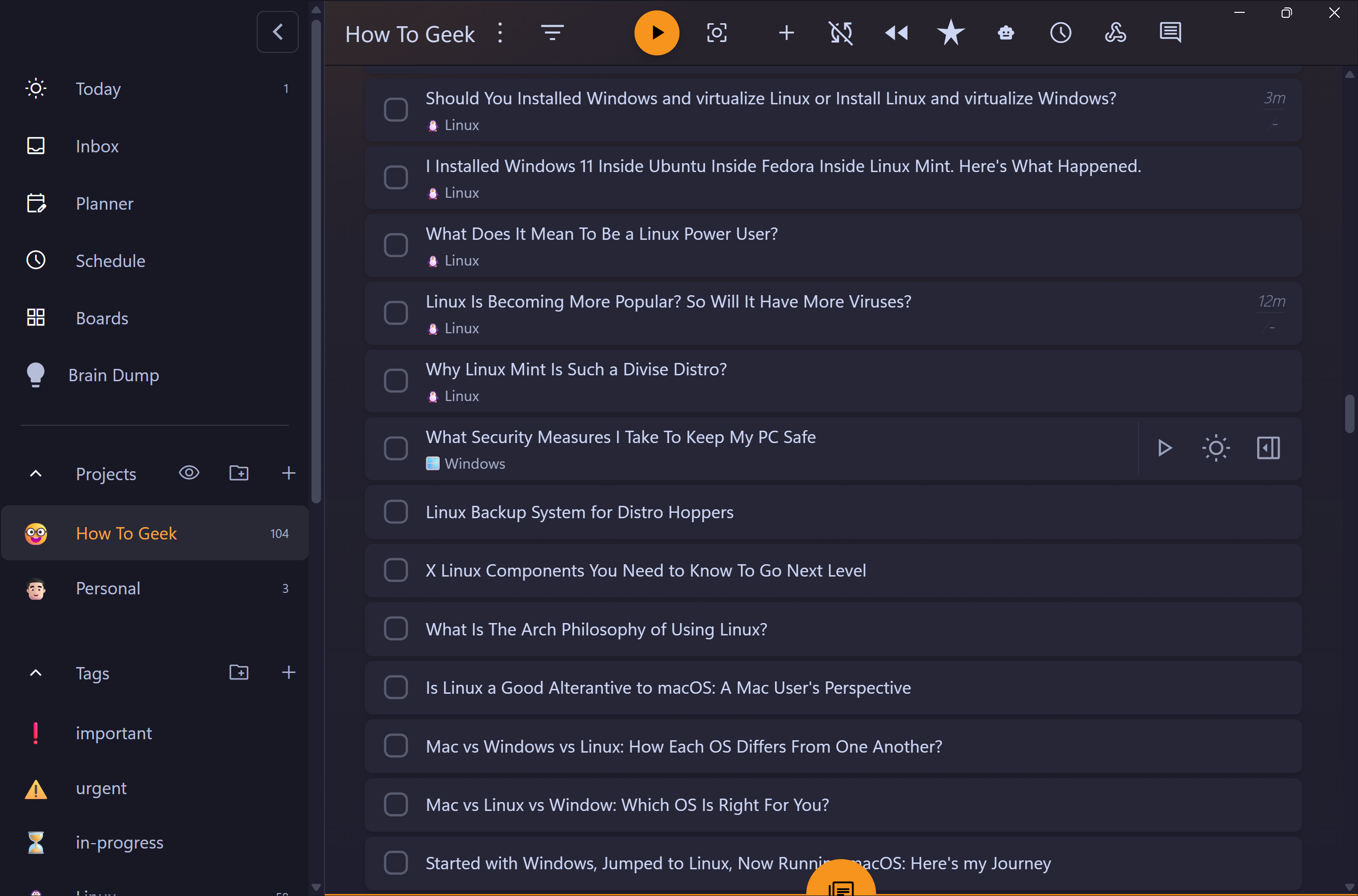
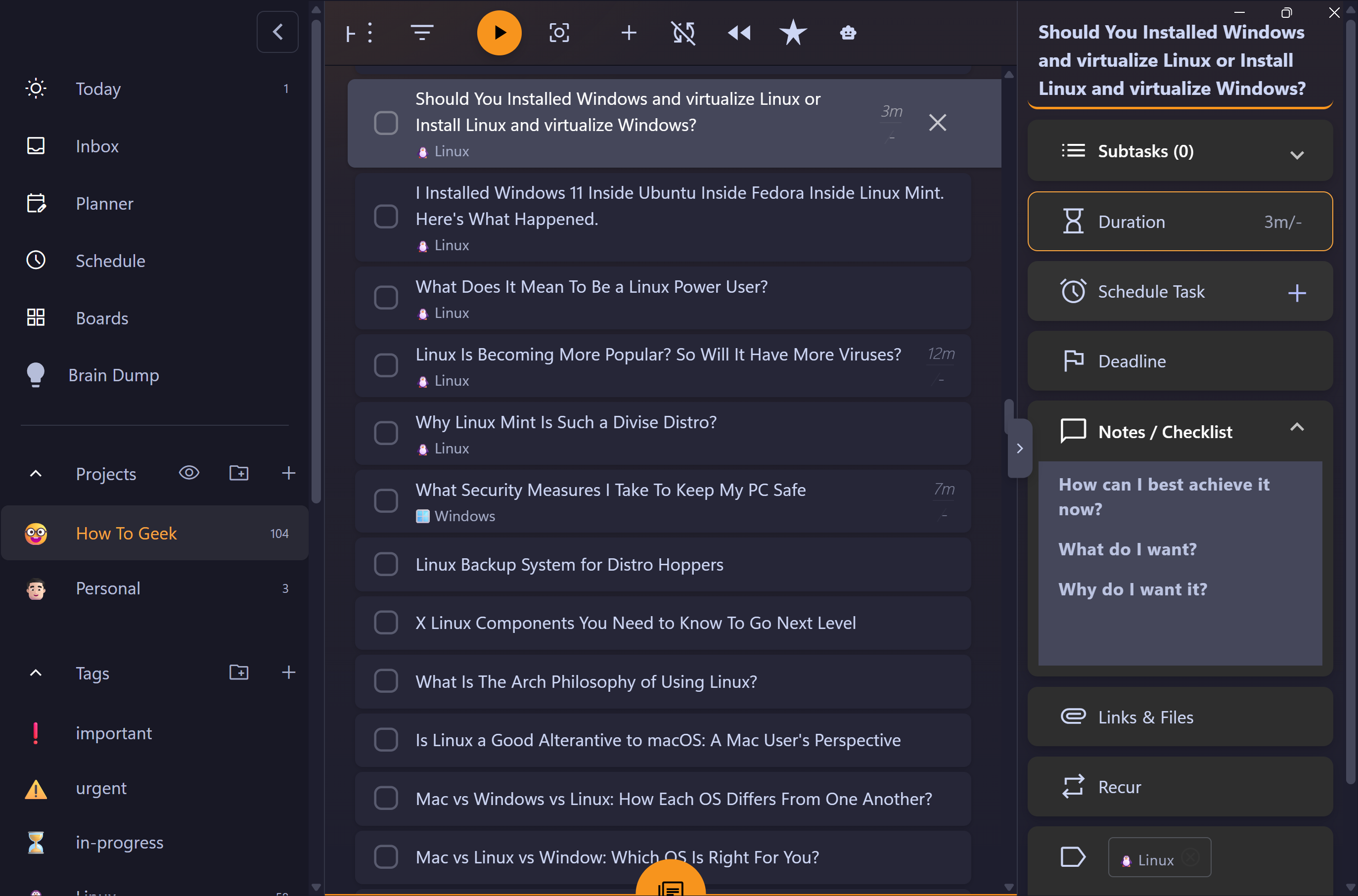
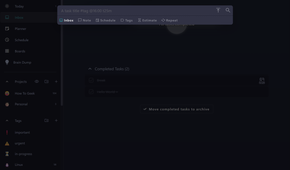
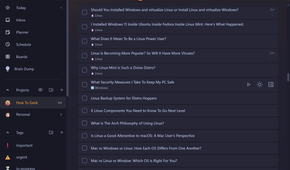

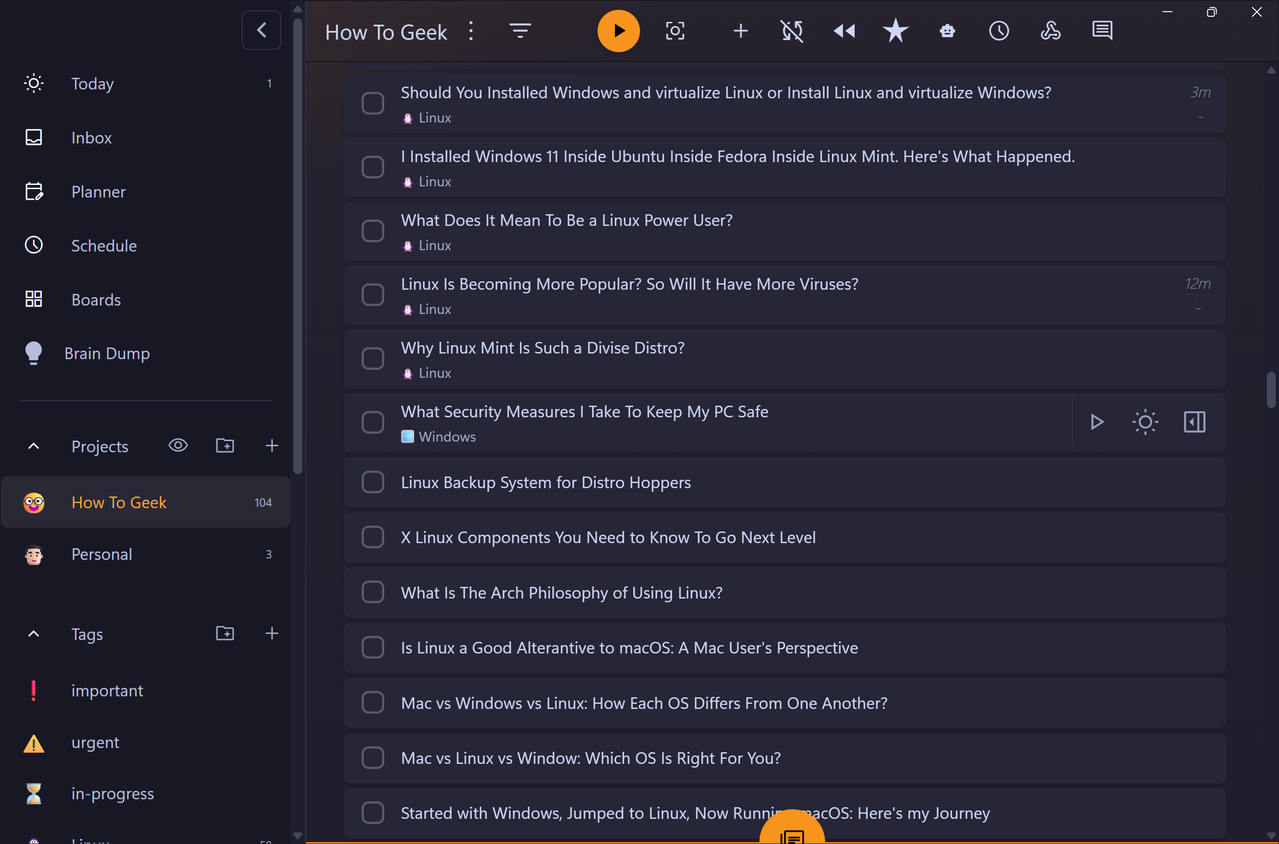
At its core, Super Productivity is a personal task manager that packs almost every feature you could reasonably expect. You can create as many tasks as you want, add subtasks, organize them into projects, assign tags, set due dates, and even add an estimated completion time. I find the last feature particularly useful because it lets me track how long a task actually takes to complete and compare that against my original estimate—a great way to test the accuracy of my estimates and plan my days more realistically.
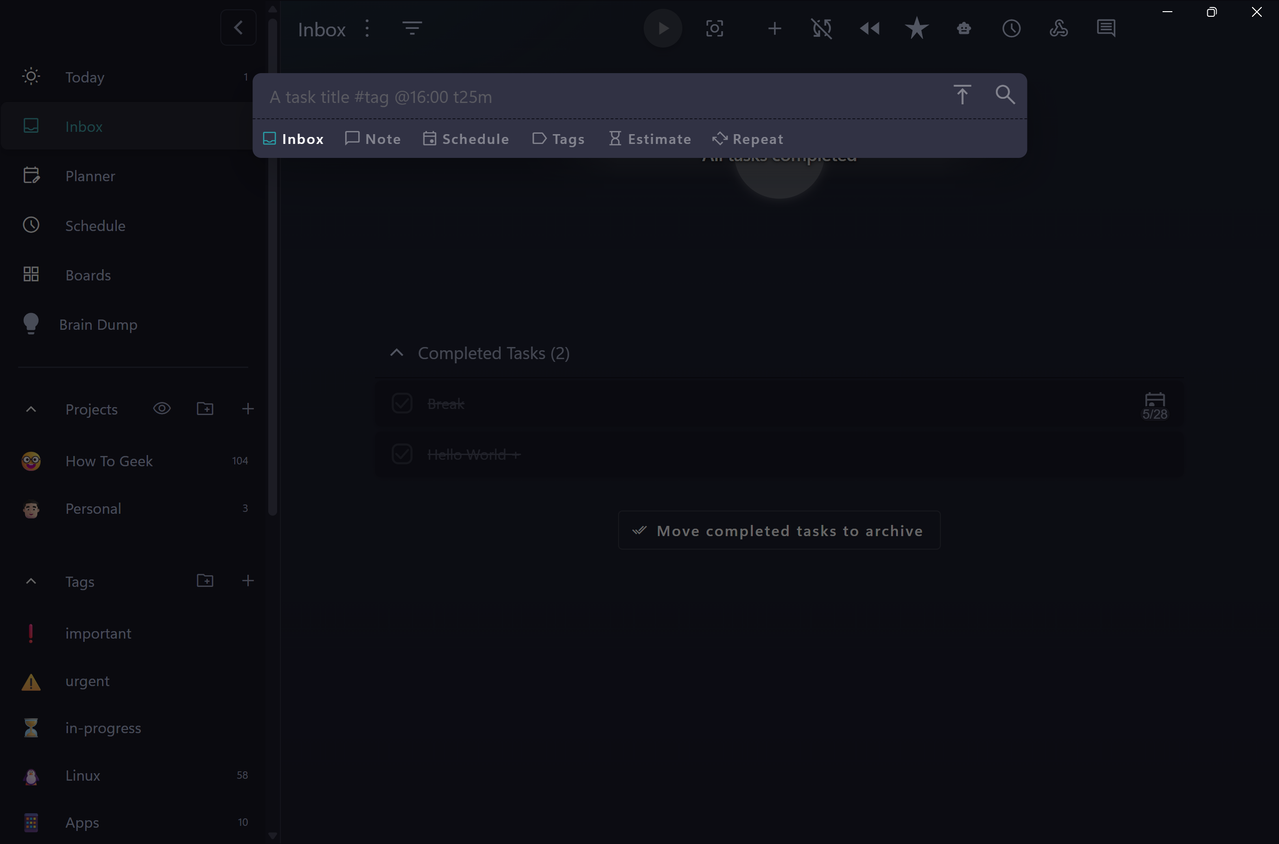
Coming to its task capture capabilities, I really love its support for global keyboard shortcuts. For example, let's say I'm browsing the web or answering emails when I suddenly realize I need to create a new task. I can simply press Ctrl+Shift+A, and Super Productivity opens directly to the Add New Task field, removing most of the friction from traditional task capture.
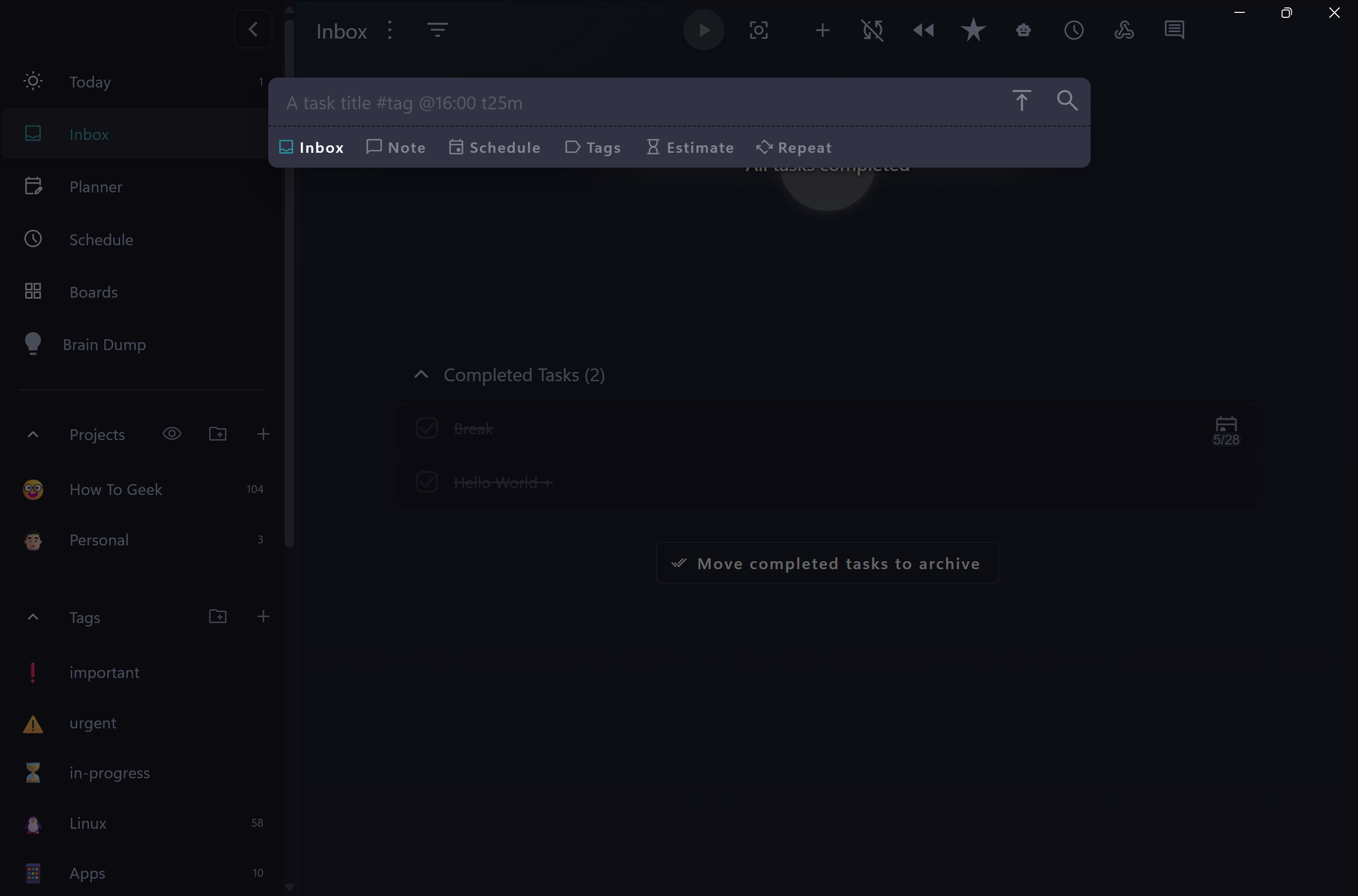
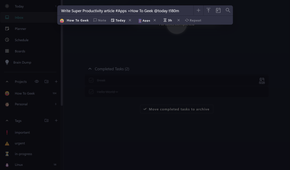
Creating new tasks is also superfast and convenient. After entering the task name, you can use special arguments to add metadata like the project it belongs to, any tags you want to assign, a due date, and even an estimated completion time. Here's the basic syntax:
task name #tag +project @due_date tmA realistic example would be:
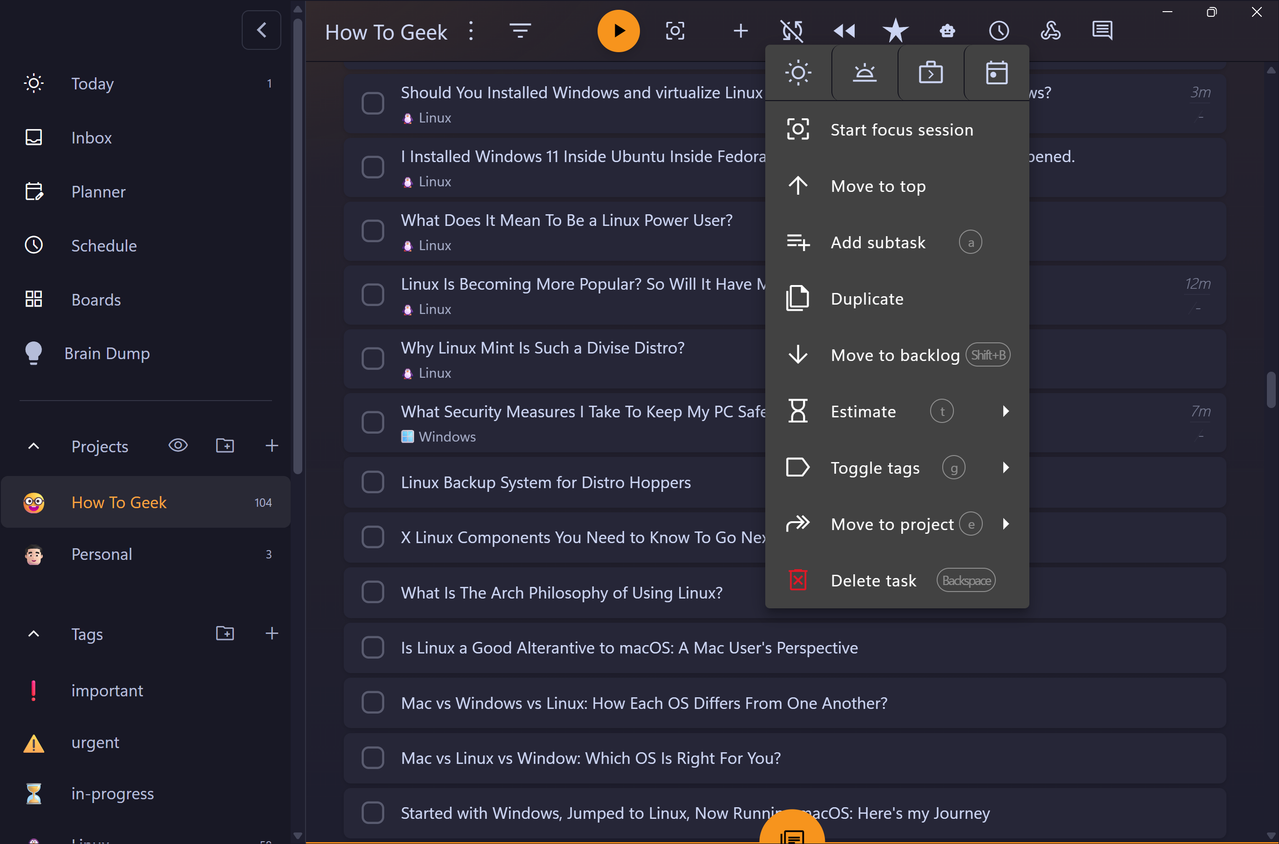
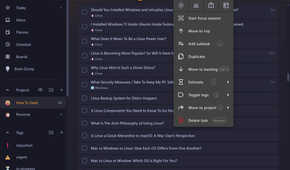
Write Super Productivity article #Apps +HTG @today t180mOf course, you don't have to remember this syntax to create a task. You can simply write the task name and then use the right-click context menu to add all this information manually through the app's interface.
The real advantage of learning the syntax, however, is that it lets you quickly bulk-add a large number of tasks at once. There's a plugin called Brain Dump that gives you a text field where you can paste potentially hundreds of tasks using this syntax. It'll create all of those tasks in one go, complete with their metadata and subtasks. It's easily the fastest task capture system I've used in all my years of testing productivity apps.
You can even use an LLM like Claude or ChatGPT to generate a formatted task list. Just give it a prompt explaining the syntax along with a brain dump of everything you need to do, and it'll format your tasks for you to copy and paste directly into Brain Dump.
Using Super Productivity as a cheerleader A little encouragement goes further than another checkbox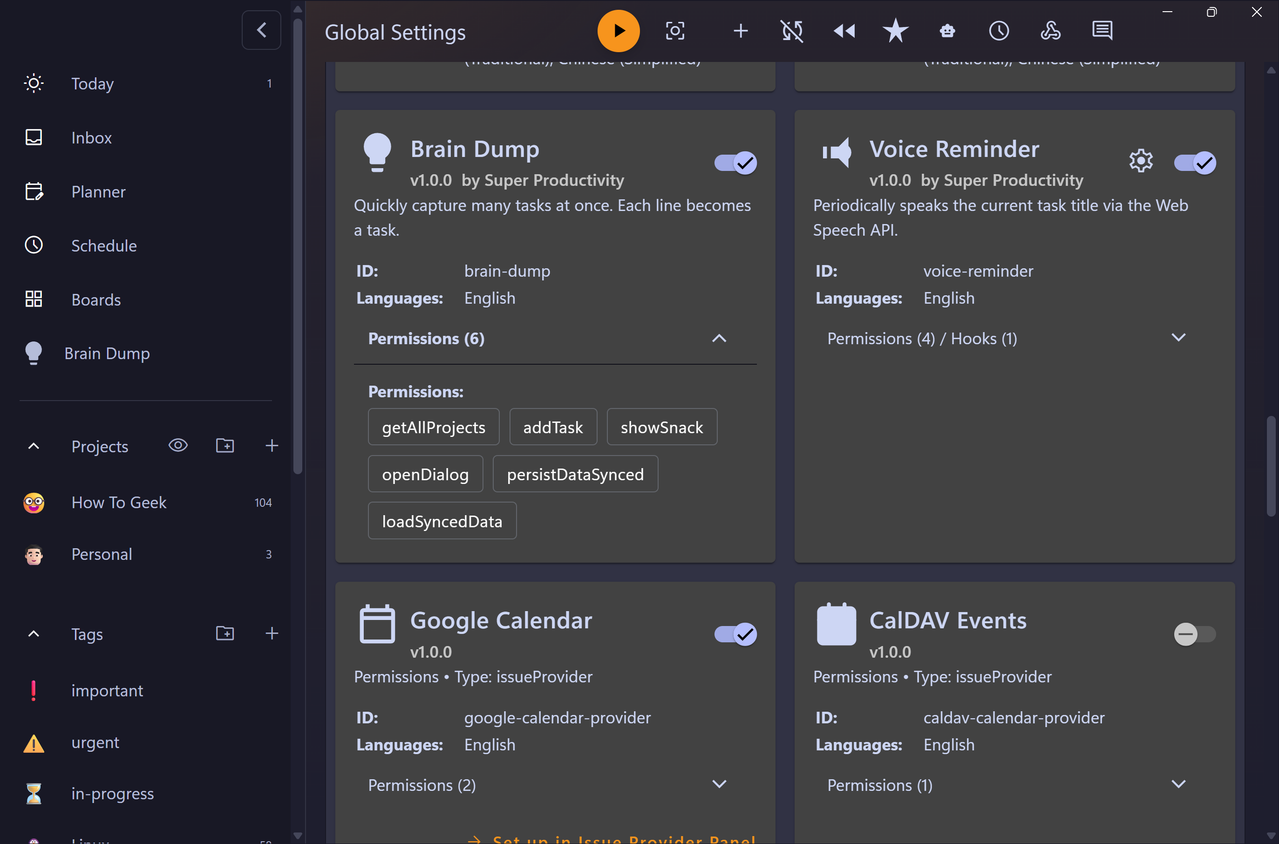
 Close
Close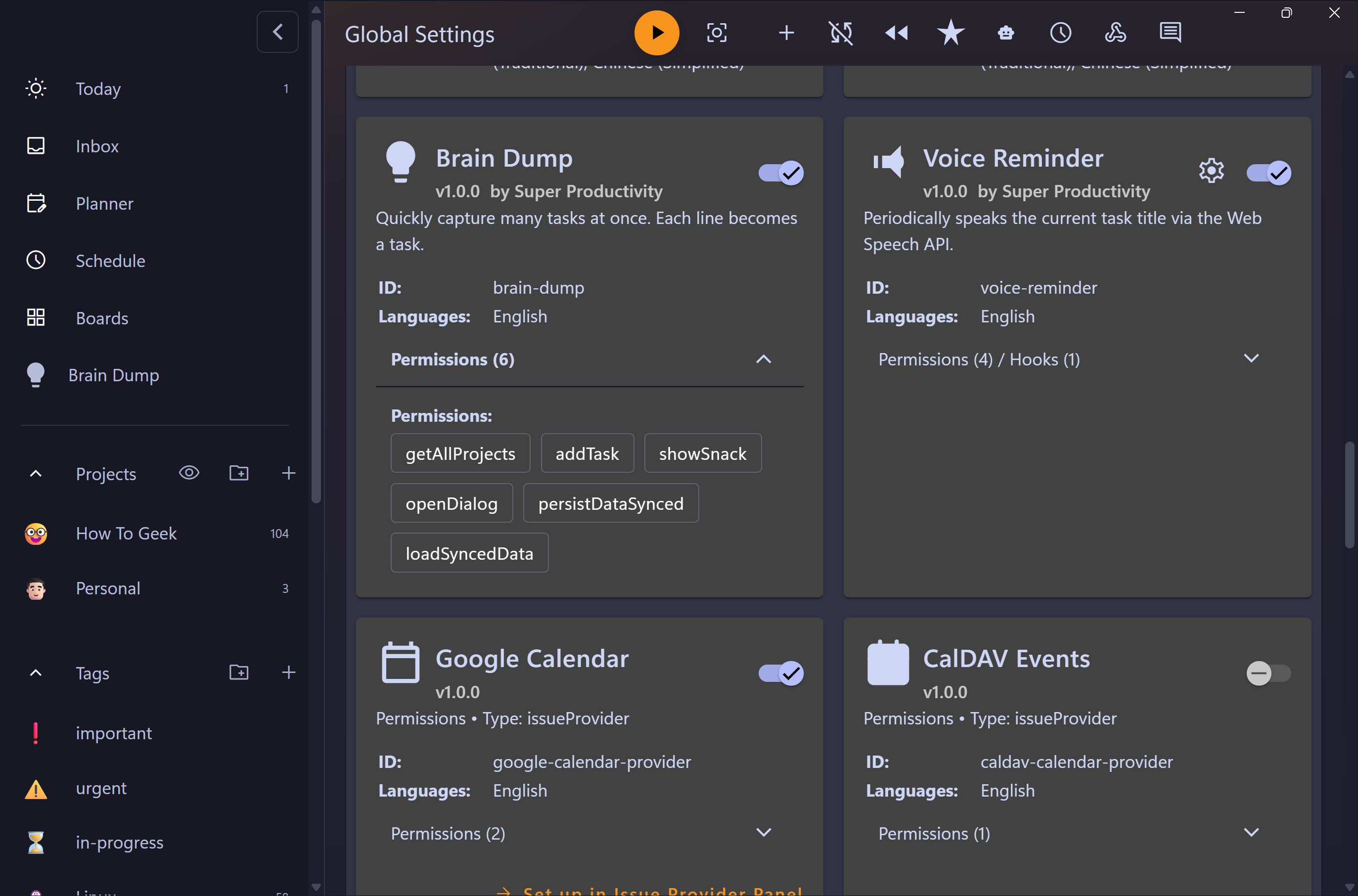
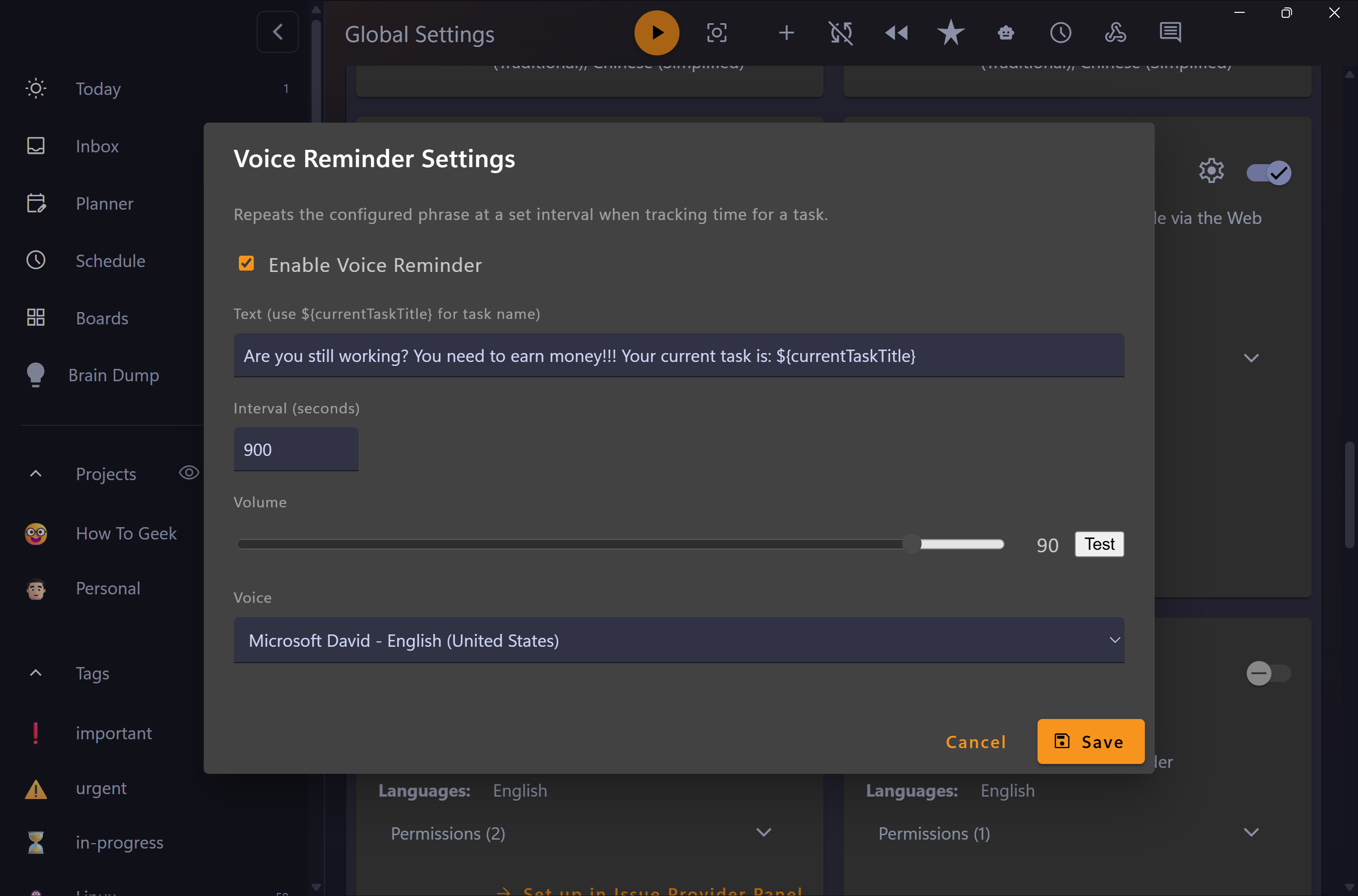
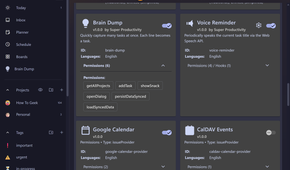

Apart from Brain Dump, another awesome plugin included with Super Productivity is Voice Reminder. Once enabled, it lets you set a custom message along with a time interval—say, every 15 minutes. At the chosen interval, Super Productivity uses text-to-speech (TTS) to read the message aloud.
As you can imagine, there are plenty of creative ways to use it. I personally use it as a personal cheerleader. I've got it saying things like, "You can do it," or, "You're halfway through"—just simple words of encouragement. I've found it especially helpful for staying motivated and on track while working on something particularly boring.
That said, you can just as easily change the message and use it for something completely different, like a productivity coach. For example, you could have it say things like, "Get back to work," or, "Are you working right now?"—whatever kind of prompt gets you moving. Overall, if you're someone who gets distracted easily or tends to lose motivation halfway through a task, this plugin can be surprisingly effective.
 Related
Using Super Productivity as a Kanban board
Visualizing your workload changes how you handle it
Related
Using Super Productivity as a Kanban board
Visualizing your workload changes how you handle it
 Close
Close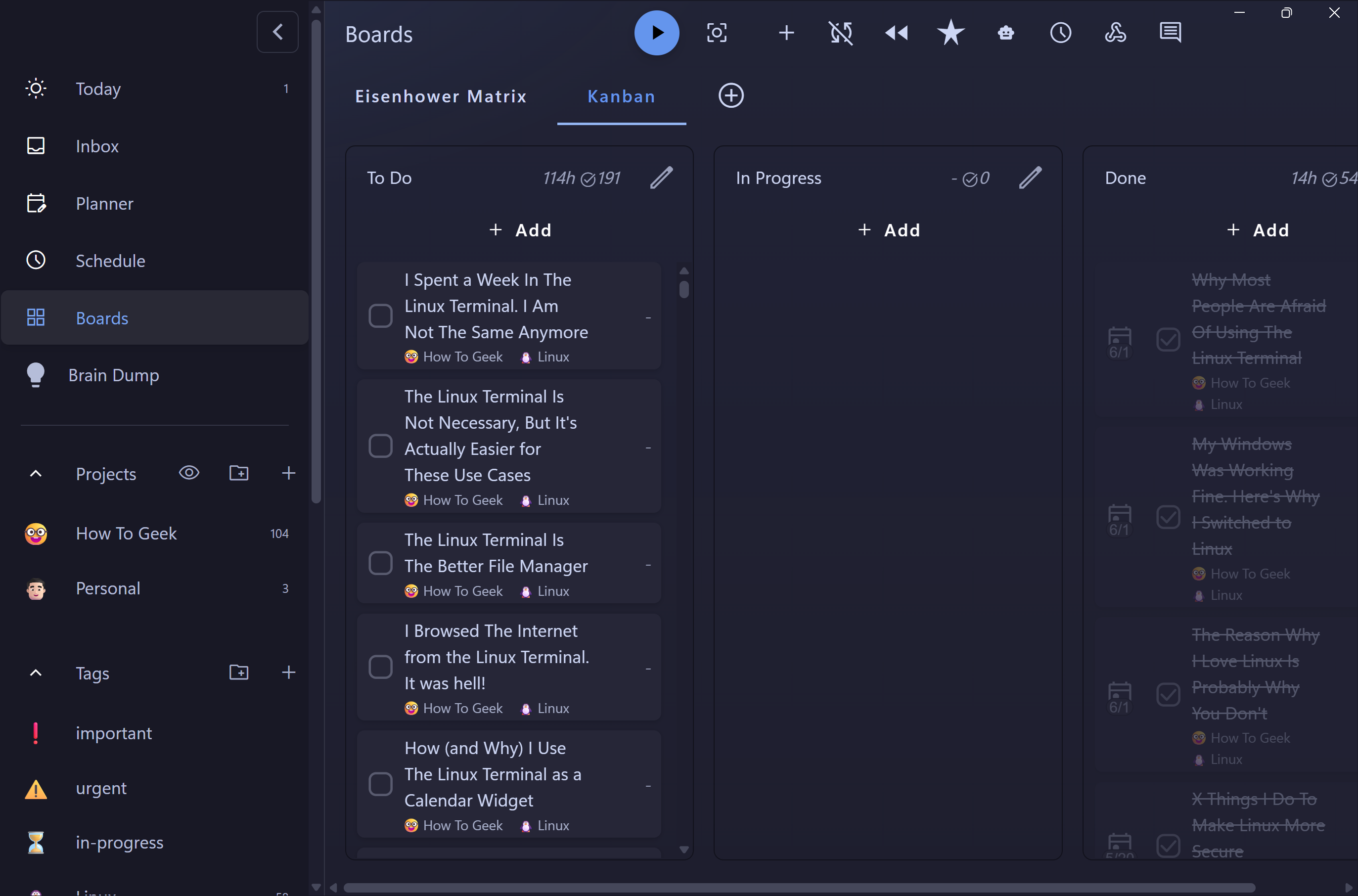
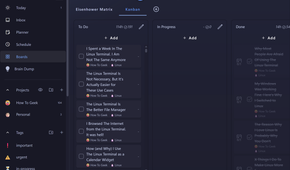

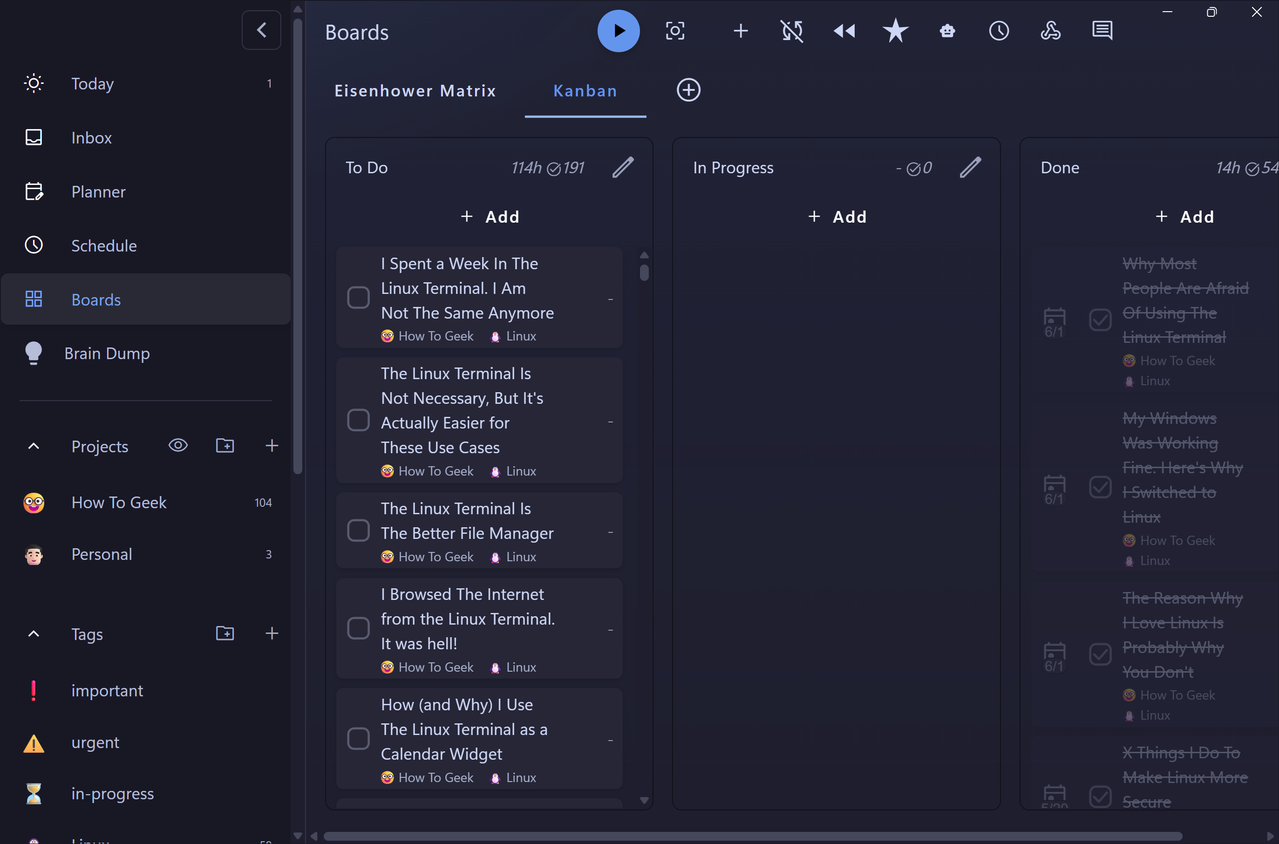
You don't always start one task, finish it, and then move on to the next. More often than not, you're juggling multiple tasks at the same time, and that's where Kanban boards really shine. Super Productivity comes with a built-in Kanban board that makes it easy to visualize the progress of all your tasks, whether they're still to do, in progress, or already completed.
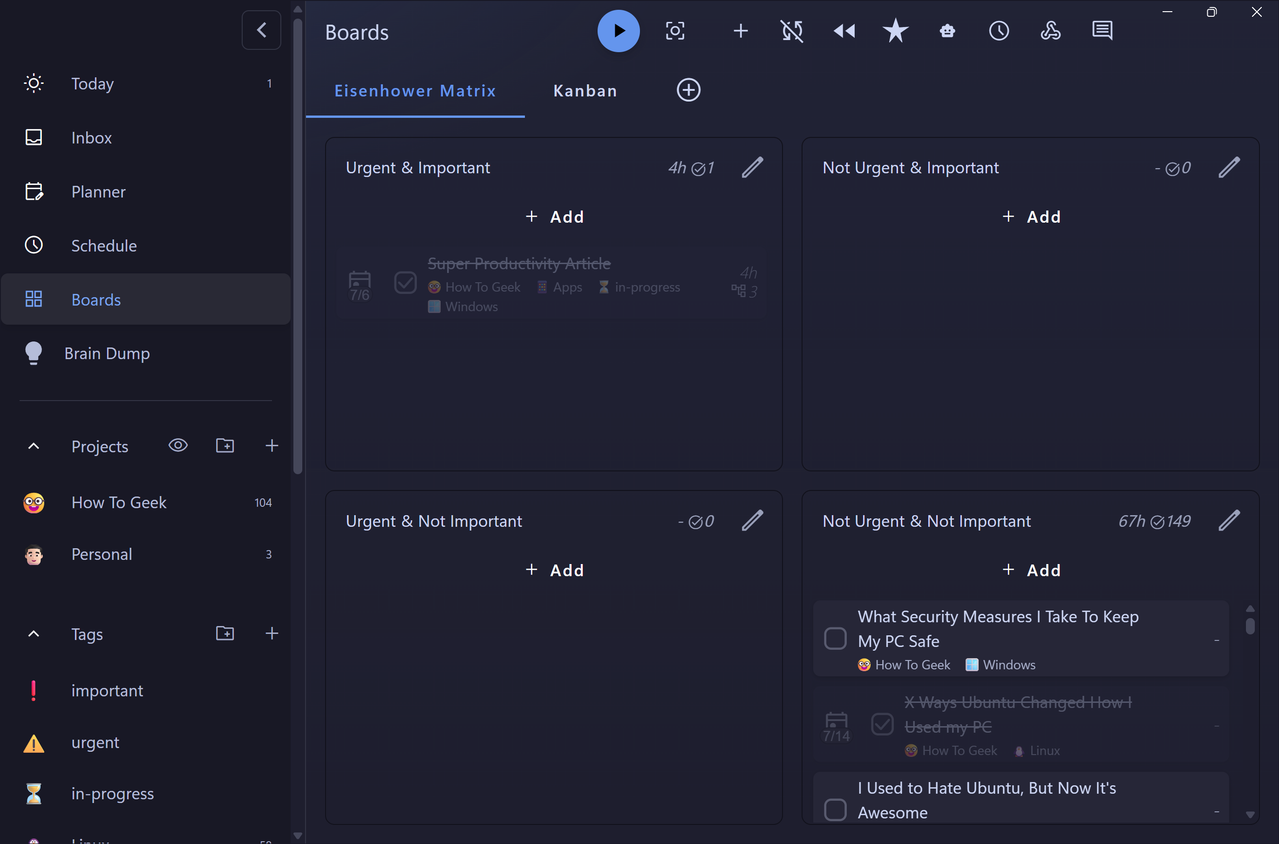
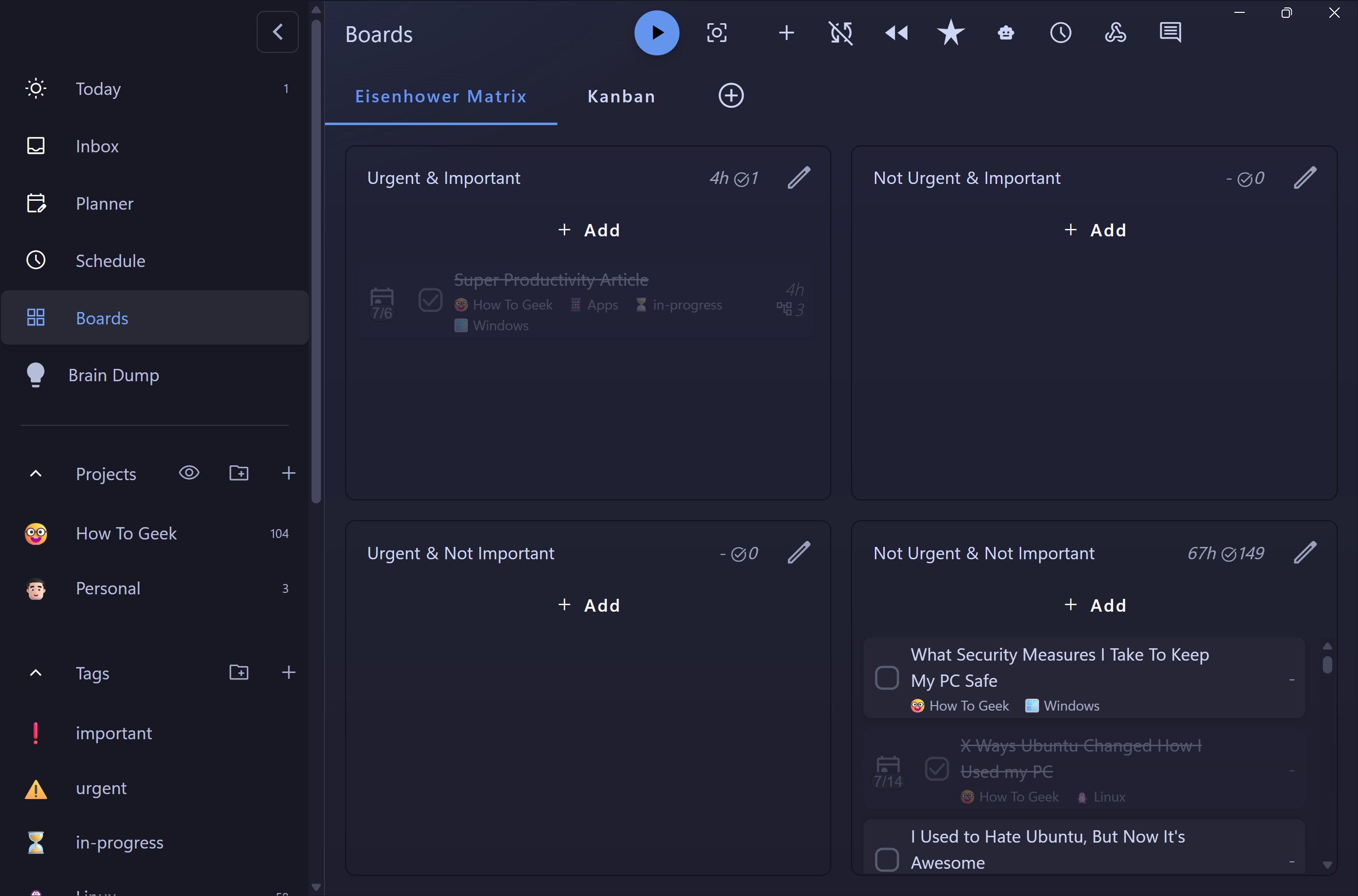
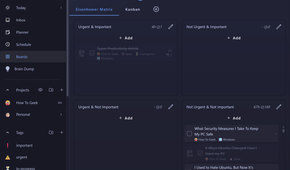
That said, the Kanban board isn't the only board view available. There's also an Eisenhower Matrix in the same section, which focuses more on task prioritization than progress tracking. It sorts your tasks into four quadrants based on urgency and importance, making it easy to figure out what actually deserves your attention right now.
This matters because Super Productivity makes task capture so frictionless that almost every passing thought can turn into a task. That's great for making sure you don't lose ideas, but not everything you capture needs to get done—let alone immediately. The Eisenhower Matrix helps you separate the signal from the noise.
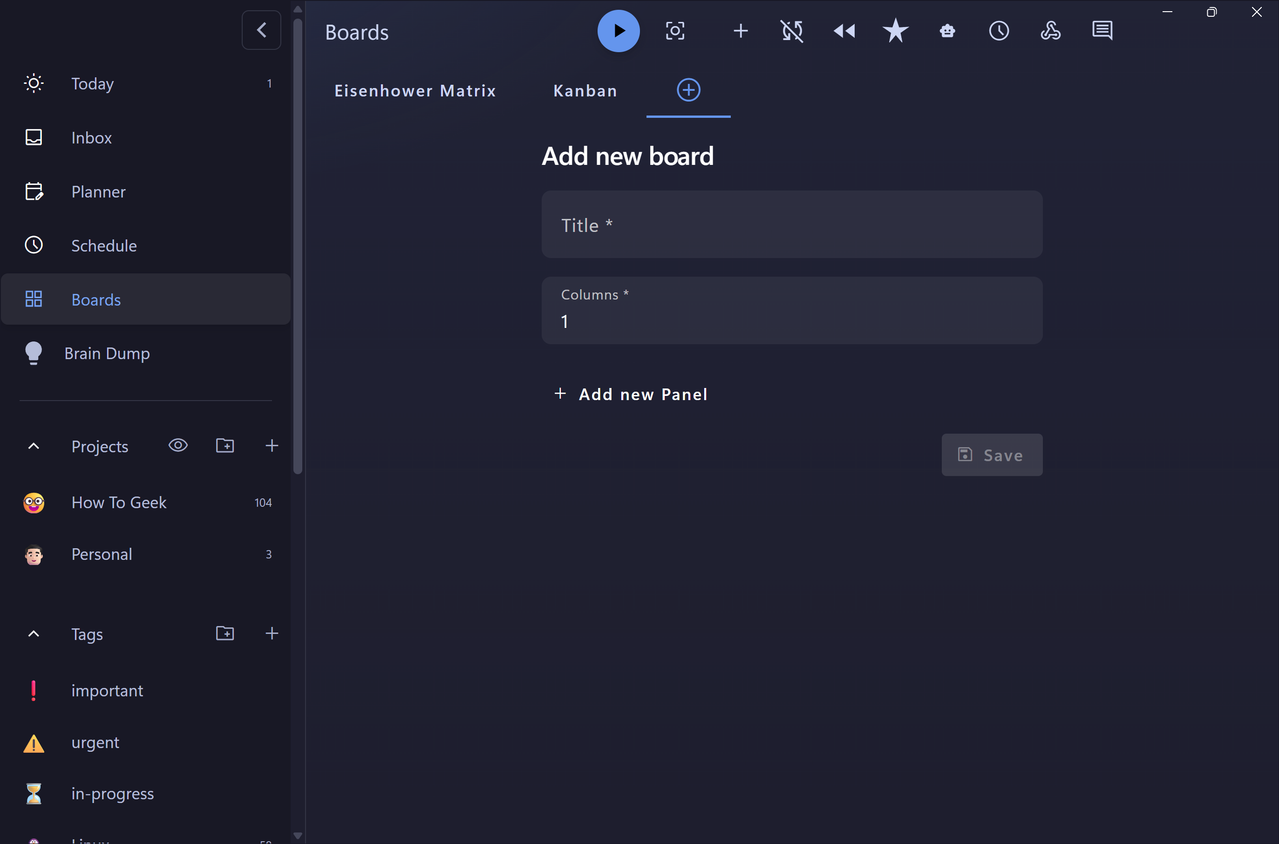
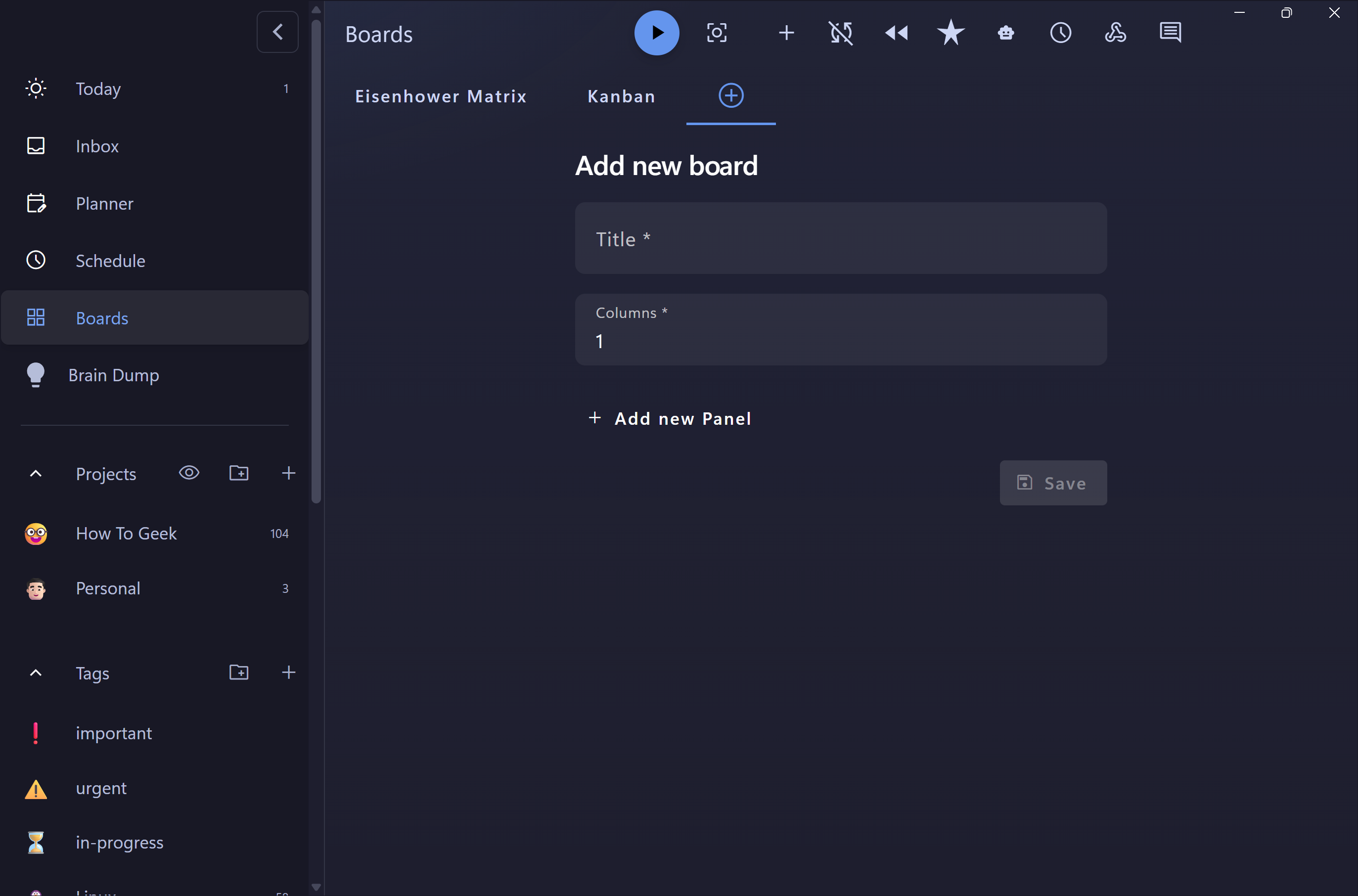
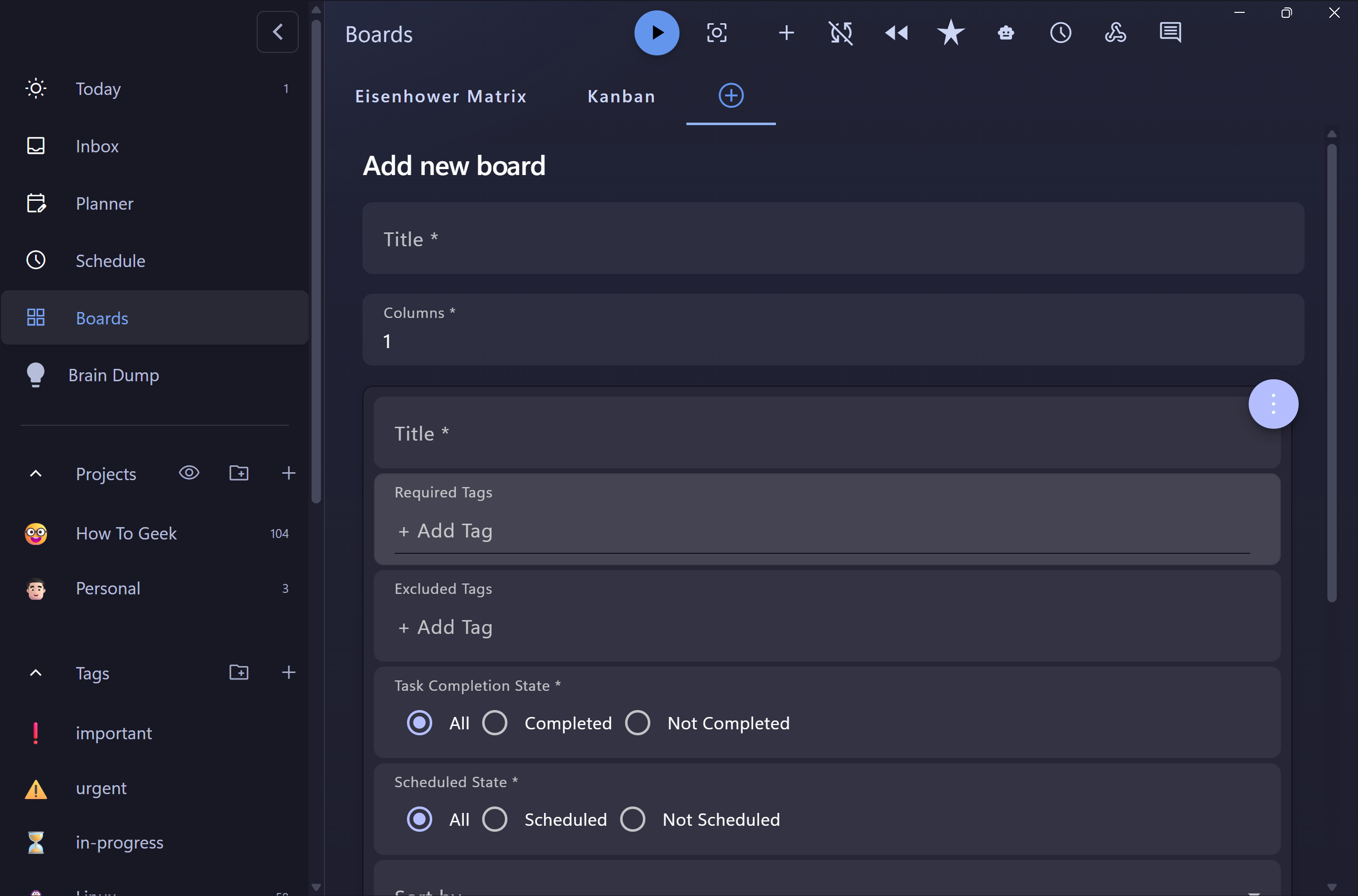
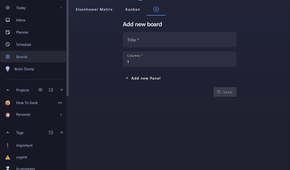
I should also mention that you're not limited to just these two views. You can build your own custom boards with whatever row and column layout you want, then use tags to control which tasks appear in each cell.
 Related
3 open-source Trello alternatives you can self-host (and keep your data)
Related
3 open-source Trello alternatives you can self-host (and keep your data)
Tired of Trello and Asana paywalls? These 3 open-source, self-hosted tools give you boards, planning, and full control of your data.
Using Super Productivity as a calendar Because planning ahead shouldn't require switching tools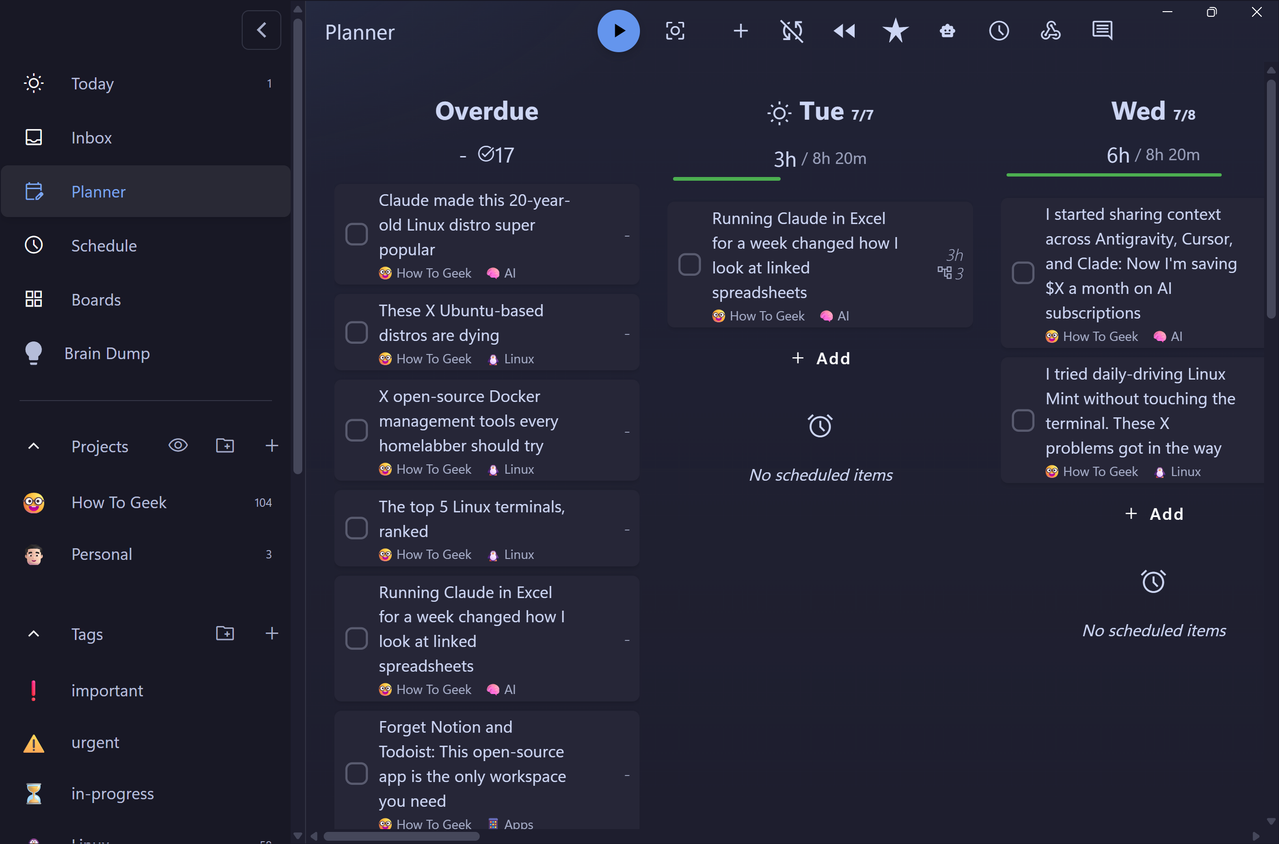
 Close
Close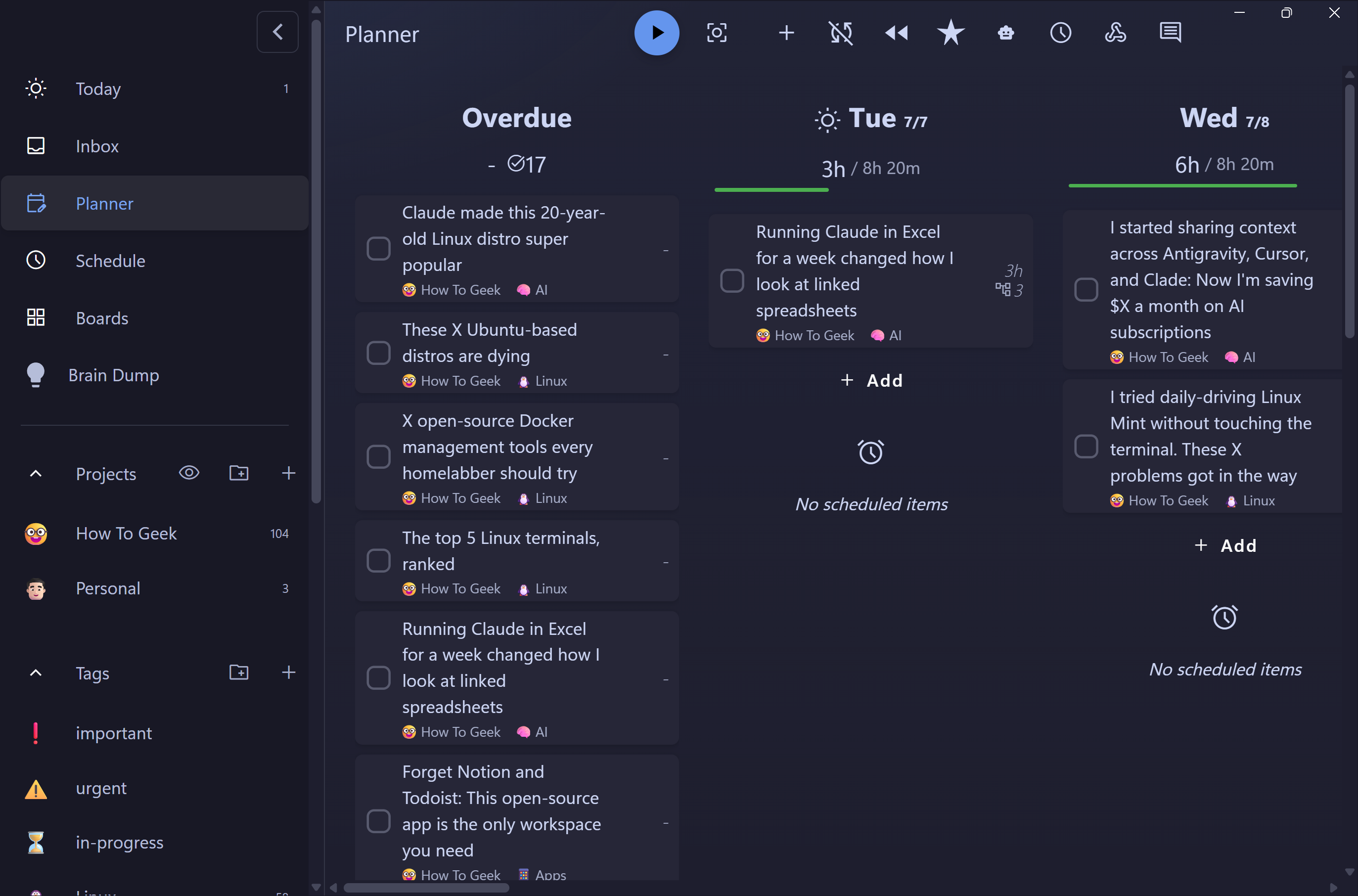
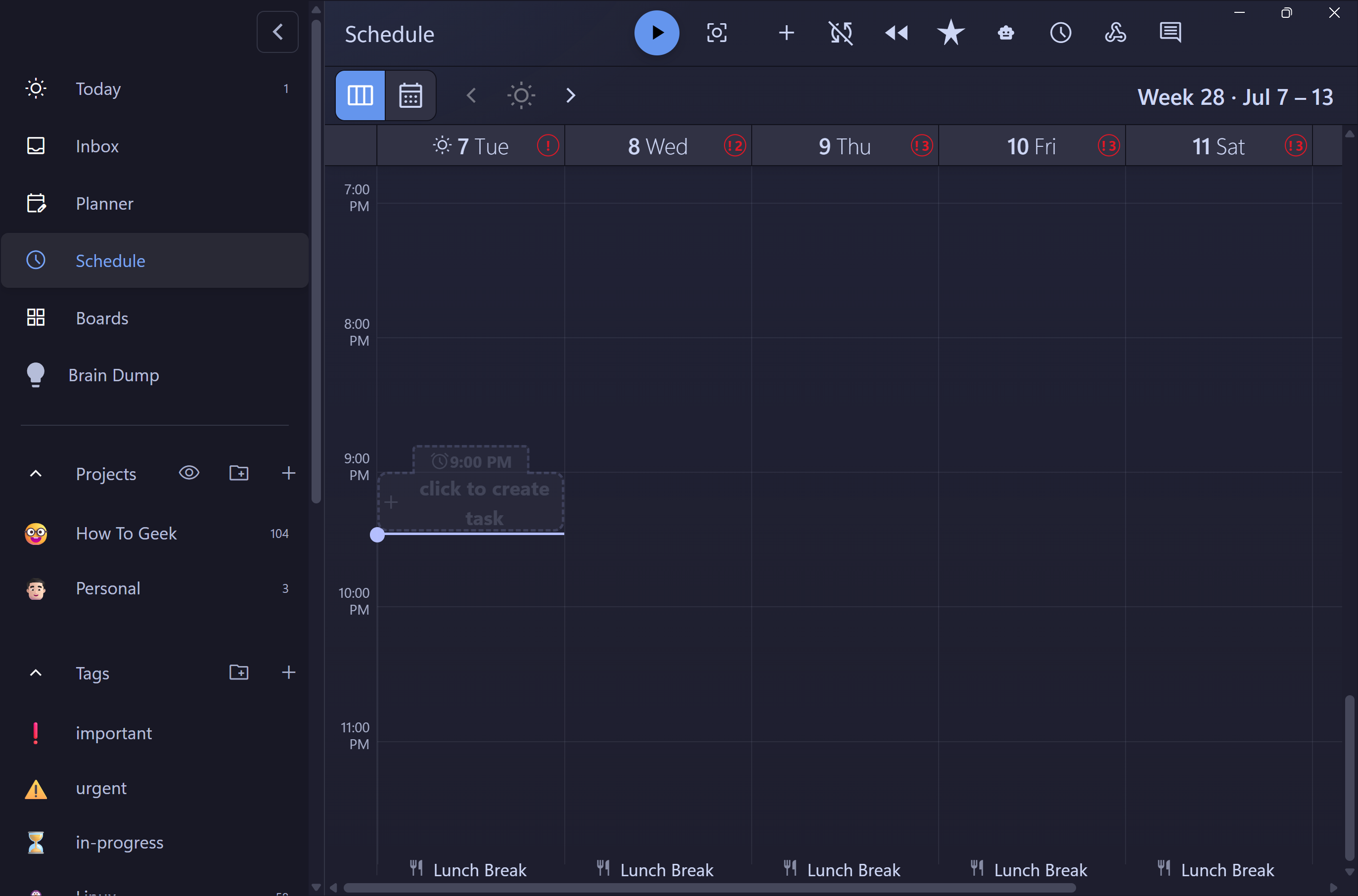
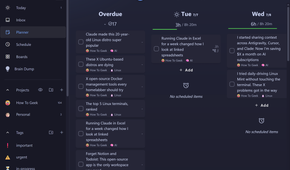
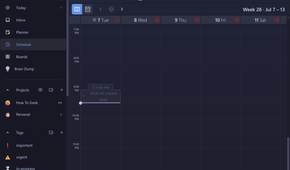

Every task you create in Super Productivity can be assigned a due date, and the app gives you a couple of different views to help visualize when those tasks are coming up. The one I personally use is the Planner board, which shows all your overdue tasks alongside the upcoming days. You can drag tasks from one date to another, and Super Productivity automatically updates their due dates. It also gives you a better sense of your workload by showing how many tasks are scheduled for any given day.
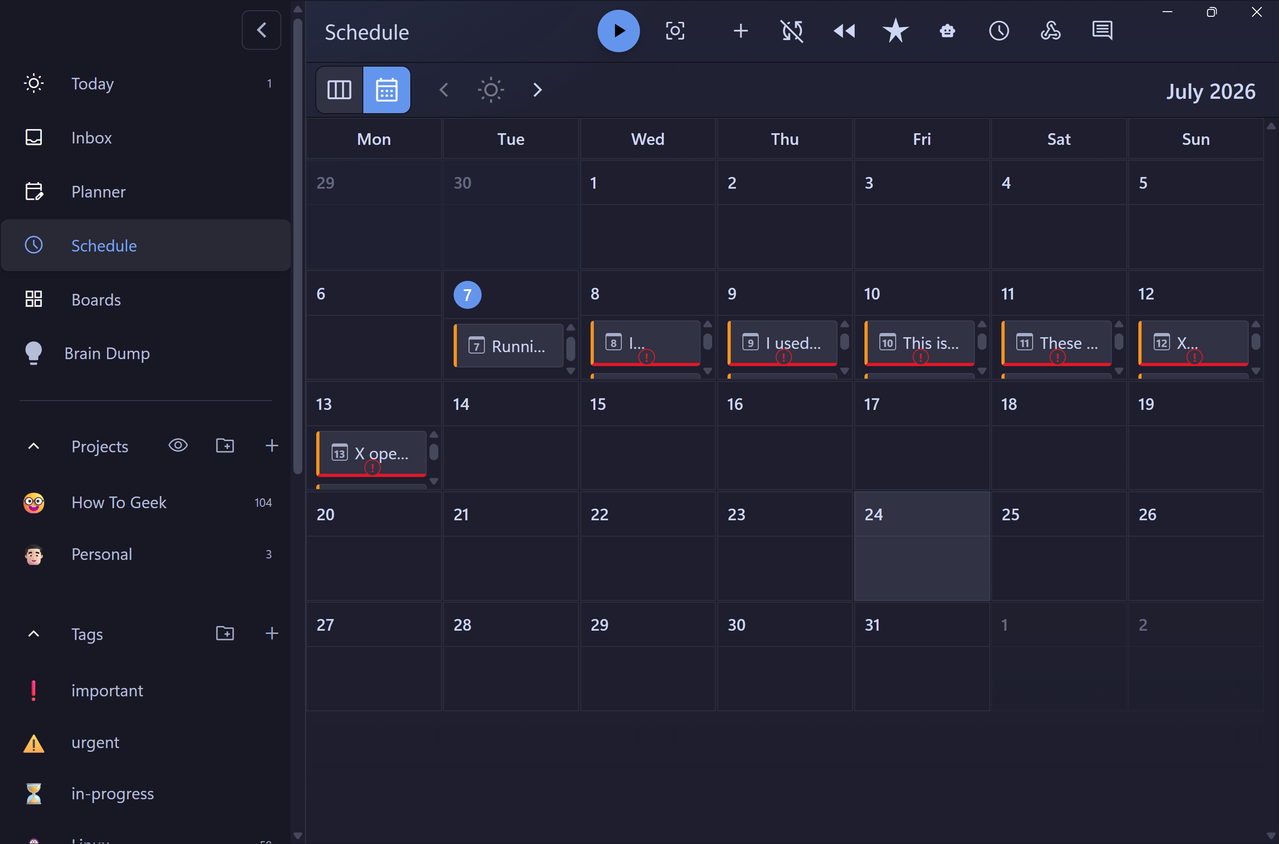
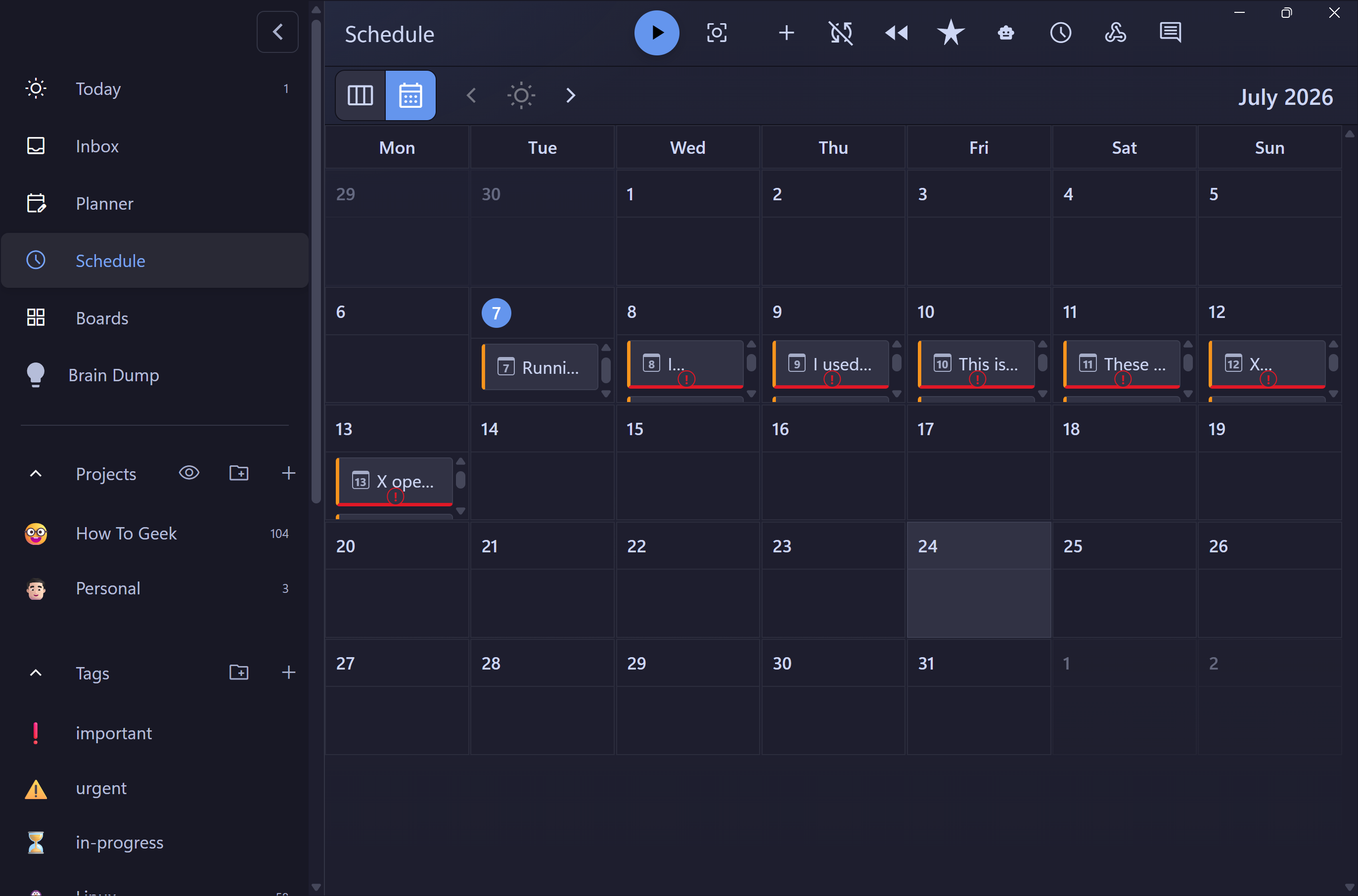
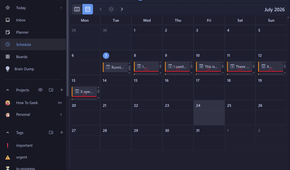
If you want more granularity, though, there's also the Schedule board, which includes both Week and Month views. In the Month view, you get a full calendar with all your tasks displayed inside their respective date cells. You can also drag and drop tasks between dates to instantly update their due dates.
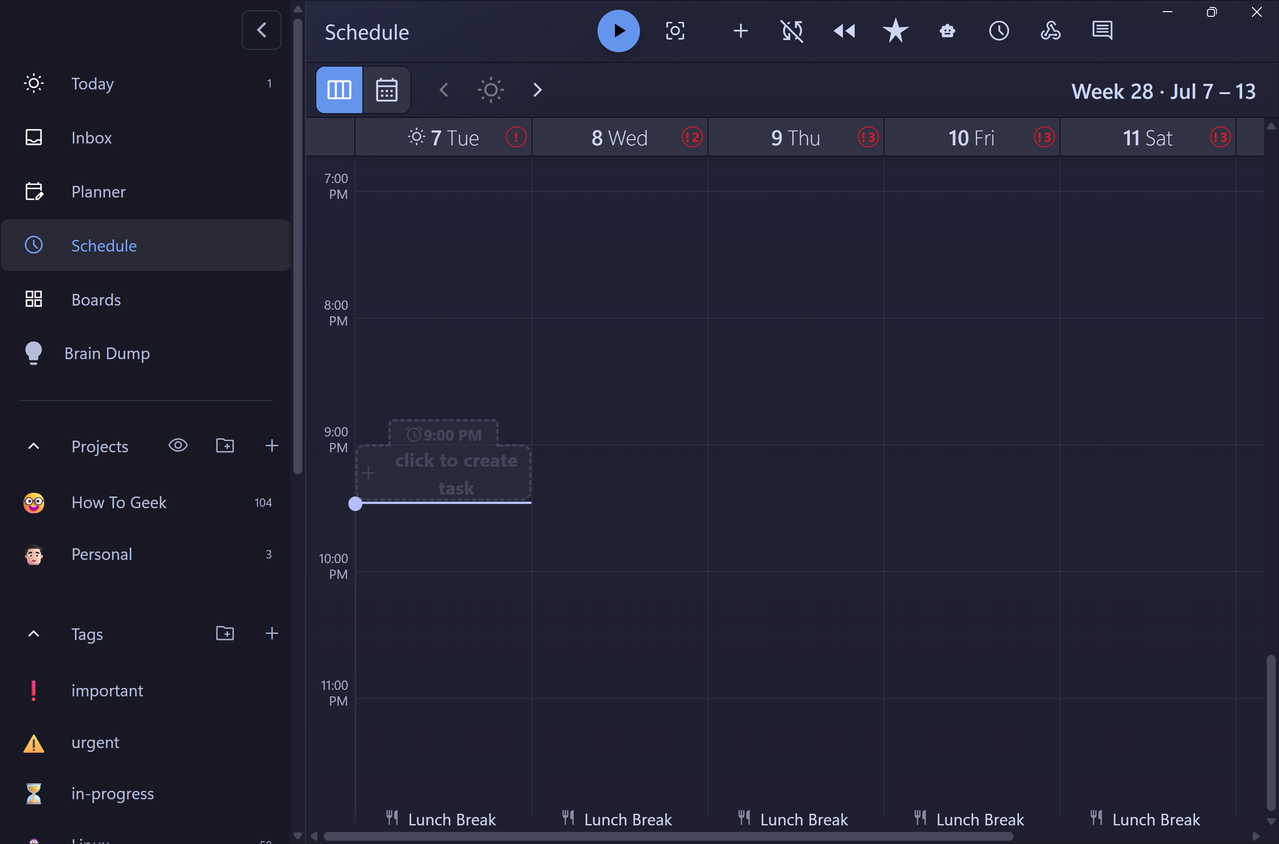
The Week view goes a step further by letting you schedule tasks at specific times during the day, not just on a particular date. That's useful if you're someone who prefers timeboxing your day instead of simply working from a daily task list. I don't personally use the Week view very often, but if timeboxing is your thing, it's a solid option.
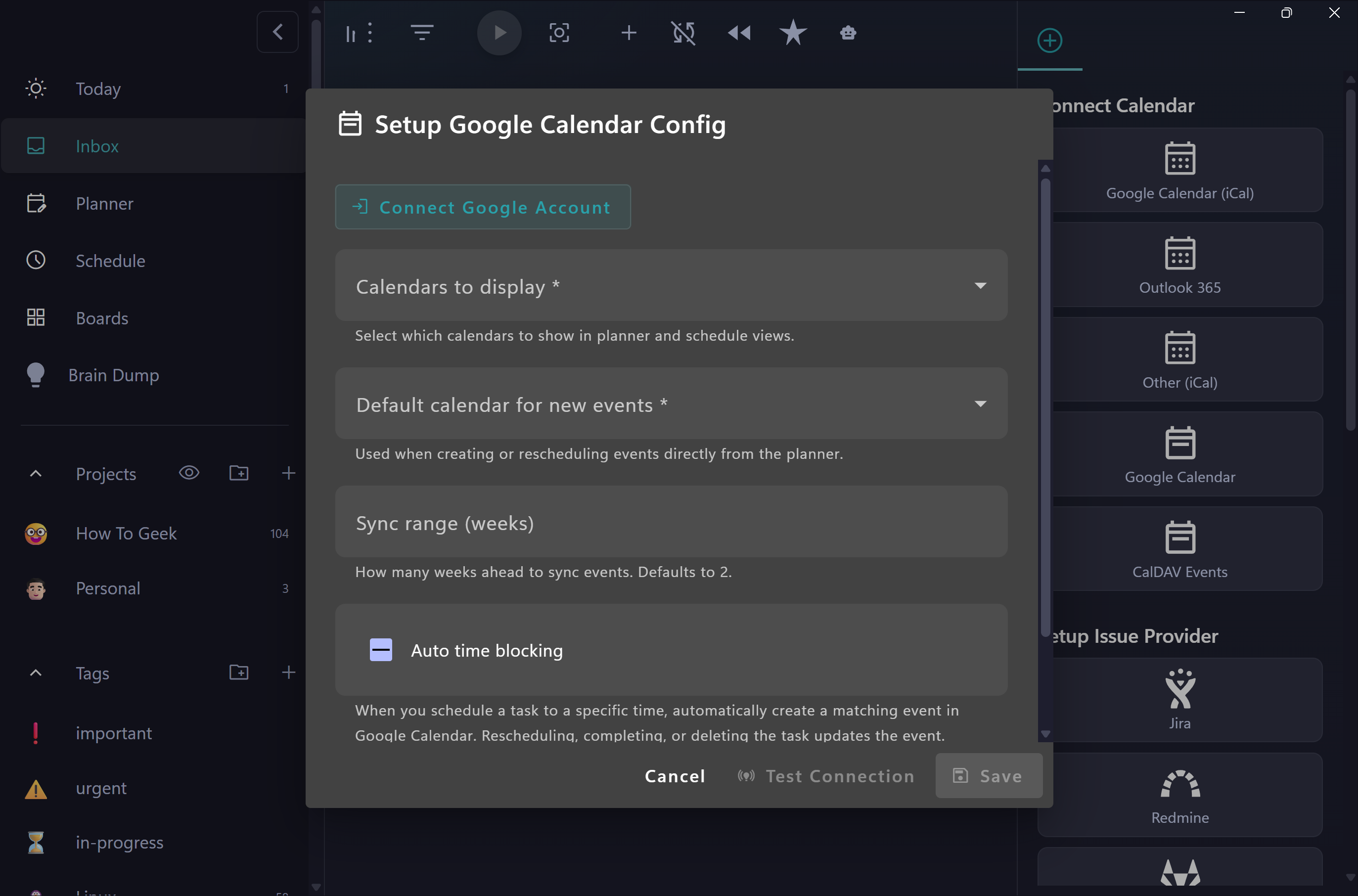
On top of all that, Super Productivity also syncs with Google Calendar, so if you want your schedule to stay in sync across both apps, you can connect your account and import your calendar events directly into Super Productivity.
 Related
9 Tips to Get the Most Out of Google Calendar
Related
9 Tips to Get the Most Out of Google Calendar
Here's how to become a Google Calendar wizard.
FOSS apps don’t get better than thisWhat impresses me most about Super Productivity isn't any of the features I mentioned above—it's the fact that a free, open-source project managed to outbuild most proprietary apps that people pay for. That's not something you see very often in this space. It's a testament to how far FOSS software has come over the years. The old stereotypes of free software being "barebones" or "unpolished" simply don't apply anymore.
 Related
3 more free and open source (FOSS) apps that are better than their paid alternatives
Related
3 more free and open source (FOSS) apps that are better than their paid alternatives
I stopped paying for software and started feeling a little ridiculous about all the years I didn't.