
Remember me
So long as your devices, such as your phones, tablets, and computers, support it, upgrading to a Wi-Fi 6E router should mean a performance speed boost. The addition of the 6GHz band brings the kind of wireless networking that older Wi-Fi 6 routers can't quite match. That was my experience, too. Until it wasn't.
After the setup was done, and I'd run a few speed tests, I discovered things weren't as great as I'd hoped. They could be, but then connections would become unusually slow. I restarted everything, as is the norm, to no avail. So I dug into my router's settings for an answer.
Thankfully, the fix was quick and easy. And it drives to the heart of a problem that can affect all modern, connected homes. Especially those with smart home devices installed.
 Related
Choosing the right band automatically
When your router takes charge
Related
Choosing the right band automatically
When your router takes charge
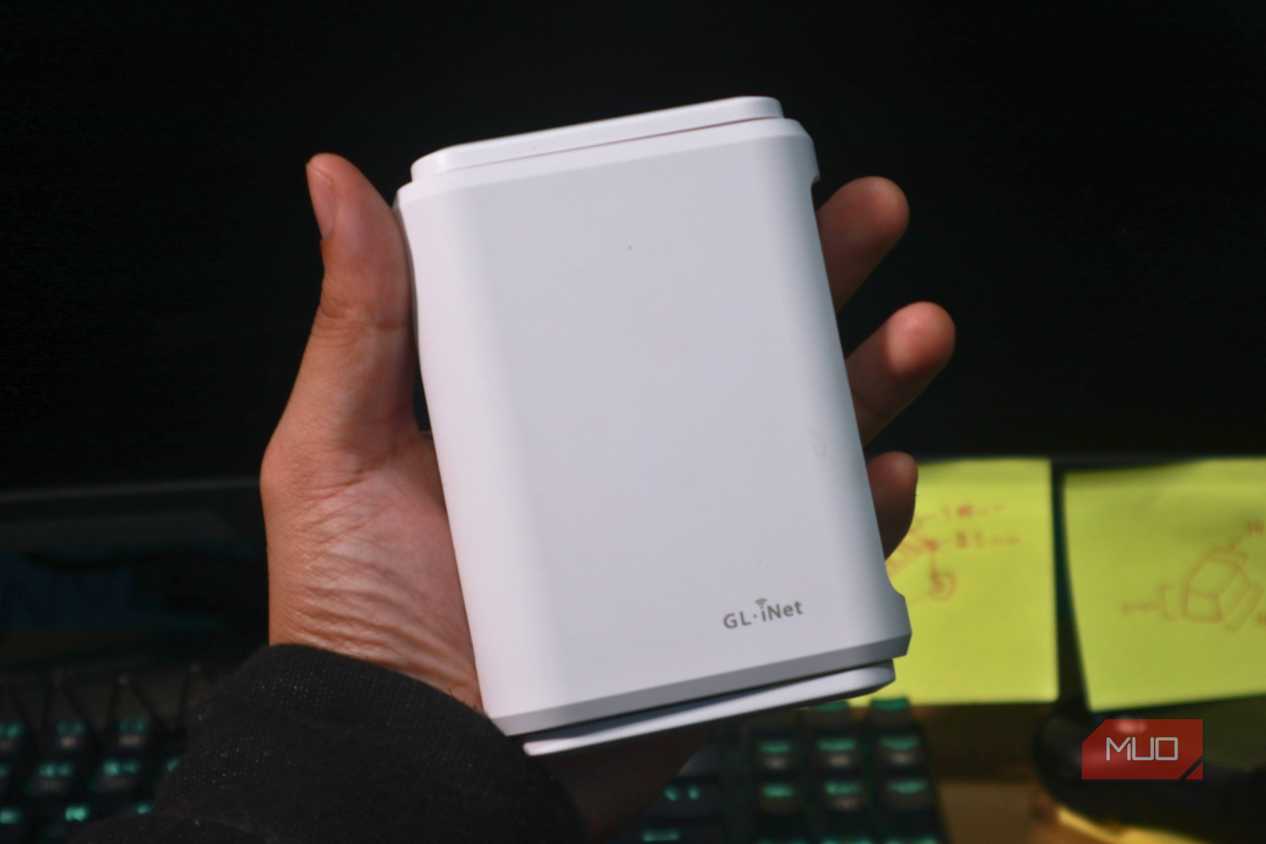 Image by Jayric Maning --no attributions required
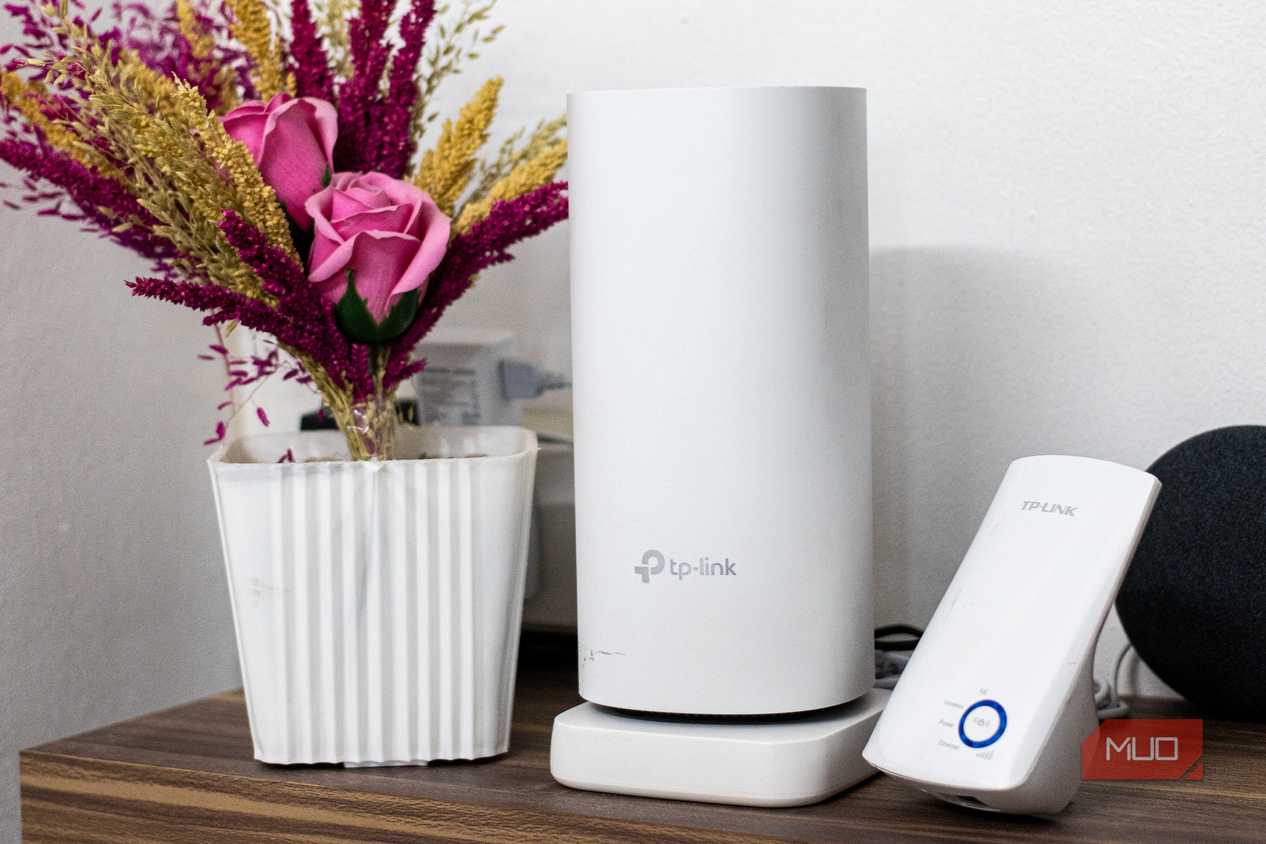 Jowi Morales/MUO
 Screenshot by Pankil Shah -- No attribution required
 Yadullah Abidi / MakeUseOf
 Shaun Cichacki/MUOClose
 Image by Jayric Maning --no attributions required
 Jowi Morales/MUO
 Screenshot by Pankil Shah -- No attribution required
 Yadullah Abidi / MakeUseOf
 Shaun Cichacki/MUO

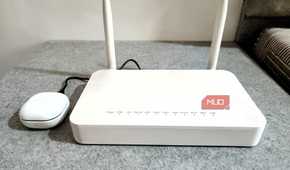


I alluded to it earlier, but it bears repeating. Upgrading to a Wi-Fi 6E router adds an extra band to your wireless network. Wi-Fi 6 routers operate on the 2.4GHz and 5GHz bands. With Wi-Fi 6E, a new 6GHz band comes into play. And the 6GHz band brings improved performance and lower latency, two factors that can significantly enhance your online experience.
Think of bands as roads. The 2.4GHz band is like the single-lane road that you'll see in neighborhoods everywhere. The faster 5GHz band is more like a four-lane highway, allowing more traffic to move more quickly. But the 6GHz is akin to an eight-lane highway. It's significantly wider, so it can handle much more traffic at higher speeds than smaller roads can.
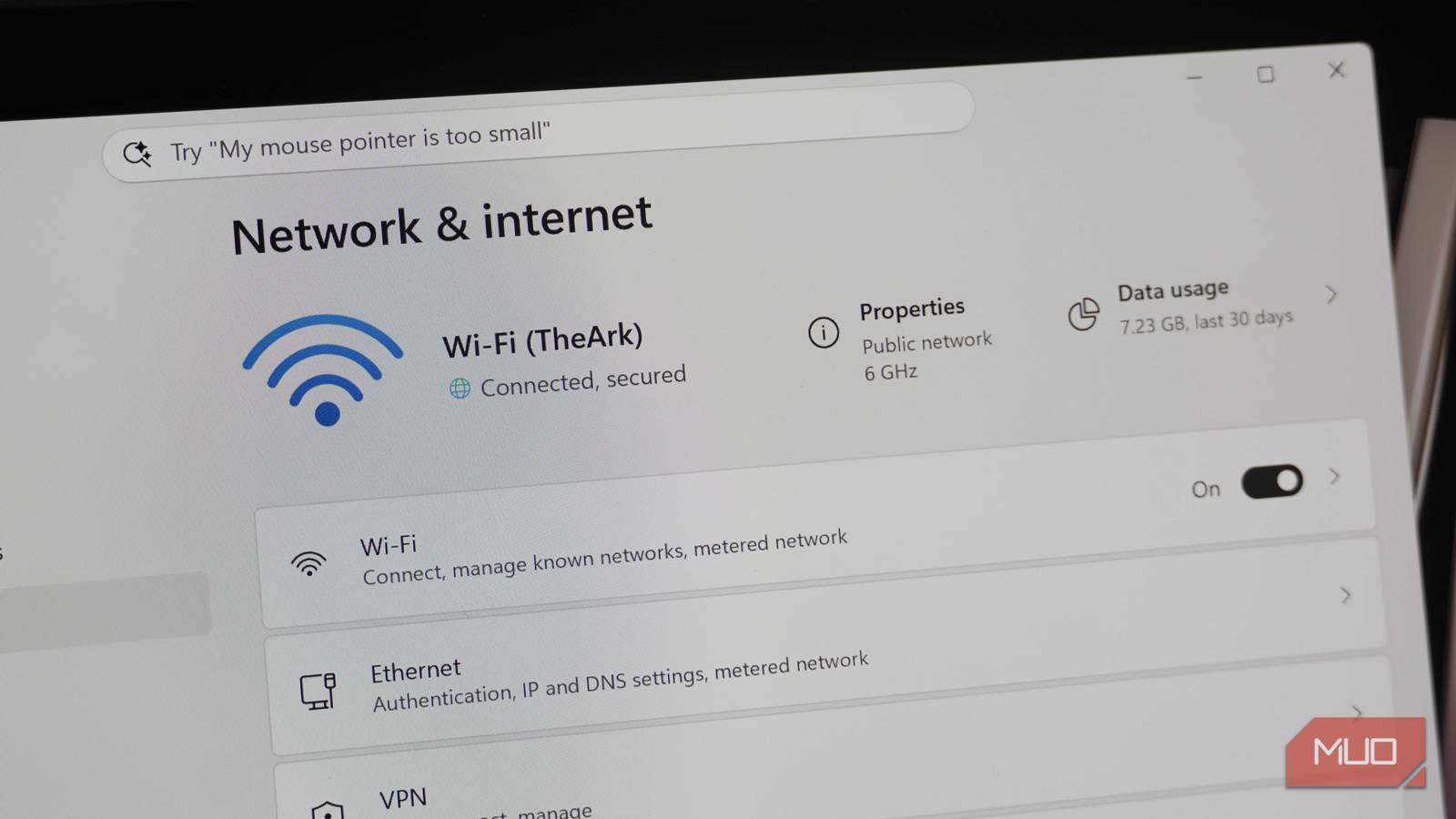
By default, many Wi-Fi 6E routers treat the 2.4GHz, 5GHz, and 6GHz bands as a single wireless network. It has a single SSID (Service Set Identifier), and all of your devices connect to it.
In theory, your router then decides which of the three available bands to use for each device that connects to it. It'll choose the band based on current network load, signal strength, and the device's own capabilities. On the face of it, that all sounds pretty great.
But in reality, the single-SSID approach can be a performance nightmare. It can even leave super-fast laptops connected to the super-slow 2.4GHz band.
The seamless band steering illusion Not-so-smart connections Brady Snyder / MakeUseOf
The feature goes by a few different names, including "smart connect" or "band steering," but it works the same way, regardless. On paper, your router will automatically move devices between bands as it sees fit. Move your laptop from a table near your router to a sofa a floor away, and the router will likely switch to a band more suited to long-distance connections.
In practice, this likely means your laptop switching from the 6GHz band to either the 5GHz or 2.4GHz band to maintain a connection. But the problem is that Wi-Fi 6E routers can be reluctant to switch devices back to the 6GHz band when it becomes available again.
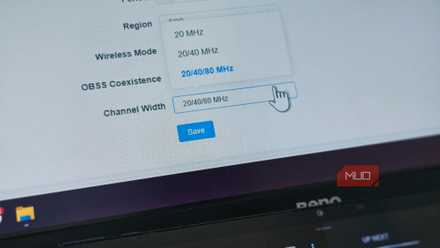
I found that to be the case for me, with my router refusing to give my laptop that sweet 6GHz band even when I moved back to within touching distance of it. My router's 6GHz band and speedy 160MHz channel width were held hostage — usually until I toggled Wi-Fi off and back on. But that's no way to live, right?
Splitting up with my router Three bands, three SSIDs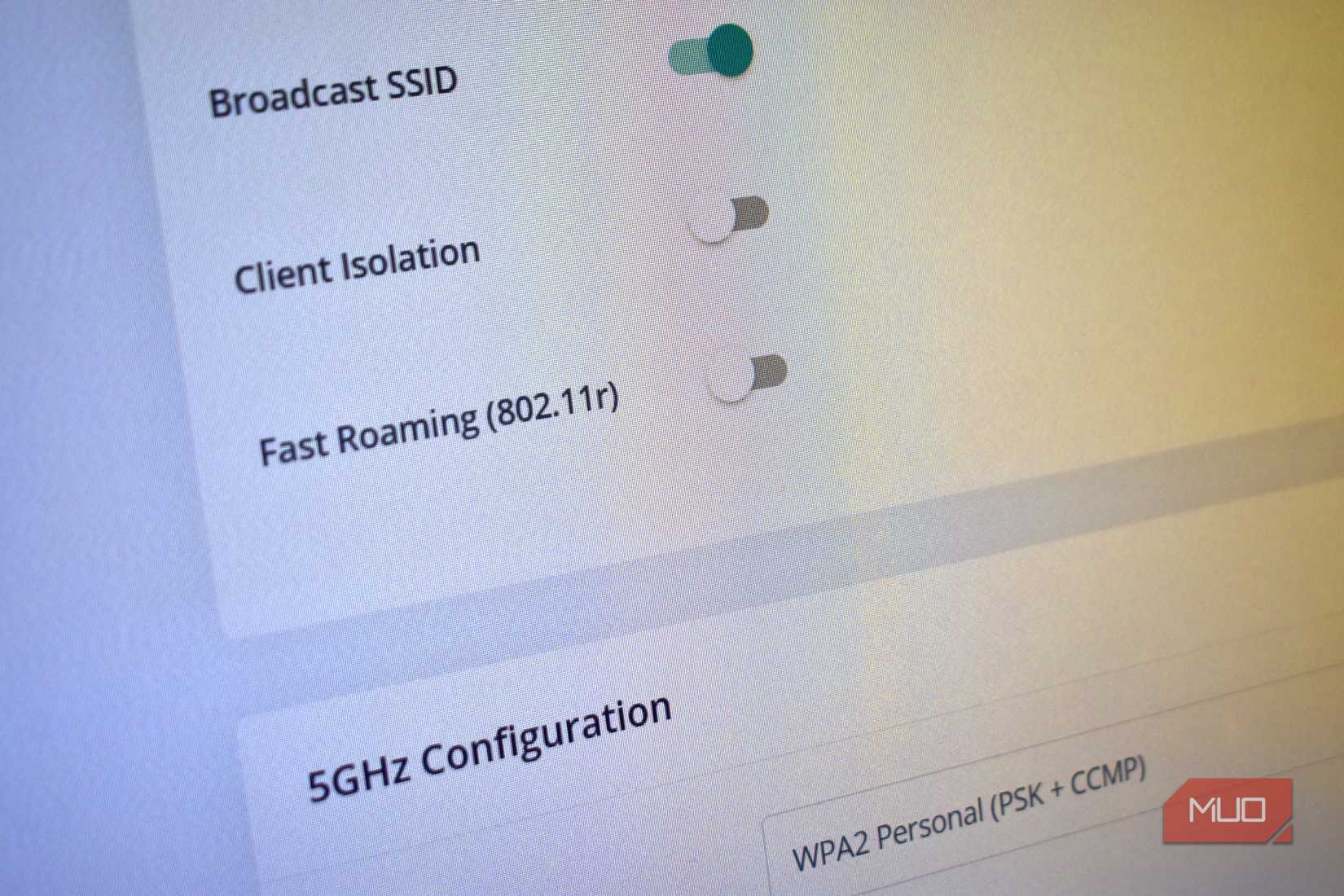
Fixing this issue was surprisingly simple. Whereas my router used a single SSID for all three bands out of the box, it could be configured to use a different SSID for each band. All I had to do was disable the automatic band steering and choose a name for each of my new SSIDs. Being the creative type, I settled on the obvious names: Home_2.4GHz, Home_5GHz, and Home_6GHz.
Next, I had to reconfigure all of my devices to connect to the band best suited to their needs. Many smart home devices are limited to the 2.4GHz band, so they connect to Home_2.4GHz. More data-hungry devices that don't support the 6GHz band connect to Home_5GHz, while compatible laptops and phones use Home_6GHz.
As if by magic, my laptop now maintains the same speedy performance (almost) anywhere I go. The limitations of the 6GHz band remain, so I can't stray too far without things going awry. But I can rest easy in the knowledge that I'll get the full benefit of that band when I return. That alone is worth the time it took to diagnose and then fix this issue.
The verdict is in Split those SSIDs
It's been some time since I made the move to split SSIDs, and I'm pleased with how things have gone. There's the added benefit of keeping slower devices away from the faster bands and potentially slowing other devices down, too.
But above all, I'm just happy knowing that my 6GHz-capable devices are actually using that band and all the bandwidth it offers.
 Related