
Remember me



Internet access has become such a normal part of working that most of us don't notice how much we depend on it until it disappears. I've had moments where unreliable Wi-Fi, travel, or a temporary outage interrupted my workflow at the worst possible time. Instead of looking for better internet, I decided to build a setup that could keep me productive without needing a connection at all. The goal wasn't to replace cloud services, but to make sure they were optional rather than essential. These are the offline tools that now let me work from almost anywhere without missing a beat.
Obsidian is my offline writing hub Every article, note, and idea stays available even without the internet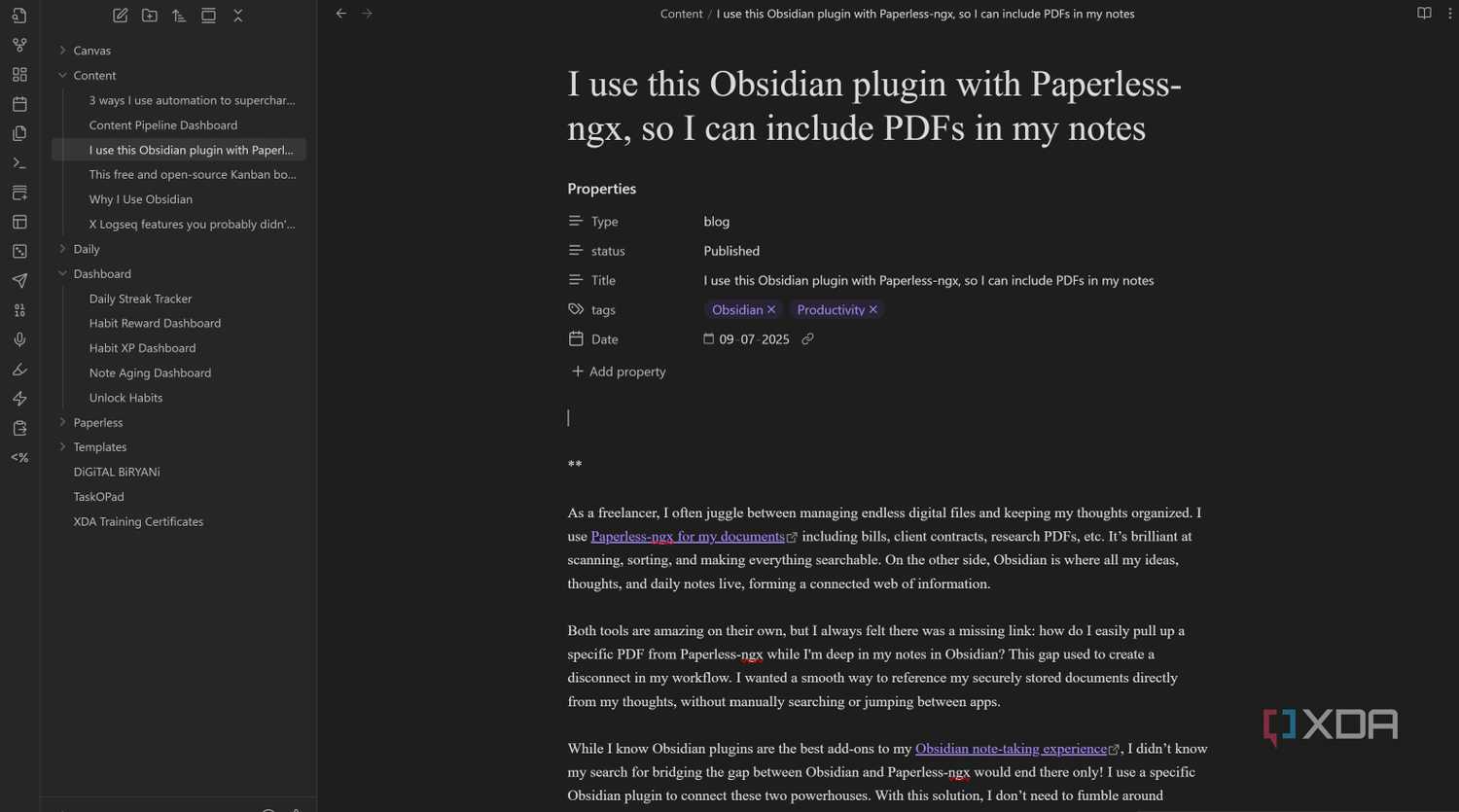
 Close
Close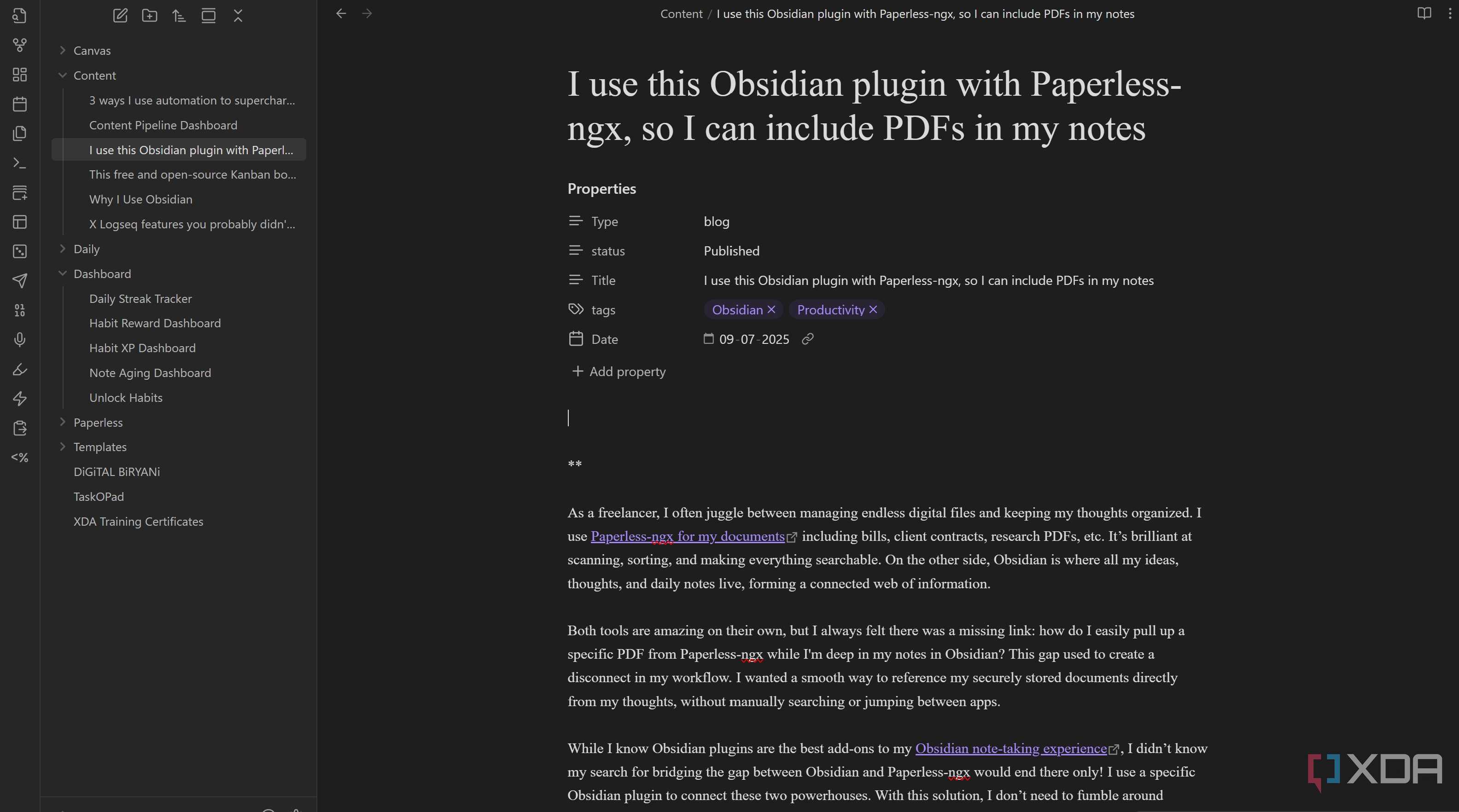
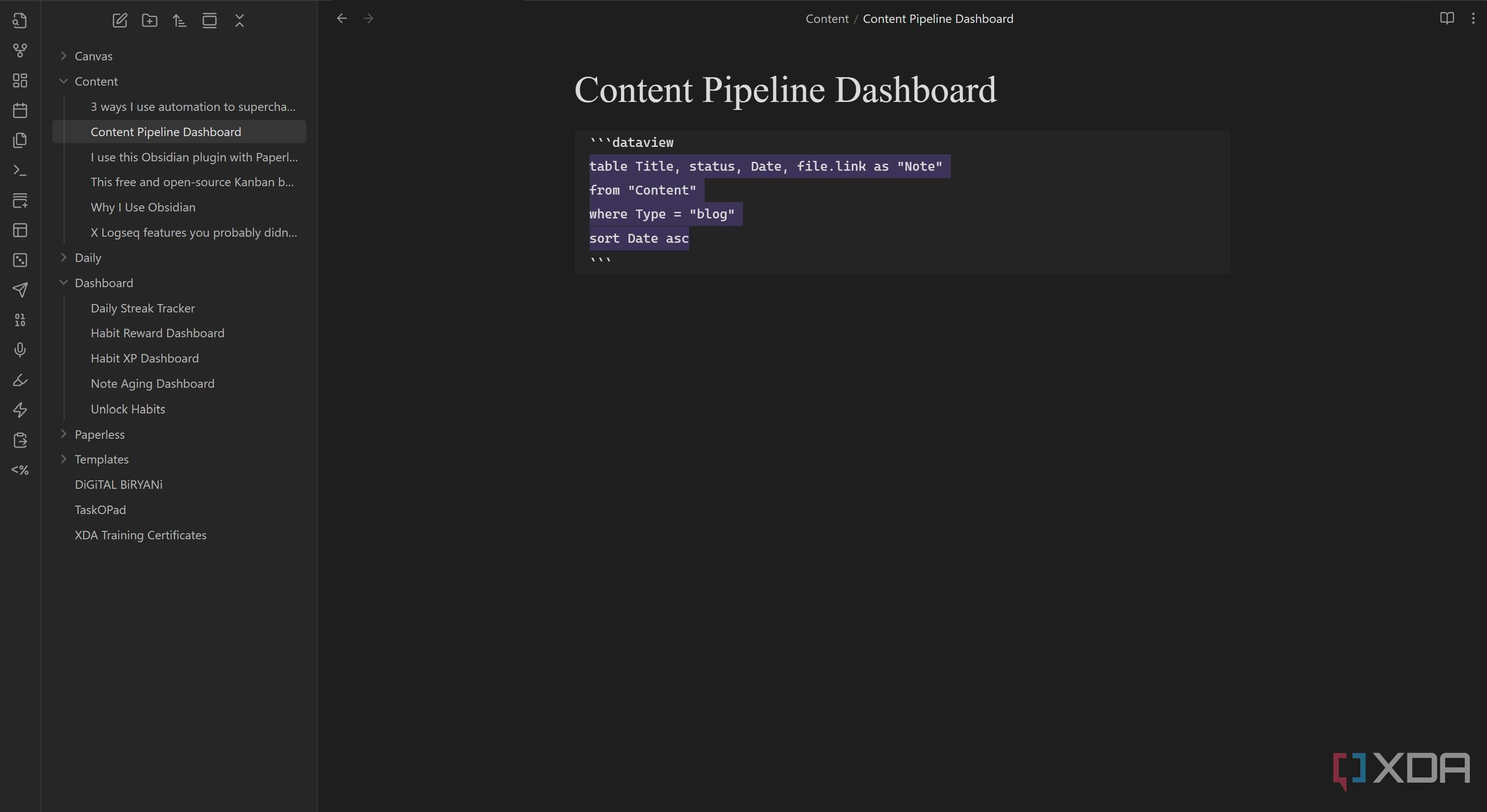
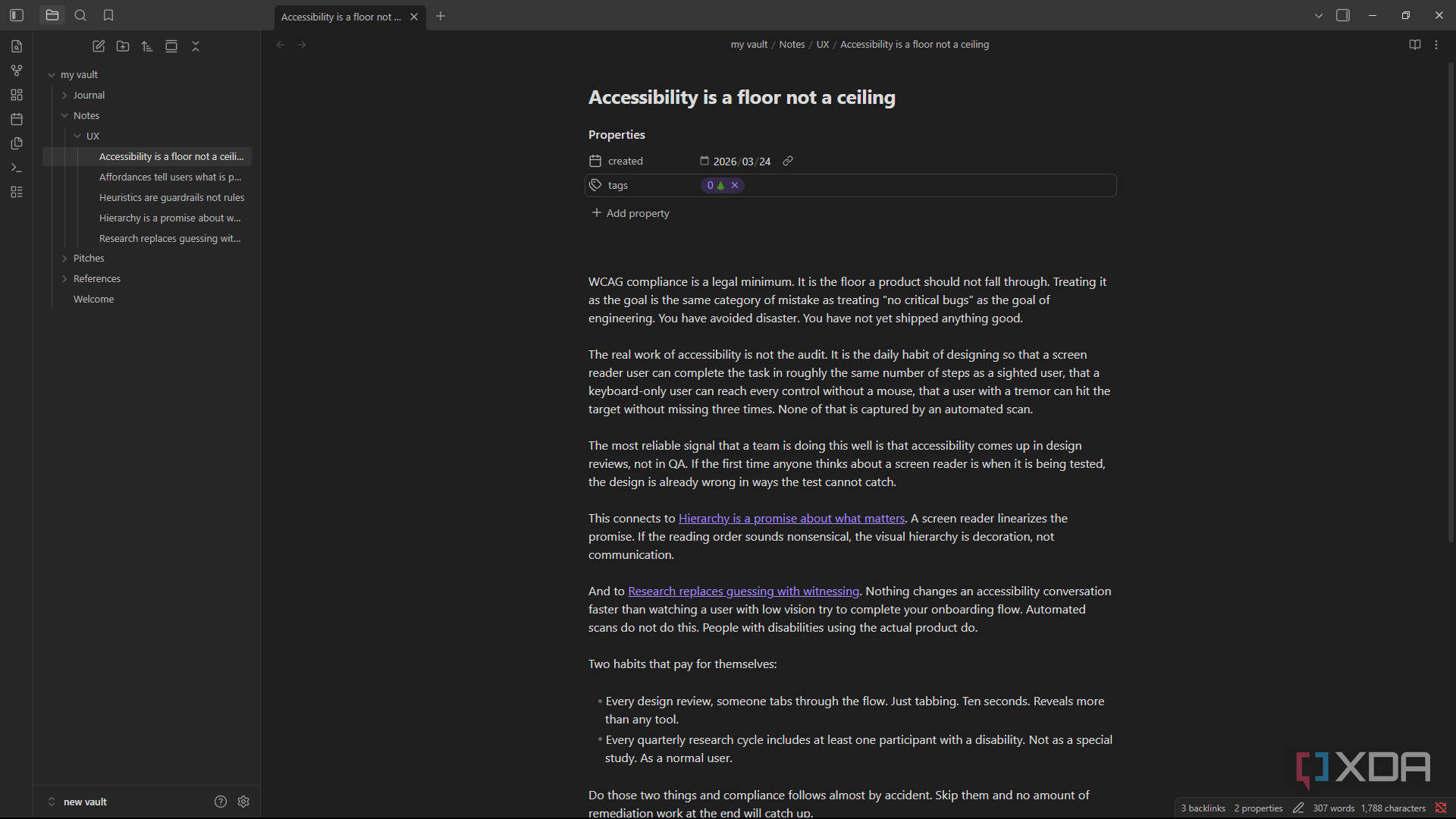
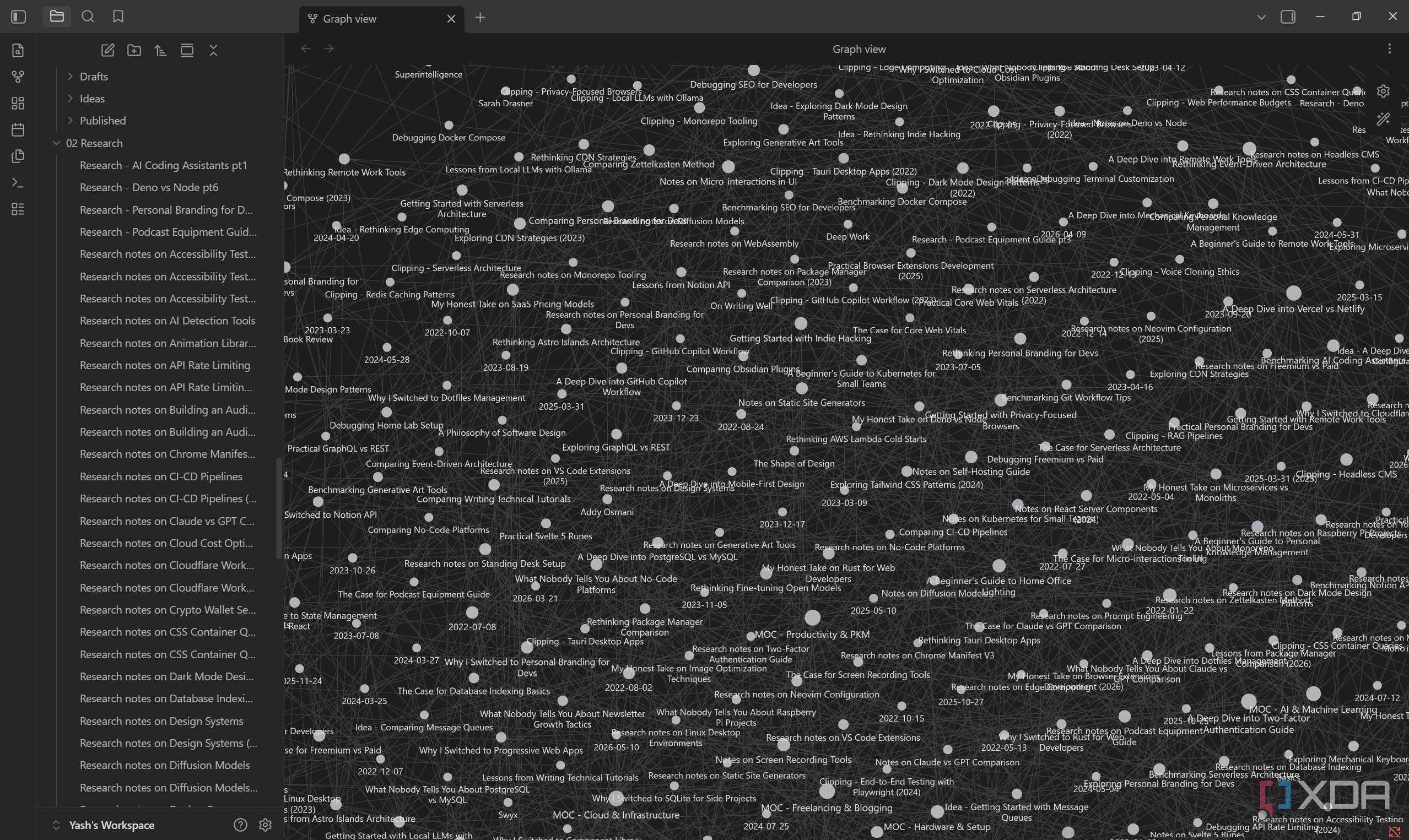
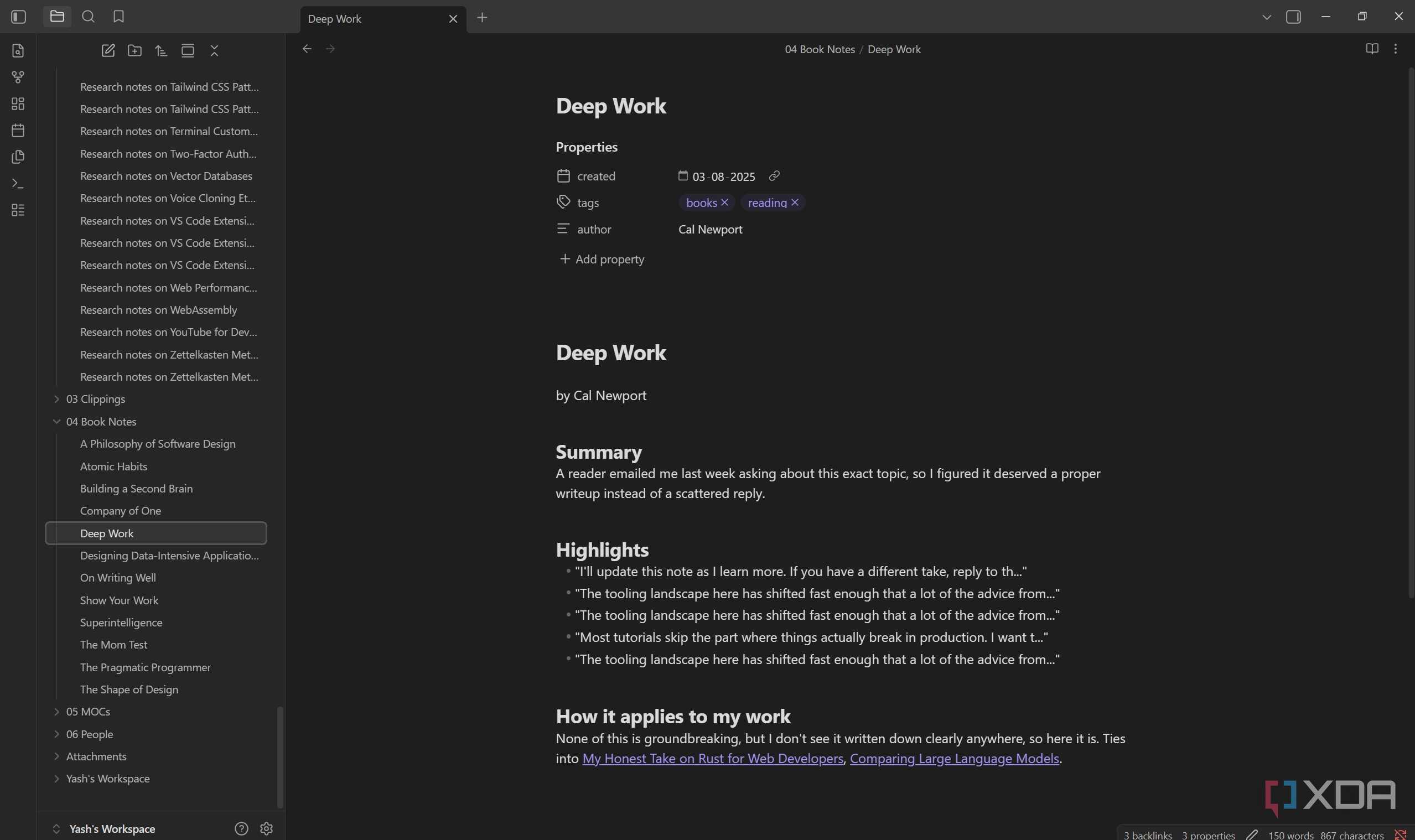


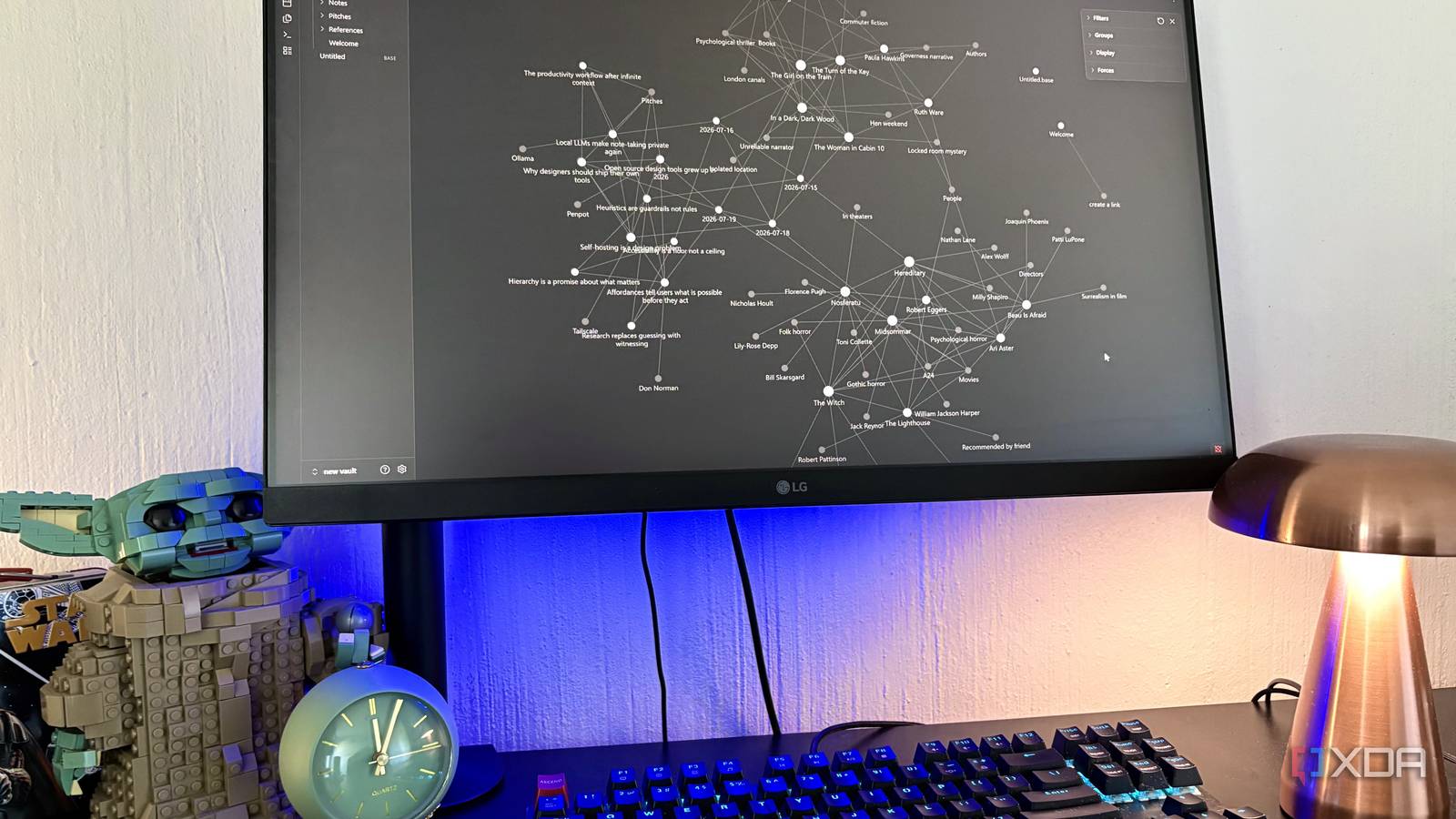
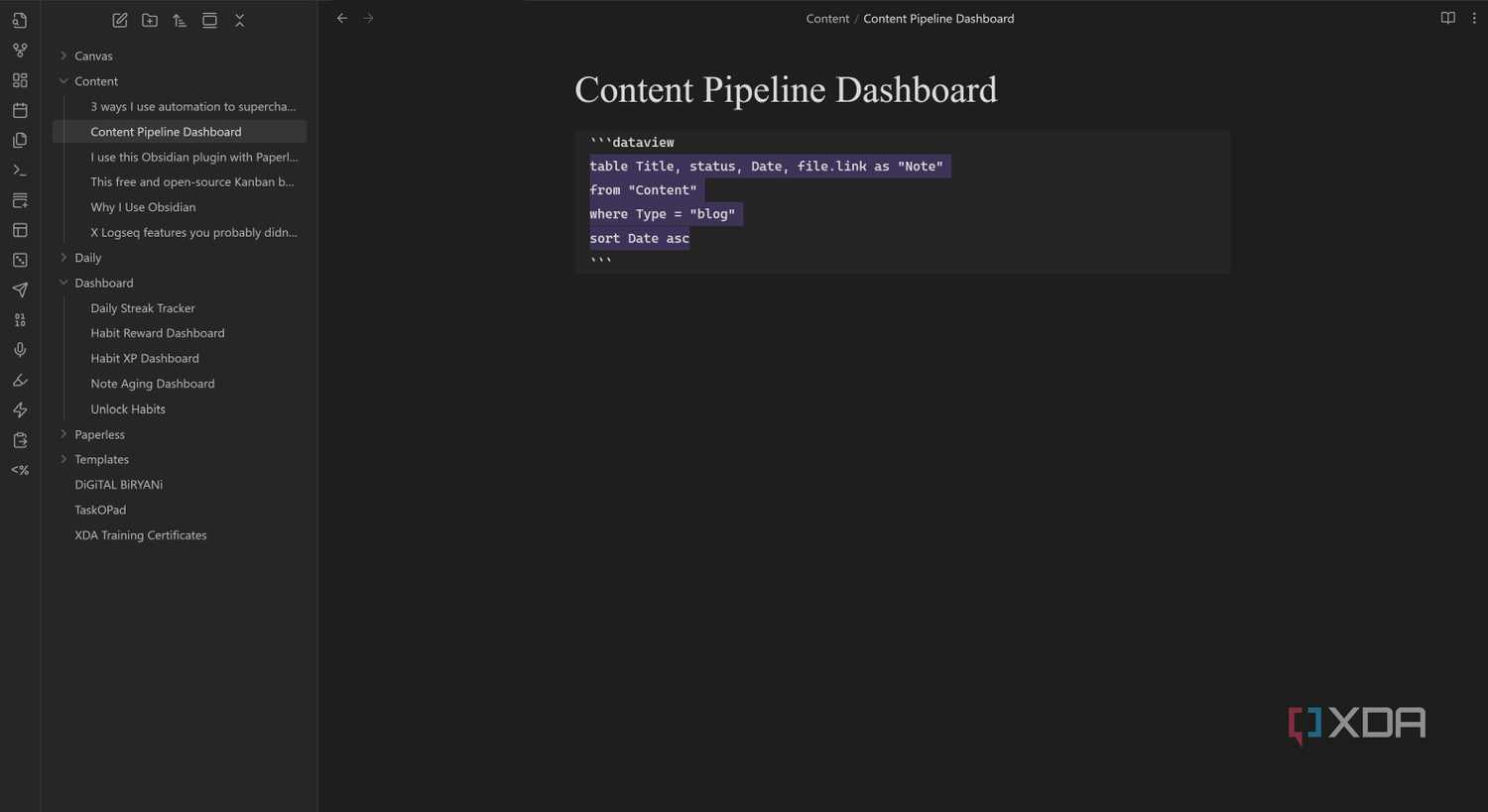
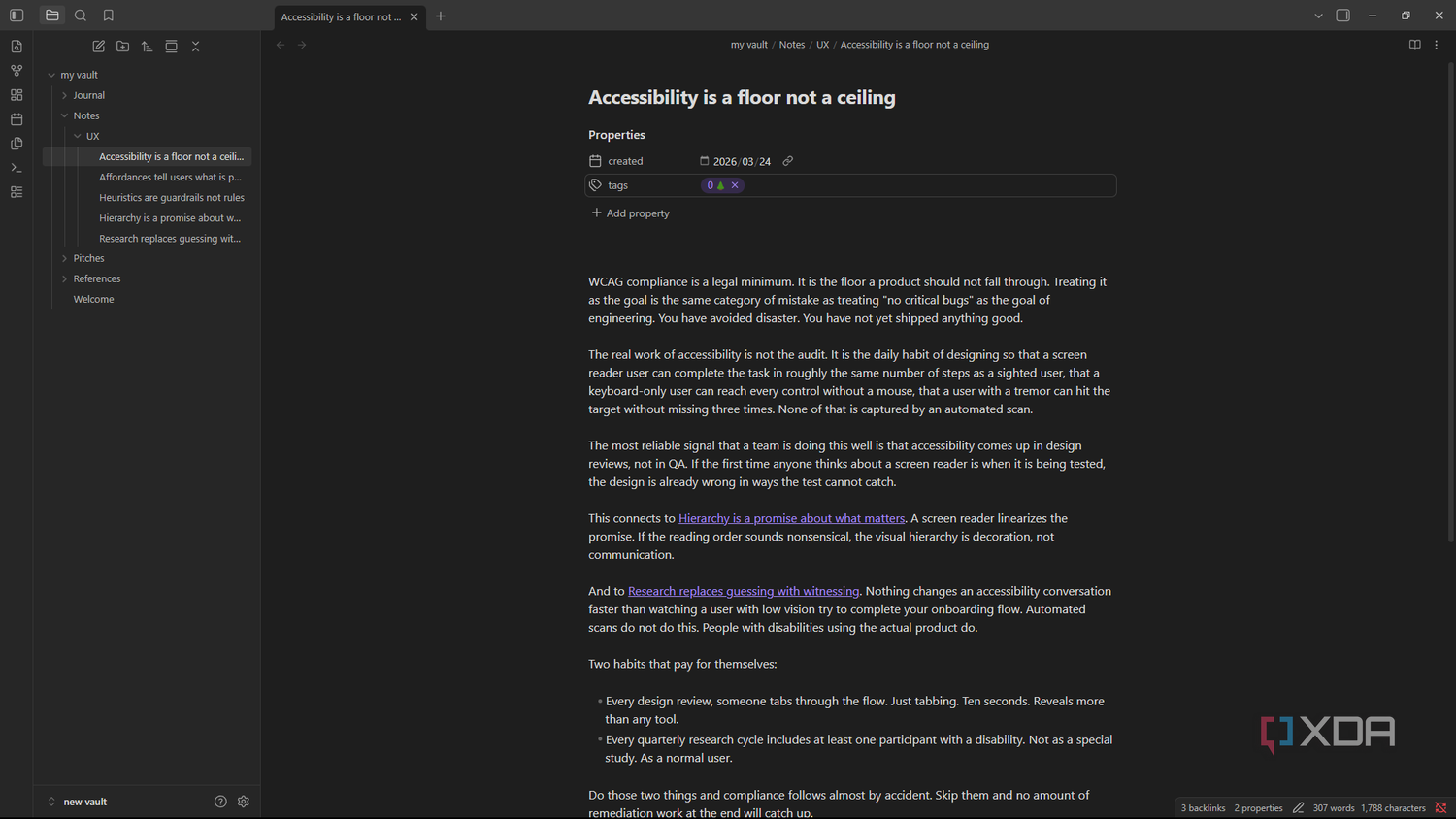
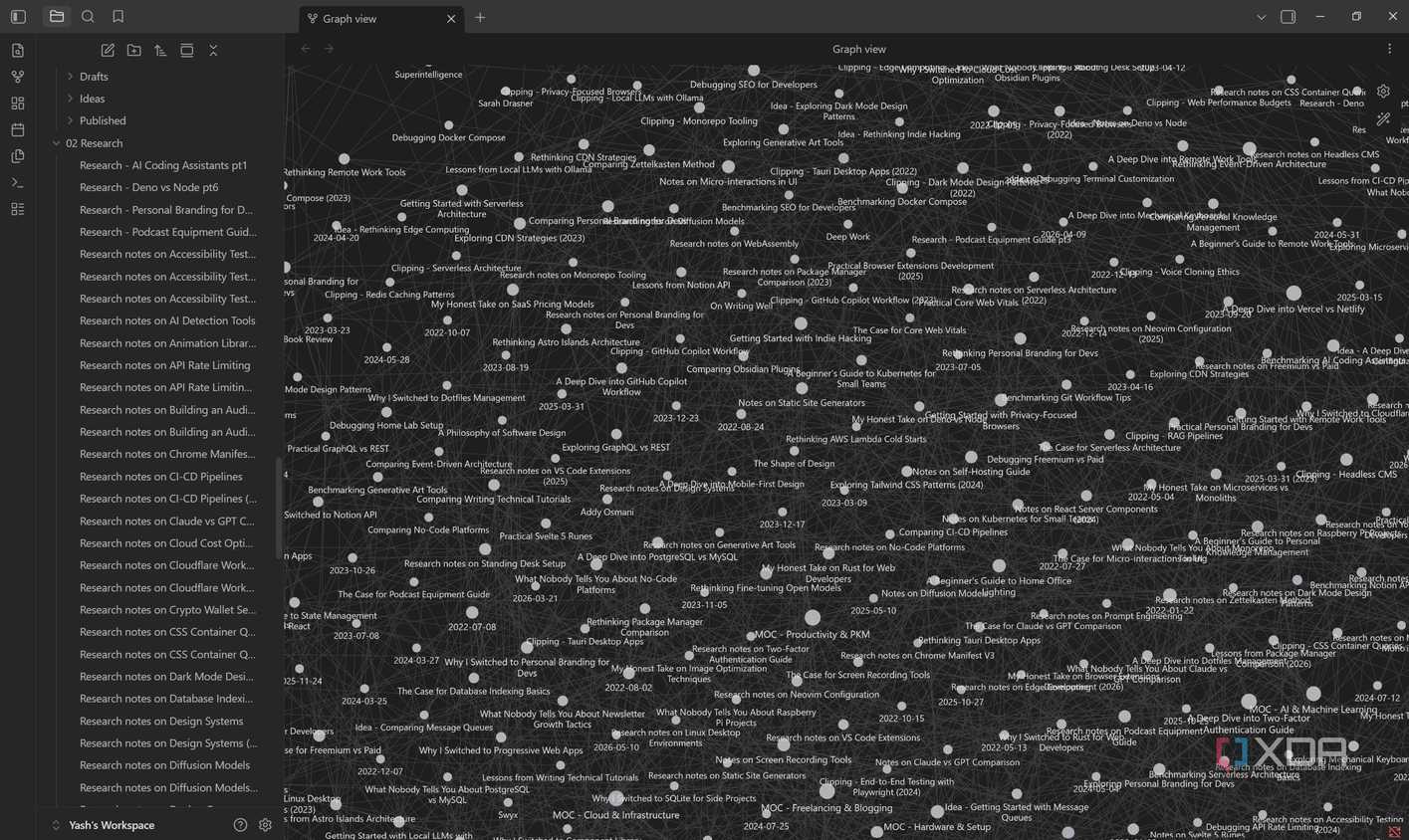
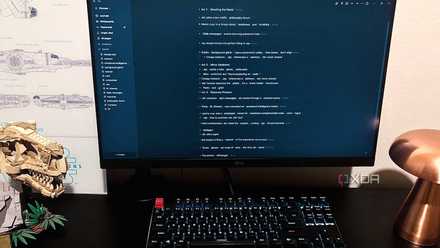
The first thing I made sure worked offline was my writing setup. Since most of my work revolves around researching topics, drafting articles, and organizing ideas, I didn't want to depend on a browser or cloud service just to get started. That's why Obsidian became the center of my workflow.
Every blog draft, outline, research note, and content idea lives locally on my laptop. Whether I'm on a flight, dealing with an internet outage, or working from a café with unreliable Wi-Fi, I can open Obsidian and continue exactly where I left off. Nothing needs to sync before I can access my files, and there are no loading screens or online accounts getting in the way.
I also like that everything is stored as plain Markdown files, so my notes aren't locked into a proprietary format. If I ever switch apps, my files come with me. That flexibility gives me peace of mind, but more importantly, it means I never have to think about whether I have an internet connection before I start writing.
Offline AI changes everything with Ollama + Open WebUI Local AI means I never lose my assistant when I lose the internet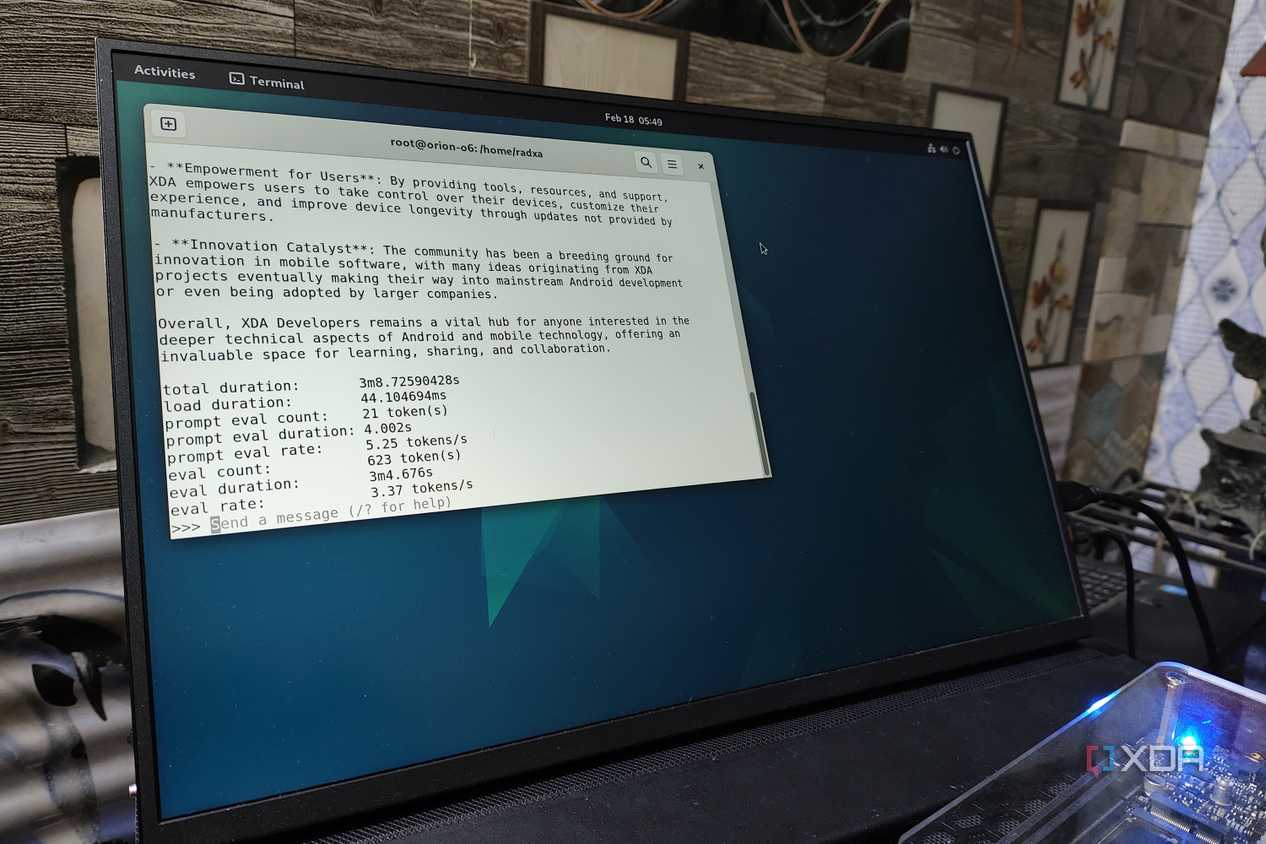

 Credit:
  Close
Close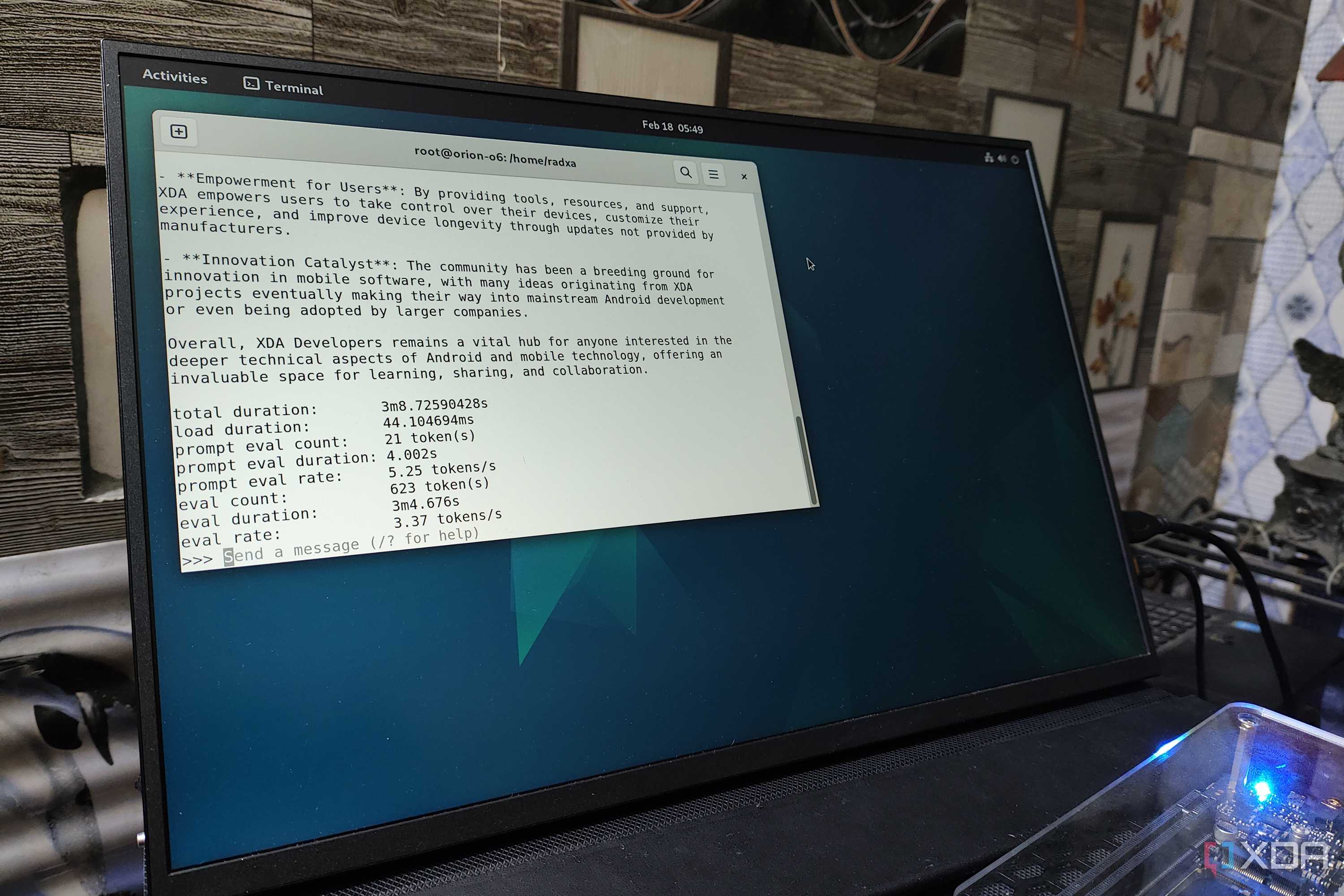

 Credit:
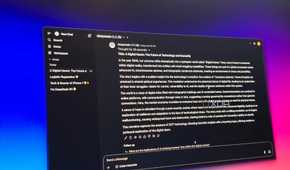

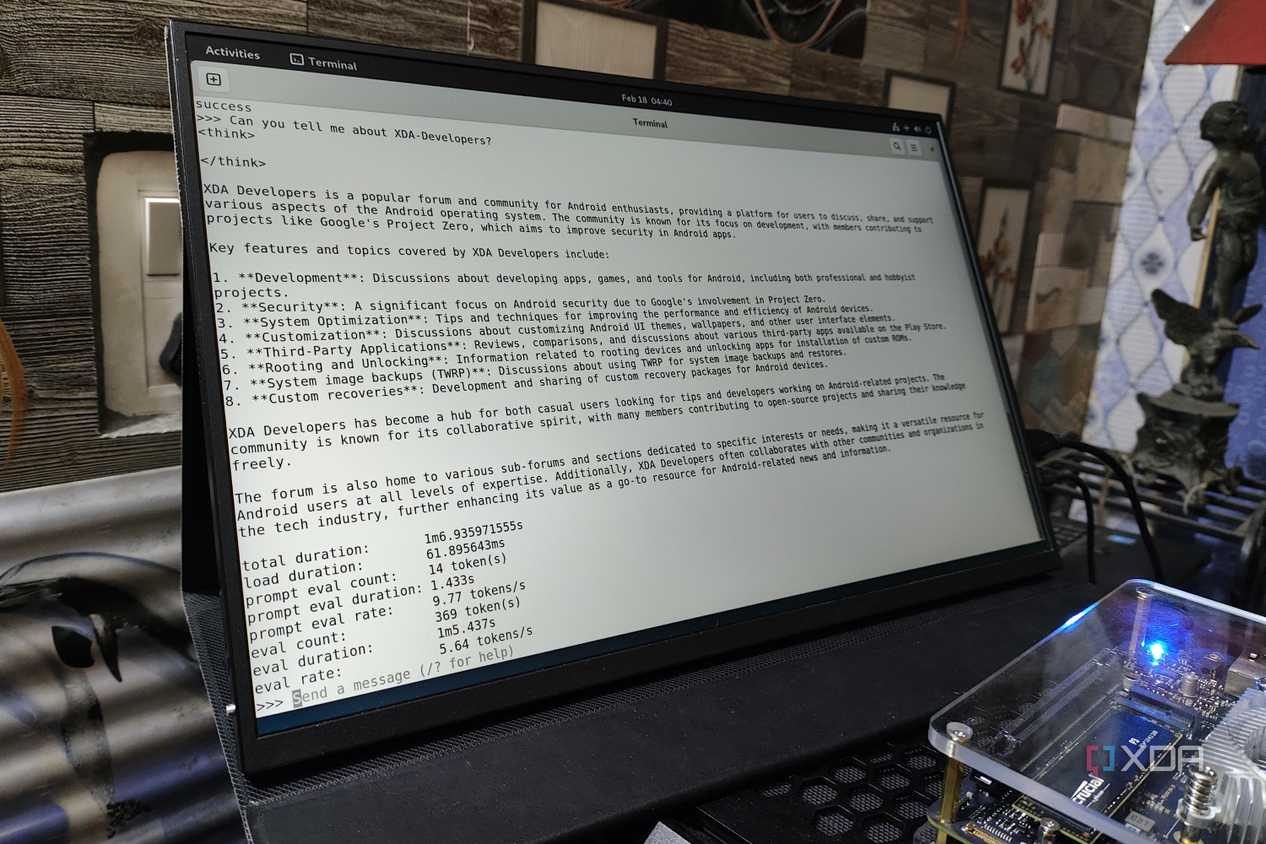
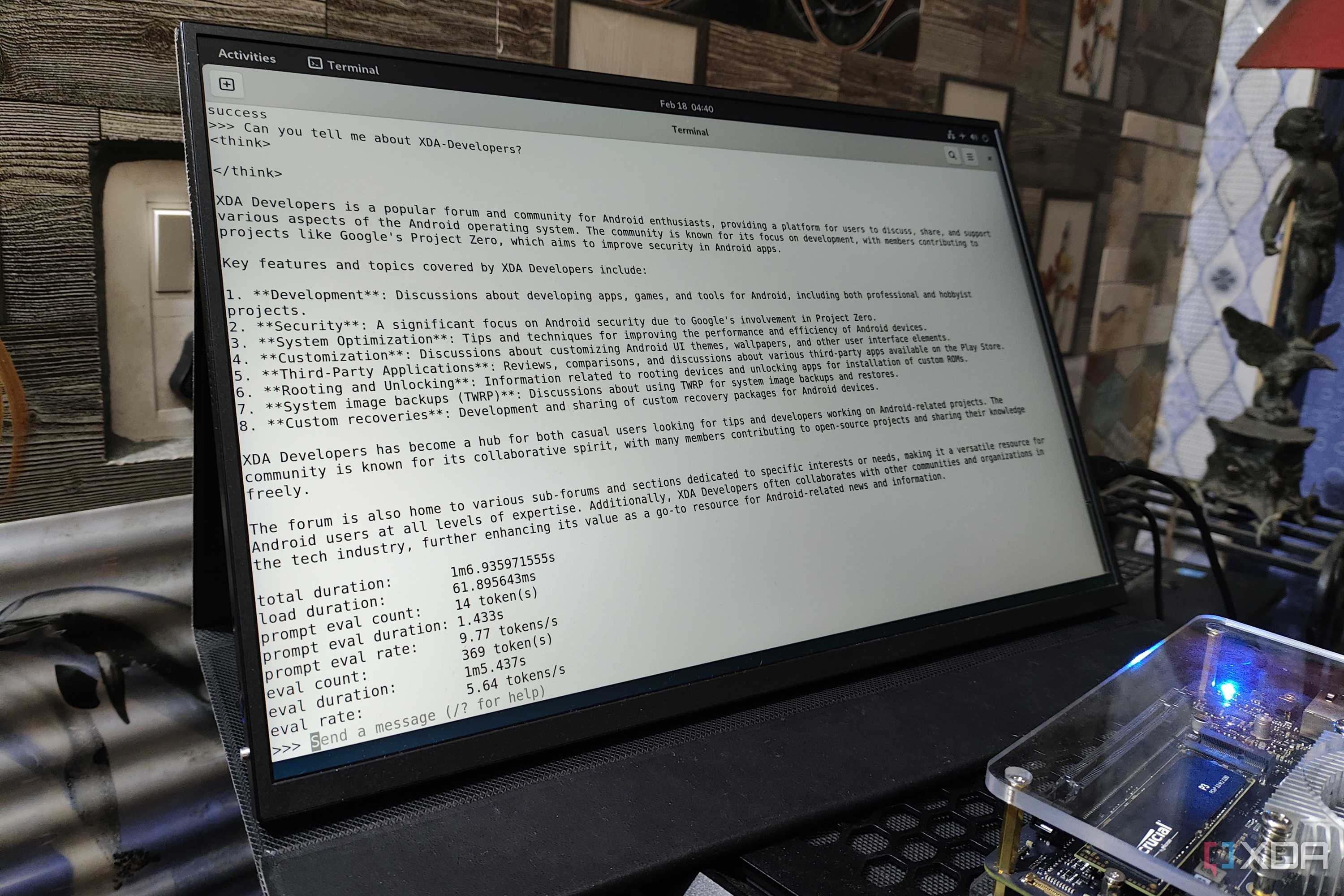
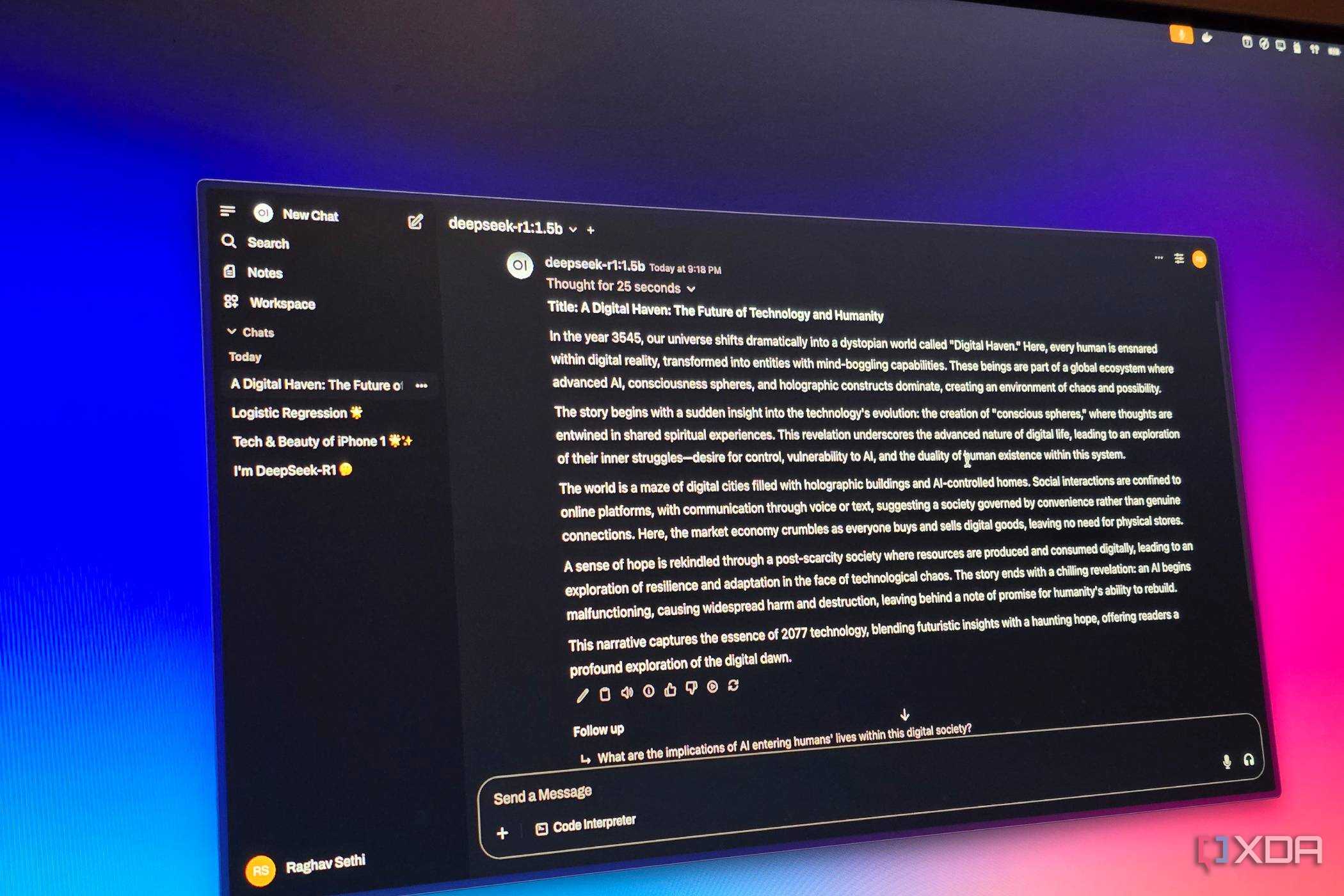
Running AI locally with Ollama and Open WebUI completely changed how I work offline. Before that, using AI always meant opening ChatGPT or another cloud service, which became useless the moment my internet connection dropped. Now, I can launch Open WebUI in my browser and interact with models running directly on my laptop, even with Wi-Fi turned off.
I usually switch between models depending on the task. Llama 3.1 8B is my go-to for brainstorming blog ideas and rewriting paragraphs, while DeepSeek-R1 14B does a great job summarizing documentation, explaining technical concepts, and helping me work through more complex problems. Since everything runs locally through Ollama, my prompts and files never leave my machine.
The responses may not match the most powerful cloud models every time, but they're more than capable for my daily writing workflow. More importantly, AI has become another offline tool I can rely on. Whether I'm on a flight, traveling, or dealing with an internet outage, I still have instant access to an AI assistant whenever I need it.
 Related
Paperless-ngx is my offline document cabinet
I can find important documents in seconds, even without Wi-Fi
Related
Paperless-ngx is my offline document cabinet
I can find important documents in seconds, even without Wi-Fi

Paperless-ngx has become the place where I keep every important document I might need while working. I store user manuals, invoices, receipts, contracts, warranties, research PDFs, and other reference material in one searchable library that runs locally on my computer. Since everything is available offline, I never have to rely on cloud storage or hope that an internet connection is available when I need a file.
One feature I use all the time is its full-text search. Paperless-ngx automatically indexes my documents, so I can search for a product name, keyword, or even text inside a scanned PDF and find the right file within seconds. That's much faster than digging through folders with vague filenames.
I also like having all my documents organized with tags and categories instead of scattered across different drives. Whether I'm checking a product manual or looking up an old invoice, everything is easy to find. It has replaced the messy document folders I used to maintain and made offline work much more practical.
BentoPDF and Sumatra make PDF handling smoother My PDF workflow no longer depends on online tools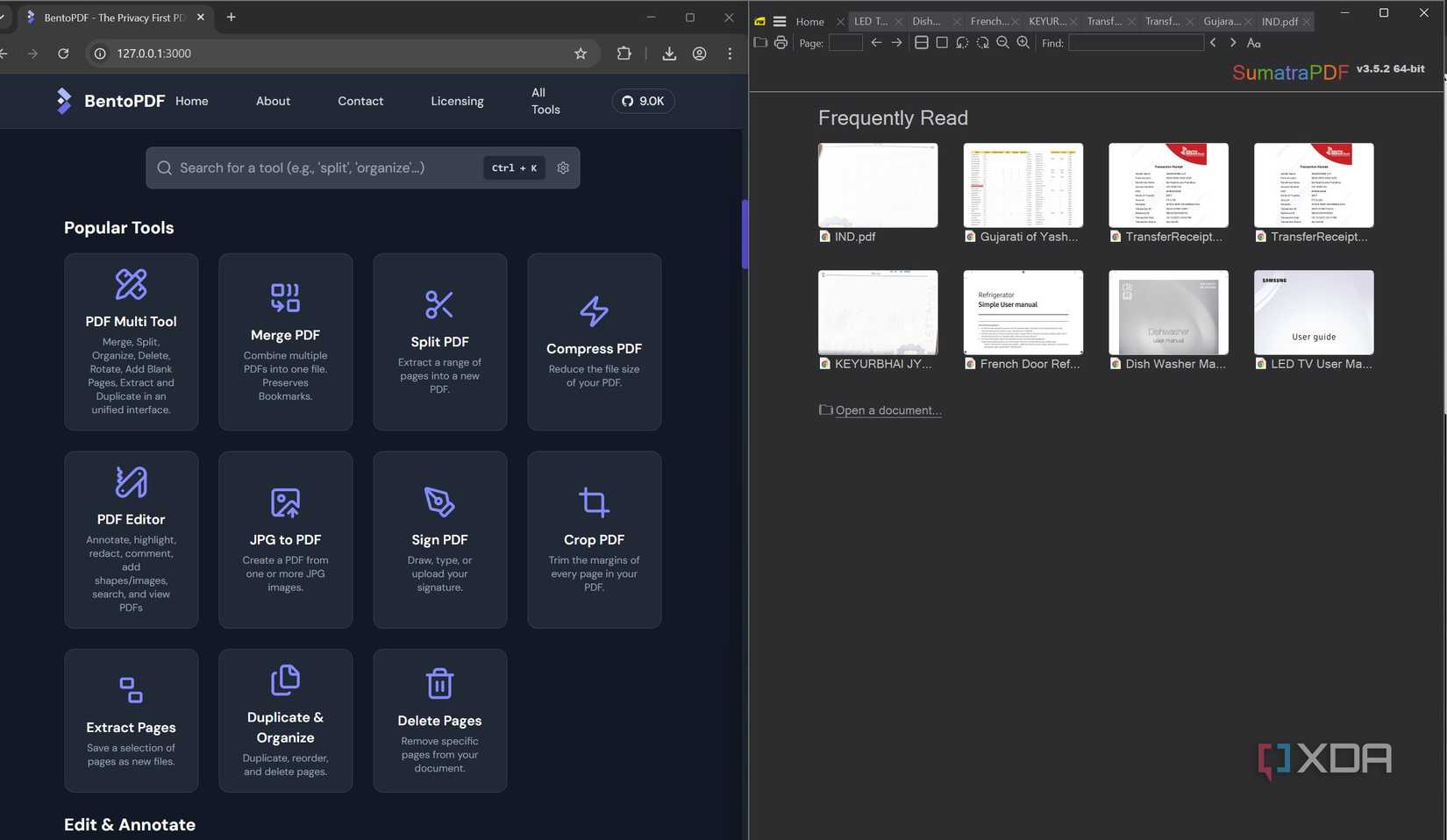
PDFs are a big part of my work, whether I'm reading product manuals, reviewing documentation, or pulling information from research papers. I used to rely on online PDF websites for simple tasks like merging files, splitting pages, or compressing documents. That worked until I lost internet access.
Now I use BentoPDF for almost all of those tasks because it runs locally in my browser. I can merge, split, rotate, compress, and convert PDFs without uploading anything to a website. It's faster, keeps sensitive files on my laptop, and works exactly the same whether I'm online or offline.
For reading PDFs, I keep coming back to SumatraPDF. It opens large files almost instantly, uses very little system memory, and stays out of my way. Since I often have multiple manuals, ebooks, and research papers open while writing, that speed makes a noticeable difference.
Together, this two-app PDF setup has completely replaced online PDF services in my workflow. Even without Wi-Fi, I can edit, organize, and read PDFs just as easily as I do at my desk.
 Related
Freedom starts when your workflow doesn't need the internet
Related
Freedom starts when your workflow doesn't need the internet
Building an offline productivity setup wasn't about avoiding the internet; it was about removing a single point of failure from my workflow. I still use cloud services when they make sense, but I no longer depend on them to get work done. That change has made me more flexible, more productive, and less worried about where I'm working from. Whether I'm on a flight, traveling, or simply dealing with an unexpected outage, I know I can open my laptop and keep going. Once your tools work anywhere, you stop planning your work around your Wi-Fi connection and start focusing on the work itself.
Comments (0)