
Remember me










Subscribe to my YouTube for more practical AI tutorials and interviews and upgrade to unlock my personal AI OS with useful AI skills, $270 in AI tool credits, live monthly workshops, and courses on Hermes and Codex (coming soon).
Dear subscribers,
I now use ChatGPT Work and GPT-5.6 for almost everything I do on my computer, and I’m going to show you my full setup in this video and written guide.
You’ll learn how to choose the right GPT-5.6 model, connect your apps, manage email and calendar, automate recurring work, build Sites, and more.
Watch my tutorial now for the full 28 min walkthrough, or keep reading below.
Timestamps:
(00:00) How I use ChatGPT Work for almost everything
(01:04) Chat vs. Work vs. Codex: What’s the difference?
(02:22) Which GPT-5.6 model and effort to use
(03:18) Personalizing ChatGPT Work’s custom instructions
(06:23) Connect your apps and organize your Work threads
(09:30) Let ChatGPT manage email and draft replies in your voice
(13:47) Schedule events and prep for meetings automatically
(17:19) Automate recurring work with scheduled tasks
(19:23) Continue your Work tasks from your phone
(21:01) Publish travel guides, games, and product plans as Sites
I’m proud to partner with Wispr Flow

I use Wispr Flow to dictate first drafts much faster than I can type. It helps me get my ideas down while they’re still fresh, so I can focus on editing. I use it all the time in ChatGPT Work and Codex, and it’s been a huge time saver. Try it for free with my link.
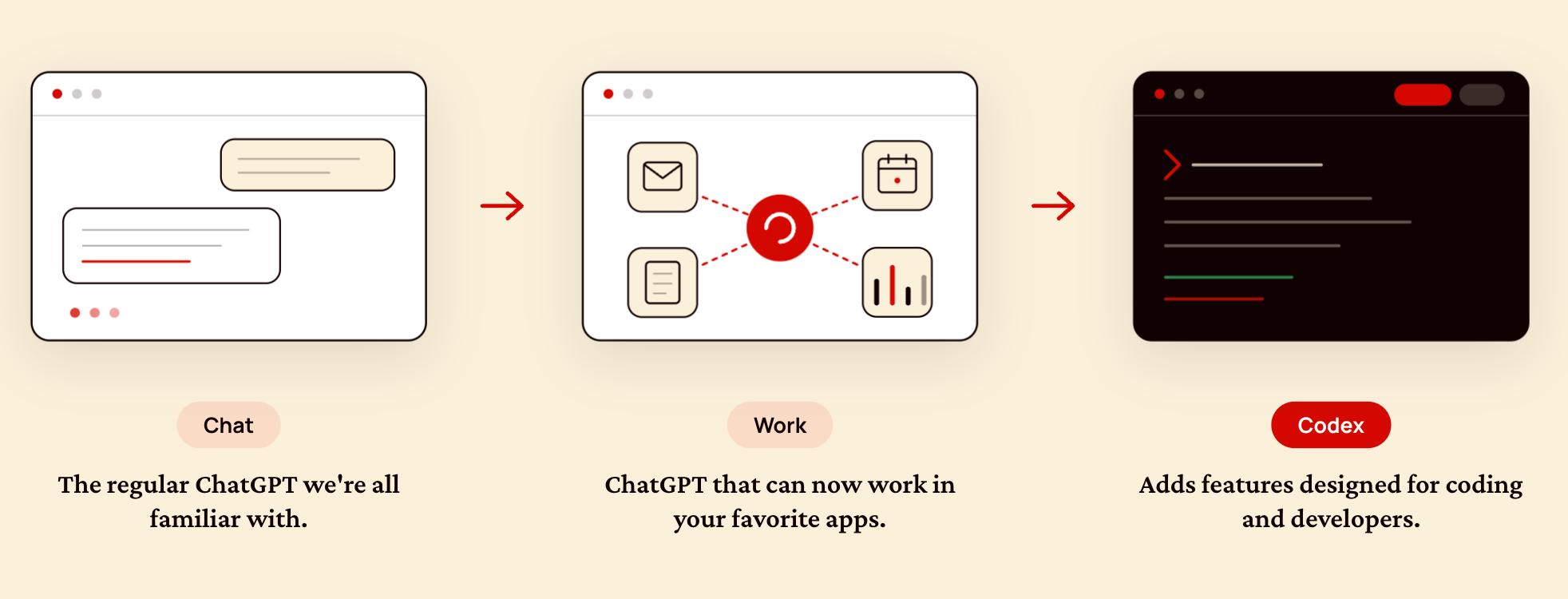
Here’s the simplest way to think about the three modes:
Chat is the regular ChatGPT we’re all familiar with.
Work lets ChatGPT take action in your favorite apps.
Codex adds features designed for coding and developers.
Honestly, I’m not a fan of Work and Codex existing as separate modes. As far as I can tell, there are only small differences in the UI and how responses are presented. For example, Codex adds a Pull Request tab that developers can use to review each other’s code.
So I don’t think it makes much difference whether you use Work or Codex. My recommendation is simple:
Use the ChatGPT desktop app which is far more capable than ChatGPT for the web.
GPT-5.6 comes in three variants (Sol, Terra, and Luna), each with five effort levels from Low to Ultra. So which model and effort should you default to?
Here’s a chart that shows intelligence vs. output tokens for the various options:
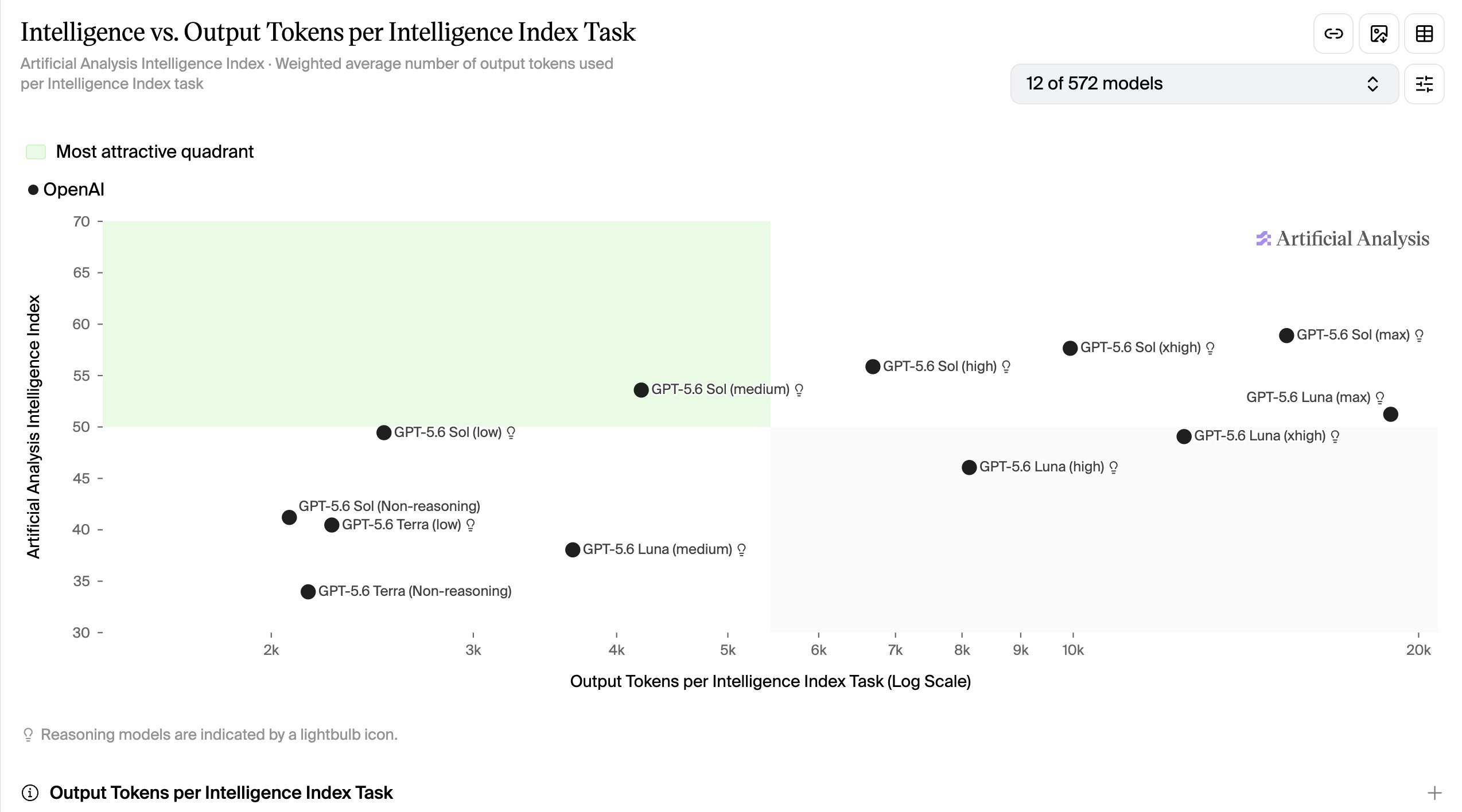
Based on this chart and my experience, I recommend that you:
Use GPT-5.6 Sol (medium) for the best balance of intelligence and token use.
I sometimes use Sol (high) for planning, but overall I haven’t noticed much of a difference between that and medium. I almost never use Terra or Luna.
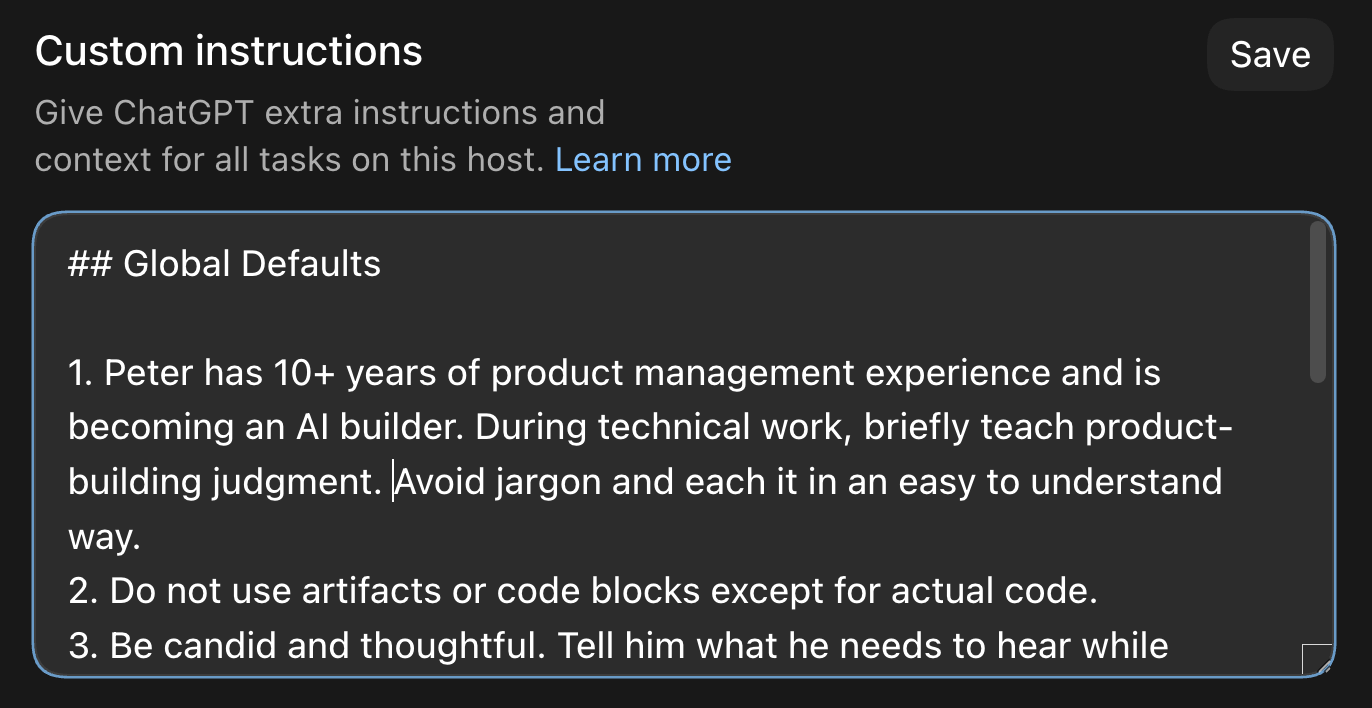
On a fresh install, I go to Settings → Personalization and set my Custom Instructions to:
Teach me technical concepts without using jargon.
Challenge my thinking instead of agreeing with every prompt.
Remove AI slop phrases and patterns.
Here are my exact custom instructions if you want to copy my setup:
I’m a PM with 10+ years of experience and a creator learning to build with AI. Explain technical concepts and trade-offs in a few plain sentences.
Be candid but caring. Say what I need to hear, not what I want to hear. Be specific and concise. Every word must earn its place.
When I push back, re-examine your reasoning before responding. Update your answer if I’m right and explain what changed your mind. Hold your ground if I’m not and explain why.
Write plainly in the active voice. Never use AI slop words or phrases like “delve,” “foster,” “leverage,” “it’s worth noting,” “importantly,” “Question? Answer.” or “This isn’t about X. It’s about Y.” Use em dashes sparingly.
Use code blocks only for code, never prose.
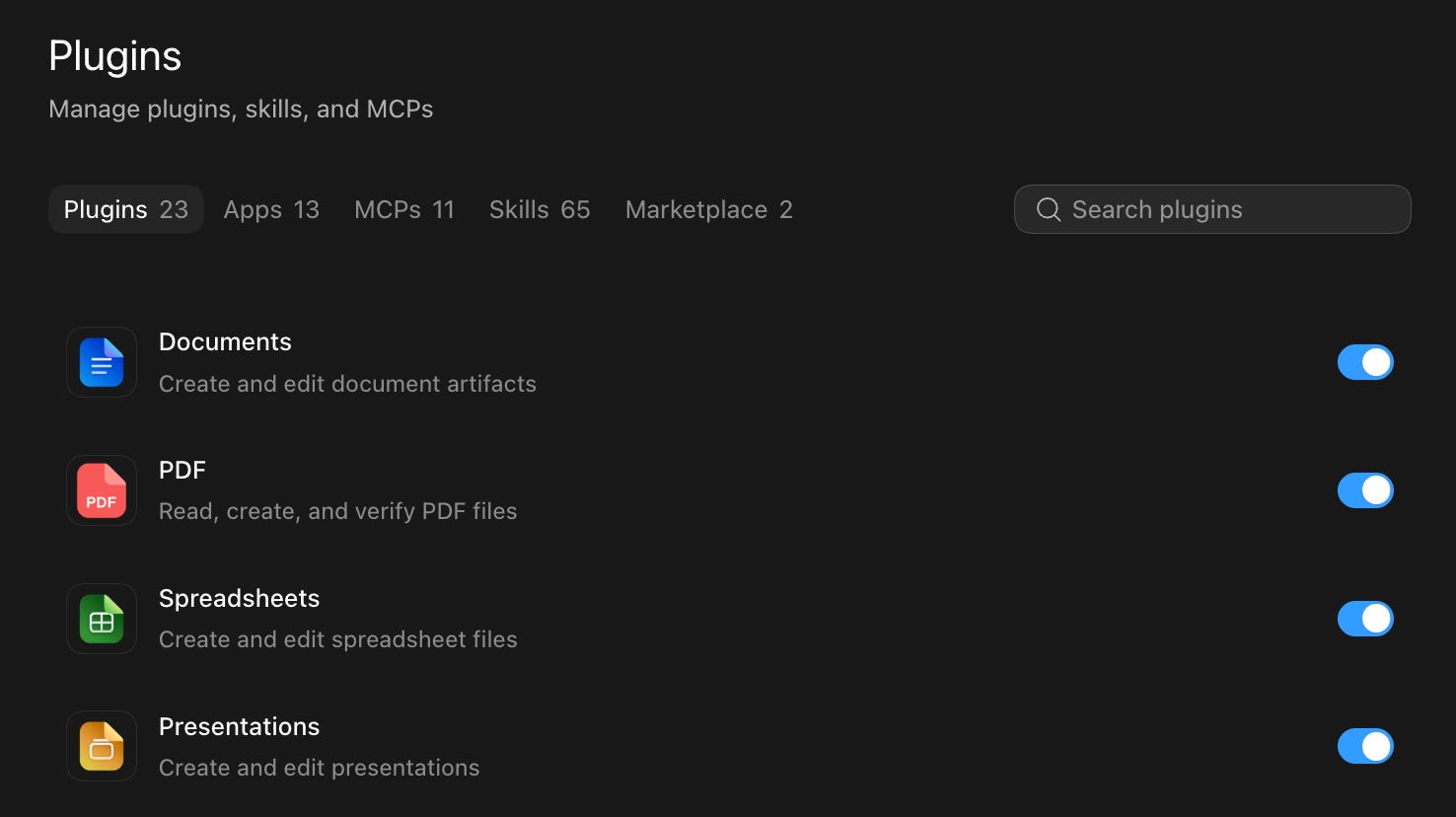
Plugins connect ChatGPT Work and Codex to the apps you use every day.
The screenshot above shows some of the plugins I have installed. I think the bare minimum set is:
Gmail
Google Calendar
Documents, Presentations, Spreadsheets, and Google Drive
Other useful plugins include the PDF plugin for editing PDFs, Slack for messages, Notion for wiki articles, Figma for design, and Granola for meeting transcripts.
Install plugins for any app that you want ChatGPT to use. This is the key setup step that makes ChatGPT Work and Codex your everything app.

As you use ChatGPT Work more, you may get overwhelmed by all your active projects and threads. To avoid this:
Keep one long-running thread for each type of work.
For example, in my Personal OS project, my threads include:
Newsletter to edit all newsletter posts.
Social for drafting and making posts for social networks.
Podcast to prep and do post-production for interviews.
ChatGPT Work and Codex are very good at compacting long conversations, so you can keep chatting in the same thread without worrying about GPT getting confused.
I also pin my most-used threads, such as my Advisor thread for strategy and business advice and my Chief of Staff thread for email, calendar, and more.
These days, I manage my email and calendar almost entirely through ChatGPT Work and Codex instead of opening Gmail or Google Calendar. Let me walk through how I:
Find forgotten follow-ups and subscriptions to cancel
Draft email replies that sound like you
Manage your calendar and avoid meeting conflicts
Get briefed on upcoming meetings